AI UGC Video Generator

Turn product photos, selling points, and a script into UGC-style videos with OiiOii. Build a presenter-led introduction, show the product in use, and bring the shots together on an editable Canvas. Start with the product detail your audience needs to see, then shape the person, setting, and message around it.

Describe your product, presenter, and demonstration.
Prefer the full creator?

Make the product benefit visible

A useful UGC video gives the viewer something concrete to understand. Pair a short spoken hook with a demonstration that answers the same question. These creative examples focus on everyday product actions, so the presenter and the product share a clear purpose.

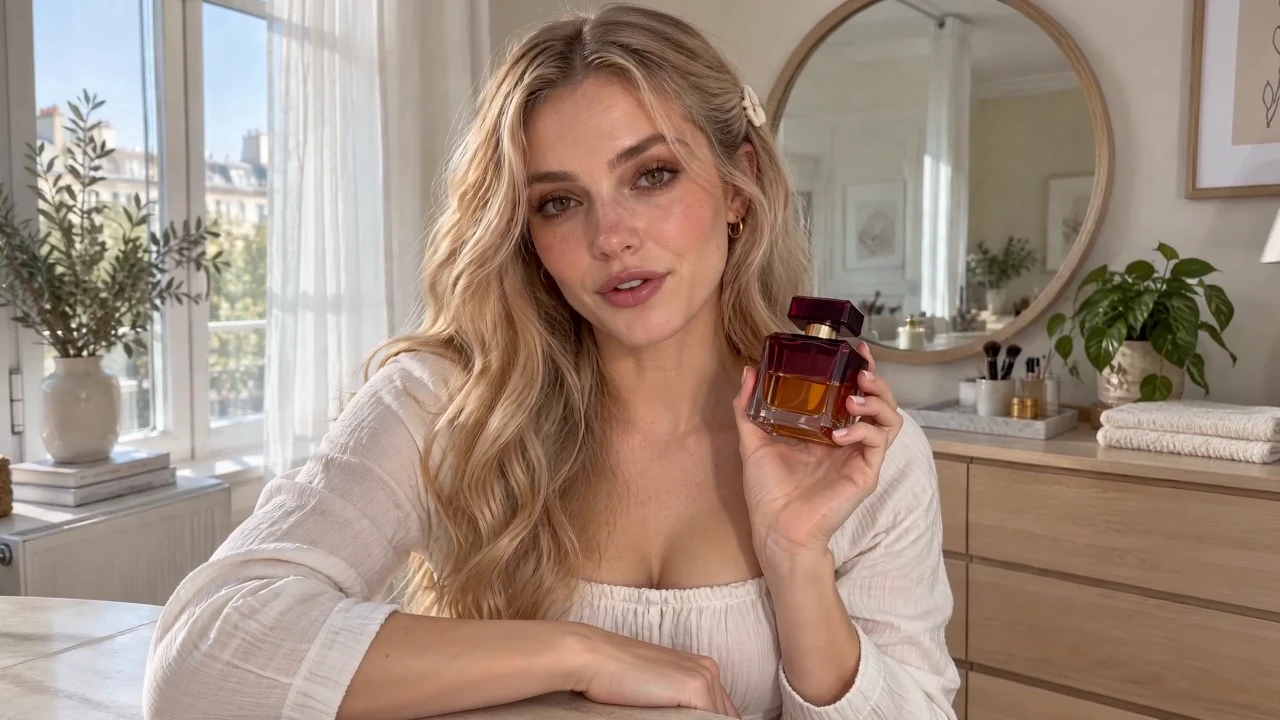
A presenter brings a fragrance bottle closer to the camera to show its details.

A fragrance introduction with the bottle up close

A presenter holds a fragrance bottle beside her face, then brings it closer to the camera so viewers can see the glass, cap, and amber liquid. The bright vanity setting gives the introduction an everyday context. Use this structure to pair a personal delivery with a clear product view, without making the visual stand in for a claim about scent or wear time.
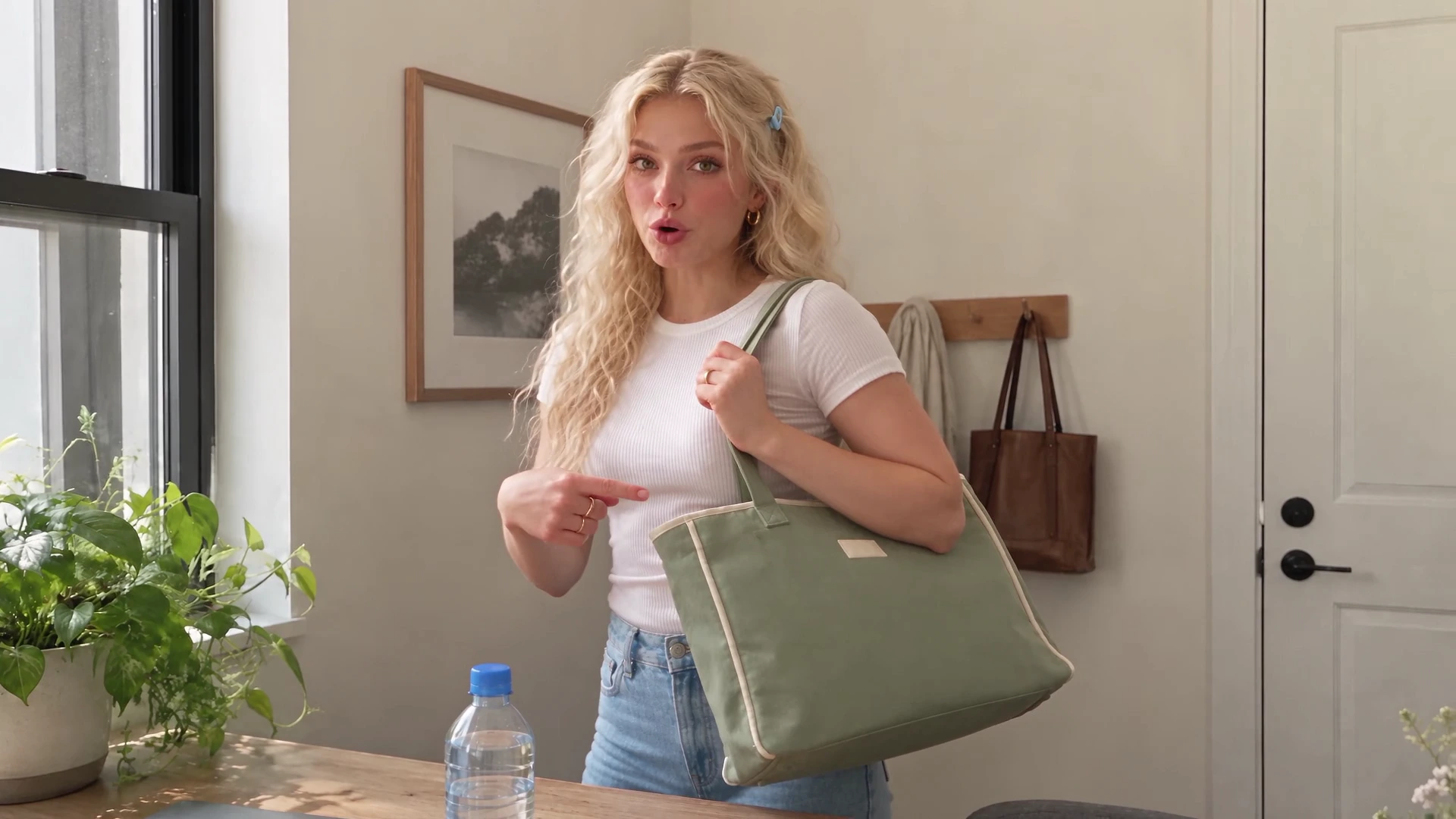
A presenter packs a green commuter bag, shows the interior, and carries it on her shoulder.

A green commuter bag packed for the day

A presenter shows a green commuter bag, packs everyday items, and reveals the arranged interior before carrying it on her shoulder. The sequence connects the bag on the table with its role in a daily routine. Use a similar progression when viewers need to see how belongings fit and how the product looks in use, rather than only seeing an empty bag.

Keep the presenter and message under your direction

Choose a presenter for the scene

Use an actor from the actor library or bring character references into your project. Decide on clothing, delivery, and surroundings that fit the product. Reference the selected character asset in the relevant shots so your instructions point to the intended person, rather than relying on a name alone.

Give each line a matching visual

Write the hook, demonstration, and closing line as separate beats. Ask the Agent to turn those beats into a shot list, then adjust the descriptions and order. If the line describes a folding hinge, the next shot should show the hinge moving, not an unrelated beauty shot.

How to make an AI UGC product video in OiiOii

1. Bring the product brief onto Canvas

Upload or drag clear product photos onto Canvas. Add a text card with the intended audience, one confirmed selling point, and the action you want viewers to take. For a phone stand, include an open and folded reference if available, and describe the adjustment you want the video to show.

2. Plan the spoken hook and product action

Ask the Agent for a UGC script and shot list using those references. Specify a presenter introduction followed by the product demonstration. Edit the script and shot descriptions before generating: identify which hand moves the stand, where the phone starts, and what the finished setup should look like.

3. Generate the presenter and demonstration shots

Attach the relevant product and character references to each shot, then generate the video clips. Choose a portrait composition for a vertical social video or landscape for a wider demonstration. Inspect the product shape, hand contact, and movement in each result; revise the specific shot when the action is unclear.

4. Assemble a complete product story

Combine the introduction and demonstration clips with OiiOii editing tools. Adjust their order and add the voice, music, or text your story needs. Watch the transition from the spoken benefit to the action that illustrates it, then download the finished video. Keep useful clips in the project for later revisions.

A product brief that is ready to use

Prepare: What to make clear

Product photos

Shape, color, opening mechanism, and any detail the demo must show.

One supported selling point

The visible action that explains it, without adding unverified results.

Script and presenter

The exact opening message, delivery style, and referenced character.

Closing action

The final product state and the next step you want the viewer to take.

Check these details before generation. A specific brief helps connect the script to the product reference and gives you a practical way to evaluate the result.

AI UGC video questions

What should I prepare for an AI UGC product video?

Prepare clear product photos and factual product information. Include another angle when the demonstration depends on a hinge, opening, or interior. Add your audience, intended platform, and script if you have one. A product photo helps guide appearance, but check the generated result against the real item before using it.

Can I use my own script and character references?

Yes. Bring your script and character images onto Canvas and reference the relevant assets when asking the Agent to plan or generate shots. You can also use the actor library. Keep the selected character, outfit, and scene instructions consistent across shots, then check continuity in the assembled video.

How can I change the hook without rebuilding every scene?

Select the opening shot or its script on Canvas and describe the change you want. Generate a revised opening where needed, then combine it with the demonstration clips you want to keep. Review the new transition: a different opening promise may also require a different demonstration to support it.

Can I create an AI UGC video for free?

Yes, when your free Credit balance covers the generation cost for a model available to your account. Credits claimed through the daily free reward and purchased Credits can both generate videos. Different models use different amounts, so the number of videos depends on your balance and chosen model. Model access may also depend on membership.

Build the next shot around your product

Need a moving product detail before assembling your UGC story? Explore Image to Video to work from a still reference. For a broader vertical content workflow, visit AI TikTok Video Generator. Choose the next tool around the shot you need, while keeping your product brief and message together.

Start with one product and one clear message

Bring your product photos and a selling point to OiiOii. Build a UGC video that introduces the product, shows a useful action, and gives the viewer a clear next step.