Create and Edit with GPT Image 2.5

Turn a written idea or reference image into a product visual, poster, or illustration. Create with GPT Image 2.5 in OiiOii, then refine the result on your canvas.

Describe your image, its setting, and the details that matter.

Start with a description, or add a reference image for an edit.

Prefer the full creator?

Build a product image from a specific brief

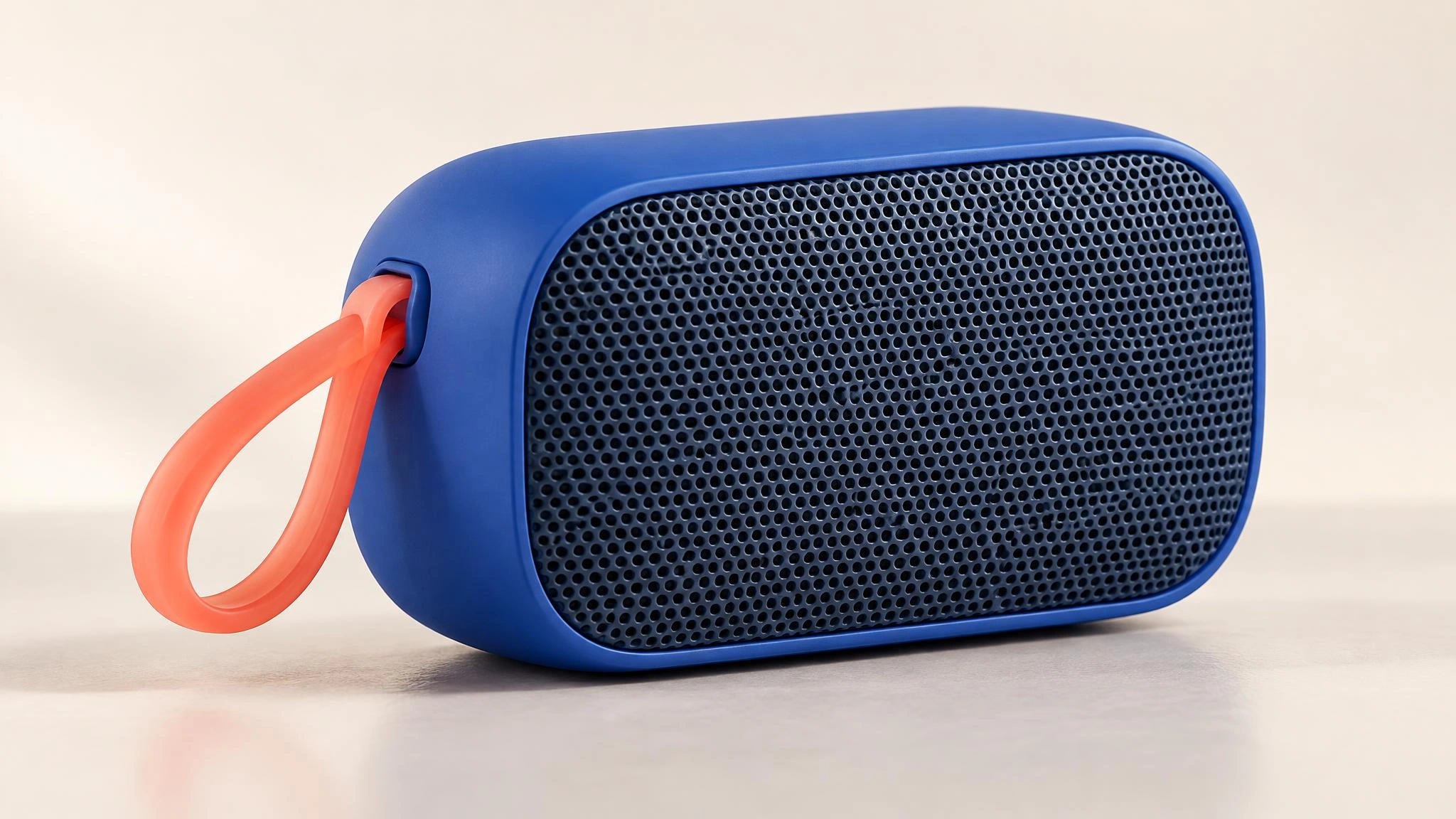
Cobalt-blue portable speaker with a coral loop on a pale studio surface.

Give an idea a material, shape, and setting

Use GPT Image 2.5 to turn a product concept into an image you can develop. Describe the object, surface finish, camera angle, and light together so the scene has a clear visual direction.

For a portable speaker concept, specify a cobalt-blue shell, a coral carrying loop, and a perforated front grille on a pale studio surface. If you need to depict an existing product, start with its reference image instead of asking a text description to reconstruct it.
Use a reference to change the setting

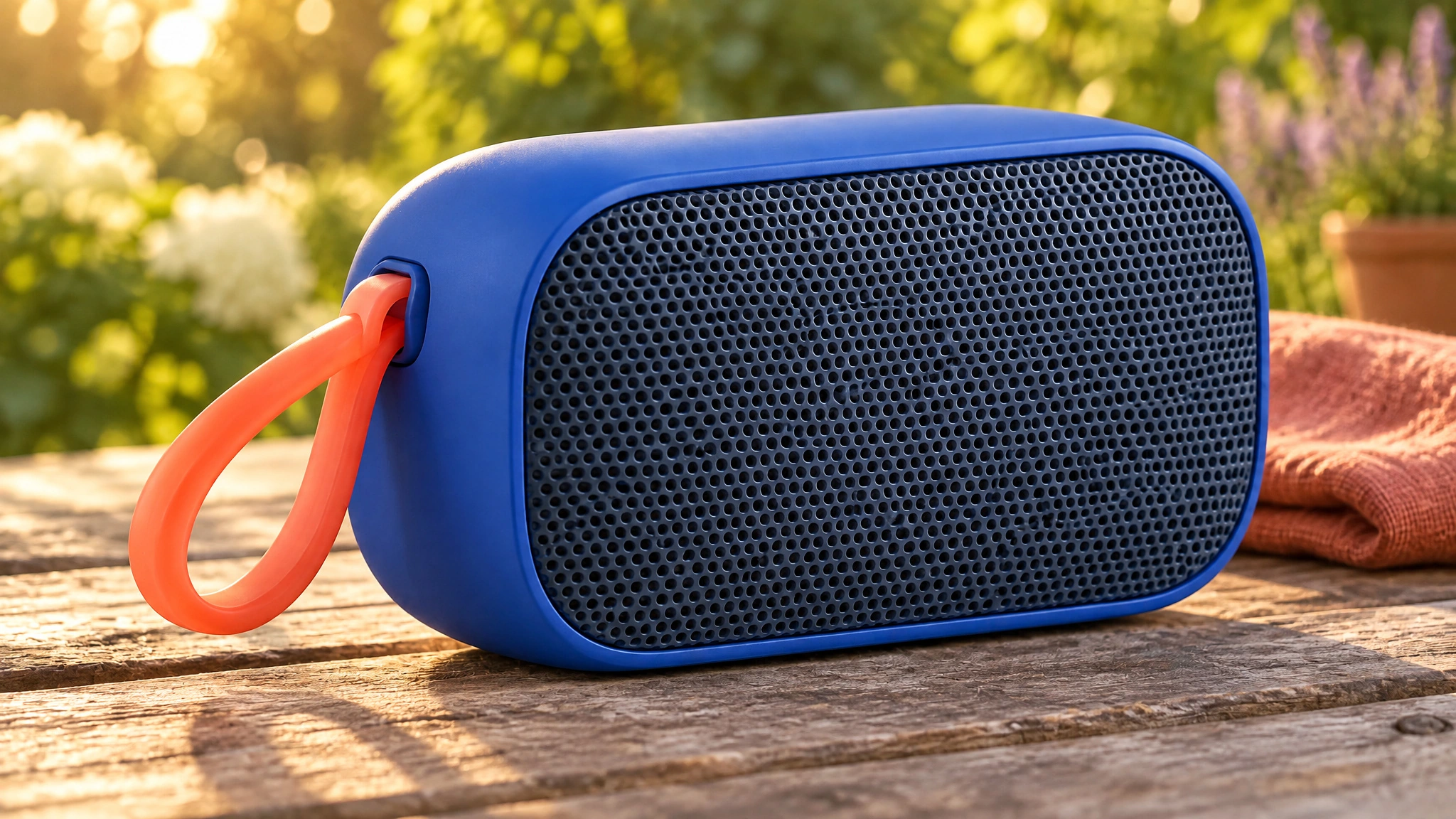
A new scene with a clear starting point. Bring an image onto the OiiOii canvas and describe the change you want. For the speaker, ask for a warm picnic-table setting while keeping the blue shell, coral loop, grille, and viewing angle as reference details.

Original speaker concept on a pale studio surface.

Original image

The source speaker concept on a pale studio surface.

The blue speaker in a warm outdoor picnic-table setting.

Edited image

Separate the request into what should change and what should stay recognizable. Compare the result with the source, especially the loop attachment and grille pattern. Reference-guided editing gives you a starting point for revision; inspect important product details before using the image.

Compose a poster around a short headline

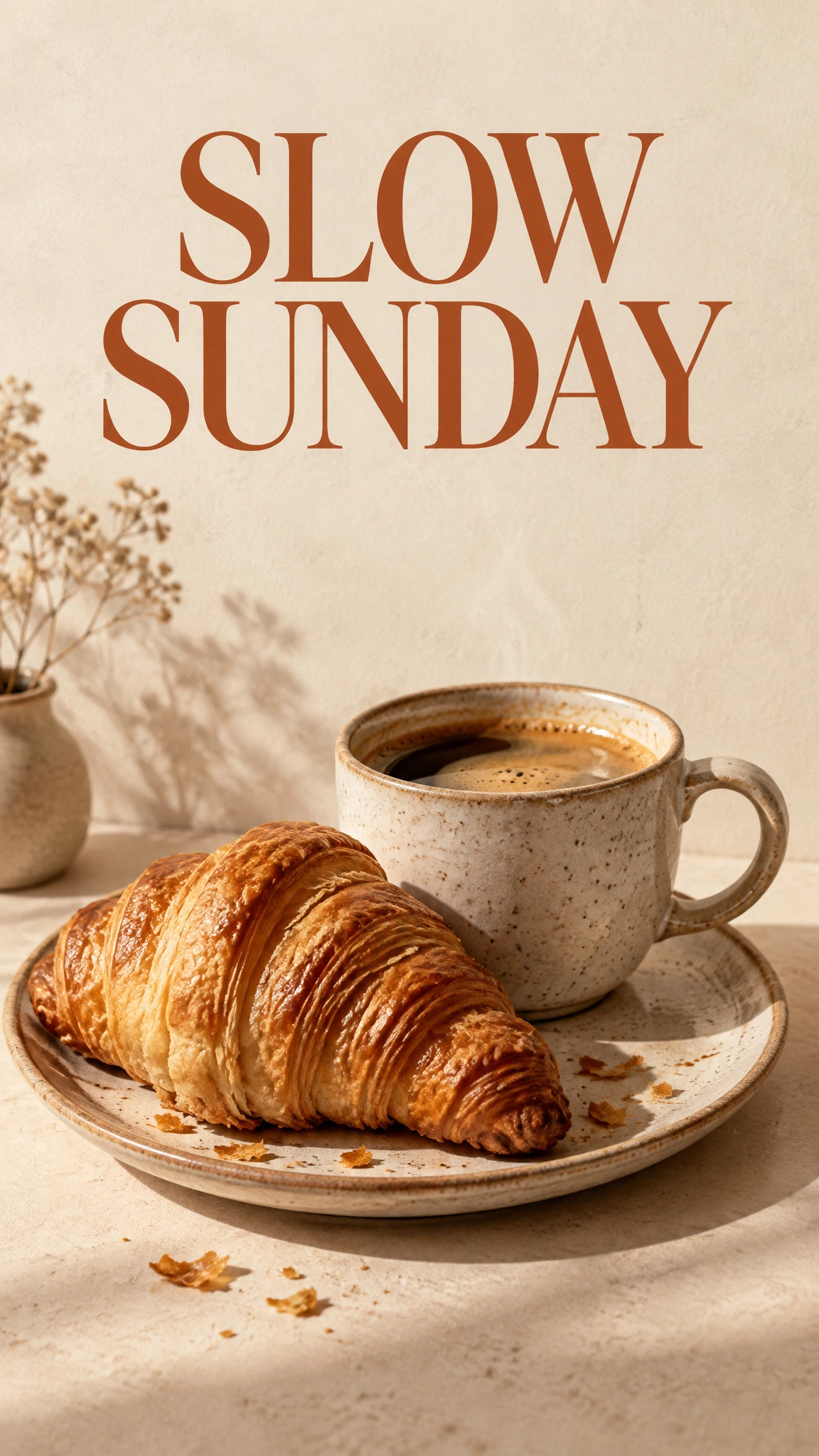
Vertical cafe poster with the headline SLOW SUNDAY above coffee and a croissant.

Make the words part of the brief

For a cafe poster, specify the exact headline "SLOW SUNDAY", a warm cream and terracotta palette, and a still life of coffee and a croissant. Describe where the headline belongs and how much space it should have.

Choose a vertical composition when the poster will fill a phone screen. Keep the requested wording short and check every letter in the output, including spacing and any unintended extra text. Review the design at its intended display size before sharing.

From brief to image in OiiOii

1. Define the image and its purpose

Describe the subject, composition, and intended use. Add a reference when an existing object or character matters. State which details should carry into the result.

2. Create with GPT Image 2.5

Use the GPT Image 2.5 model selected in the creation area. Set the composition for your intended placement, then generate the image. These examples use the Sunburst variant.

3. Refine on the canvas

Review the result, select the image you want to develop, and request a specific change. Keep your reference available for comparison, then save the version that fits your brief.

Choose the starting input for your image

Explore a new product or scene

A text brief with subject, materials, framing, light, and intended use.

Change an existing image

The source image, the requested change, and a short list of details to retain.

Guide a subject and a visual style

Clearly identified references: say which image defines the subject and which guides the look.

Create an image with words

Exact wording, its position, the intended reading order, and the display format. Keep the brief tied to one visual goal. Add references when describing an existing subject is not enough.

Take your image to the next step

Continue refining a still image, or use it as the starting point for a separate video workflow.

GPT Image 2.5 FAQ

How do I start creating with GPT Image 2.5 in OiiOii?

Enter your brief in the creation area and use the selected GPT Image 2.5 model. Add a reference image if you are working from an existing subject. Generate a first result, then use the OiiOii canvas to inspect it and request specific revisions. The examples on this page use the Sunburst variant.

How should I prepare reference images for an edit?

Use a clear image in which the subject and the details you want to retain are visible. Avoid unnecessary overlapping references. If you provide more than one image, explain the role of each: for example, one defines the product while another guides the setting or visual style. Use the actual reference attachment, rather than only mentioning its filename in your brief.

How can I change one part of an image while keeping the subject recognizable?

Select the source image and separate your instruction into a change and a preservation request. For example: move the speaker to a sunlit picnic table, while keeping its blue shell, coral loop, grille, and viewing angle. Compare the new image with the original before making another edit. If an important detail drifts, return to the source and narrow the request; reference use does not guarantee that every untouched detail stays identical.

What should I check in an image that contains text?

Check spelling, repeated or missing letters, spacing, alignment, and contrast. Compare the output with the exact text in your brief, and inspect it at the size where it will appear. For the cafe poster, verify that SLOW SUNDAY is complete and that no extra words have appeared. If text is wrong, request a focused revision and check the whole image again.

Give your next image a clear direction

Bring your brief or reference to GPT Image 2.5 and start creating in OiiOii.