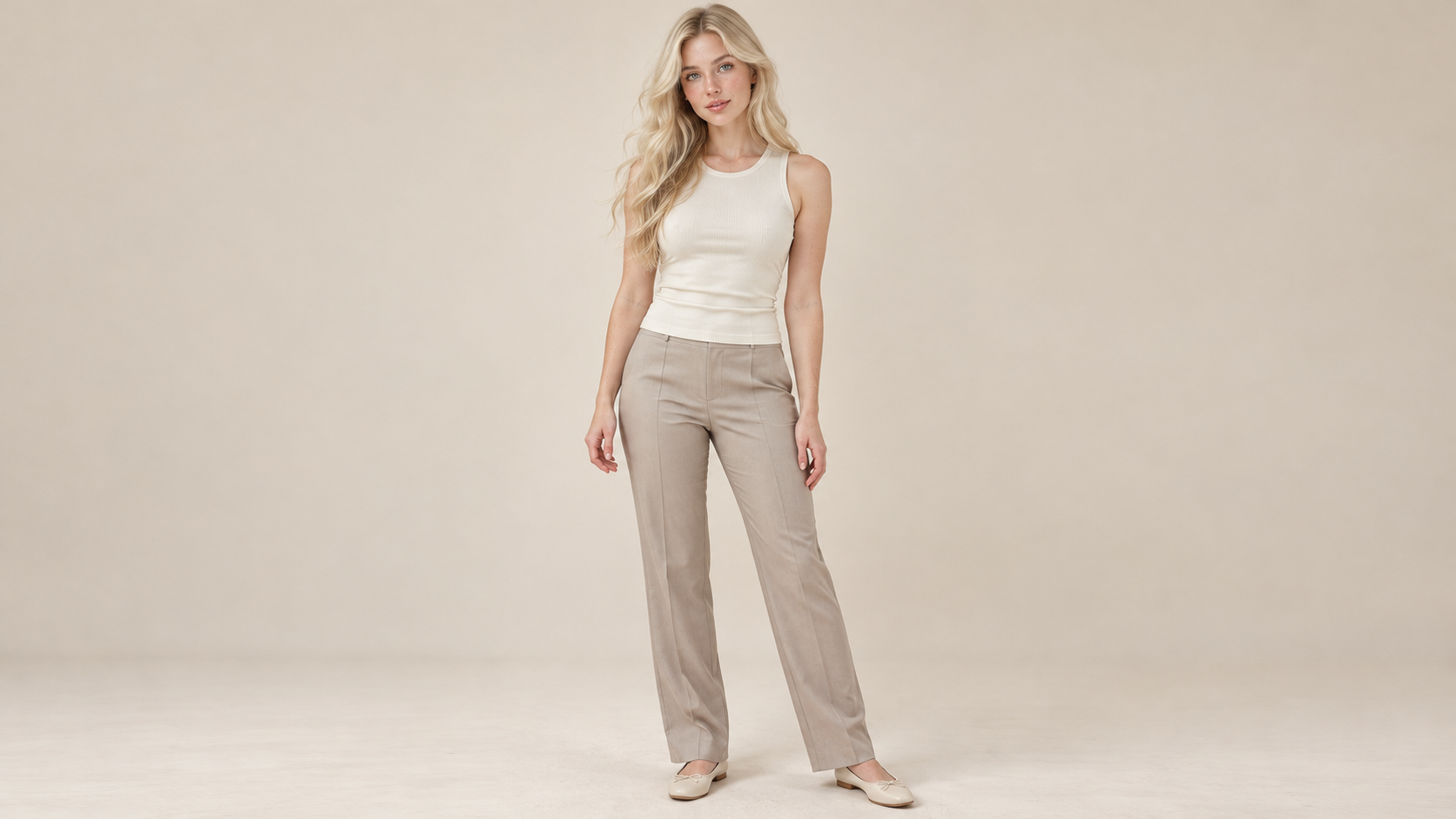
Image to Image AI Generator
Start with a picture. Give it a new direction. Use image to image AI to restyle a photo, combine visual references, or explore a new setting. Describe what should change and what you want to keep.
Add a reference image and describe your changes.
Prefer the full creator?
One Starting Point. More Ways to Create.
Bring a photo, a sketch, or a set of visual references. Give each image a clear role, then use a text prompt to guide the result.
Turn a Photo into an Illustration
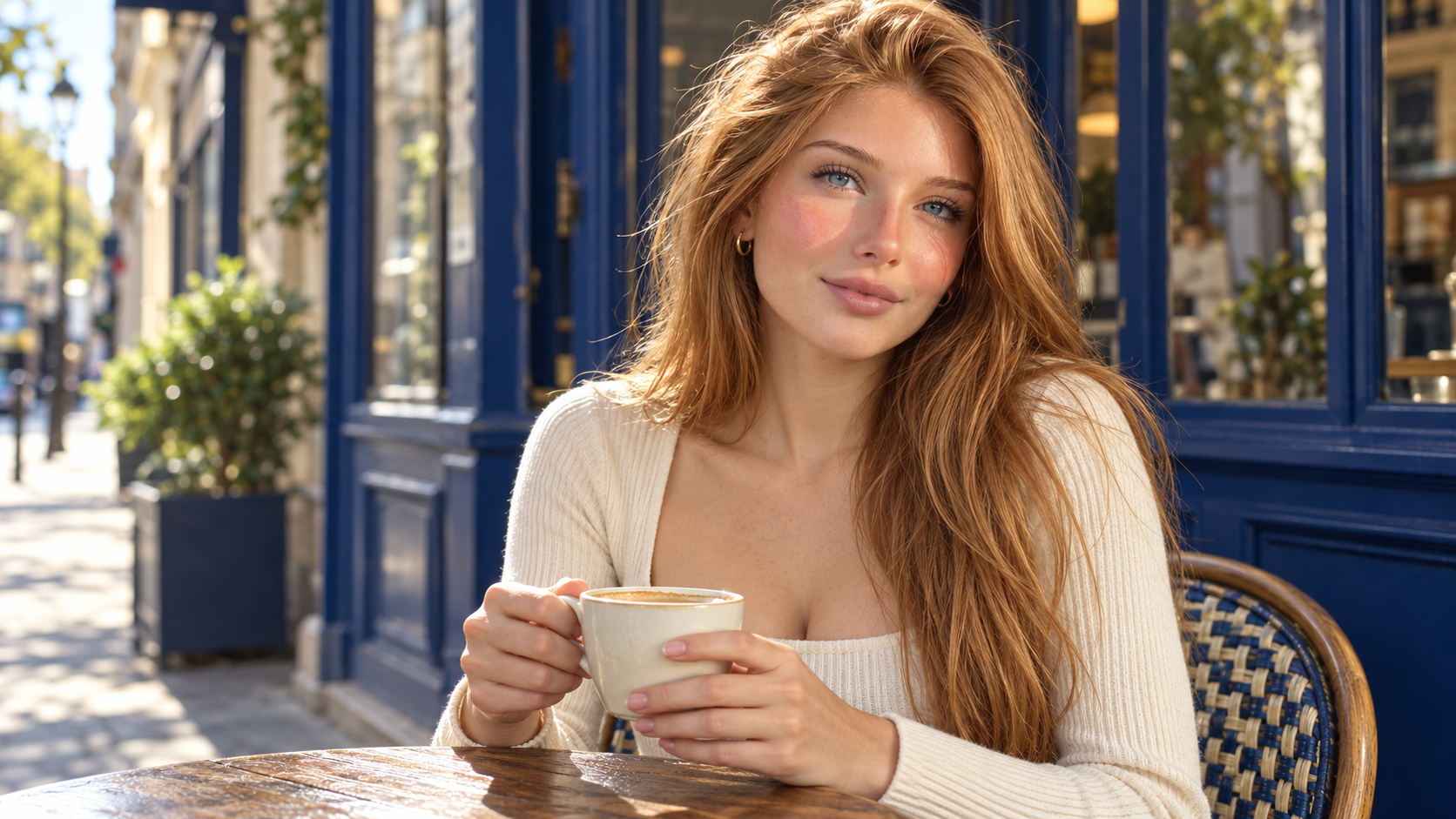
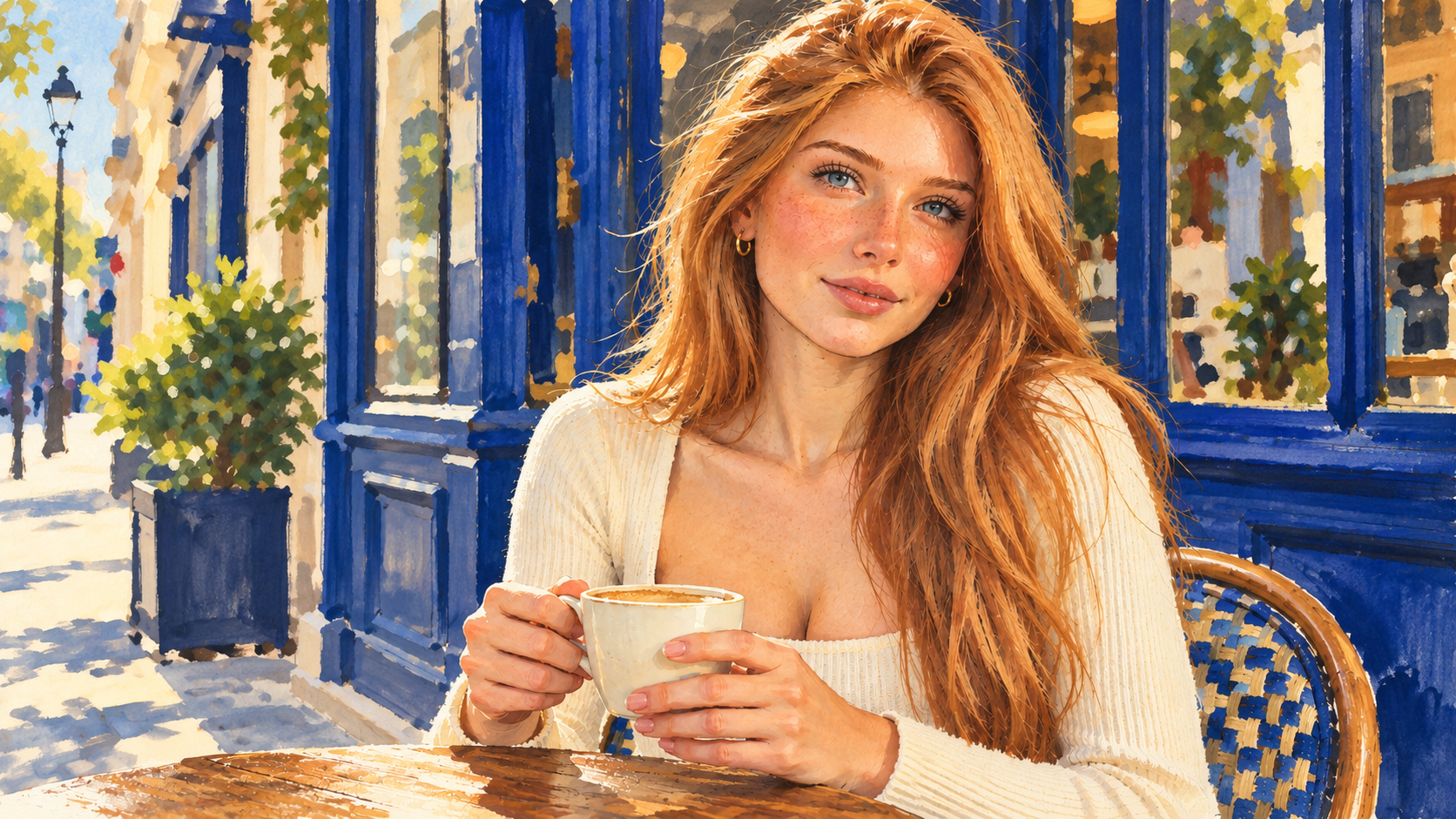
Reference photo → Illustrated portrait
Explore a different medium without starting over. Describe the drawing style, palette, and texture, and name the features that make your subject recognizable.
Bring Separate Outfit References Together
Combine a model reference with clothing and accessories to explore a complete look. Tell the model which image supplies the top, trousers, belt, necklace, shoes, bag, and sunglasses. Review the result against each reference.
Model + Clothing + Accessories
Eight separate reference images
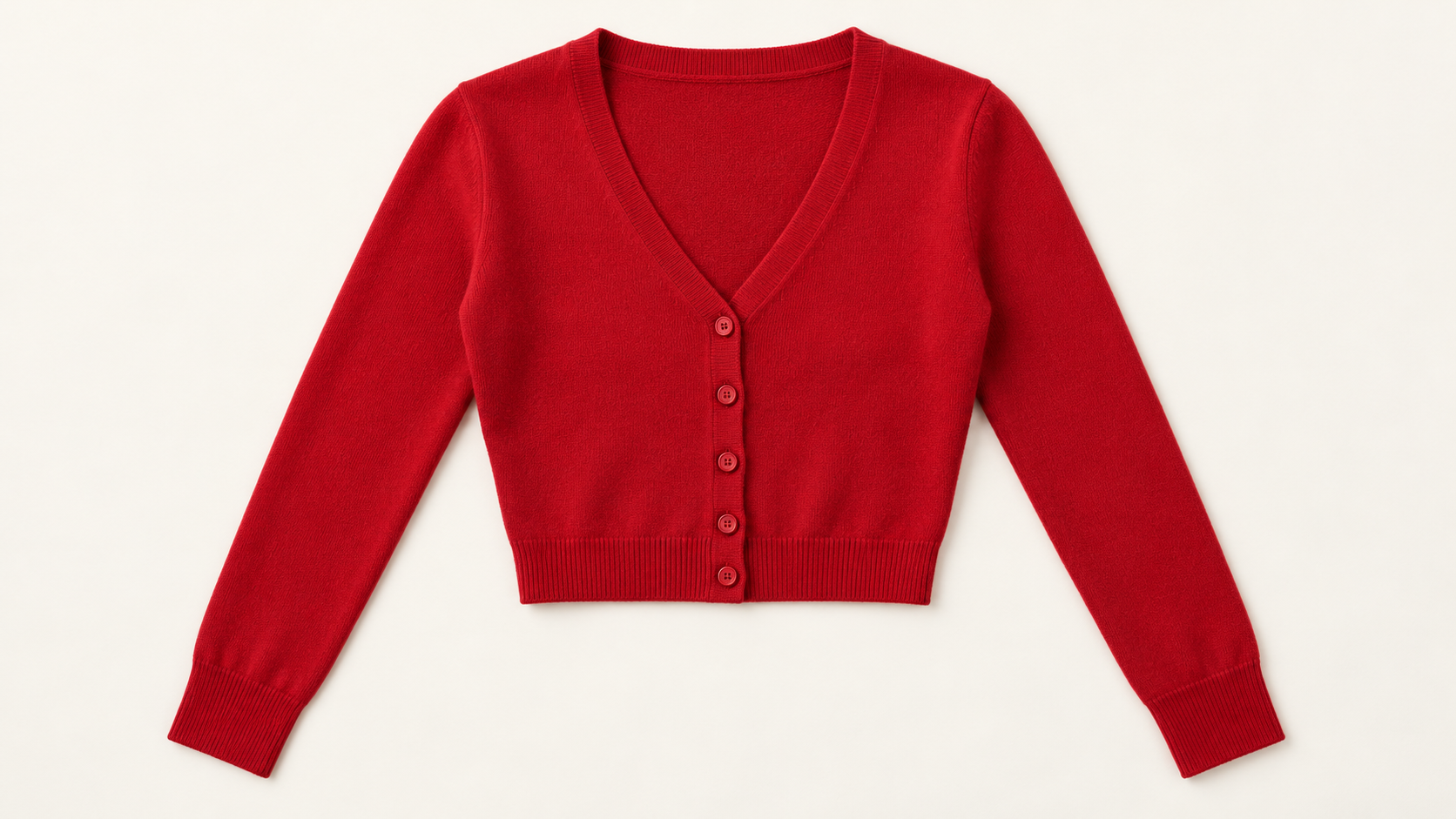
Cherry-red knitted cardigan
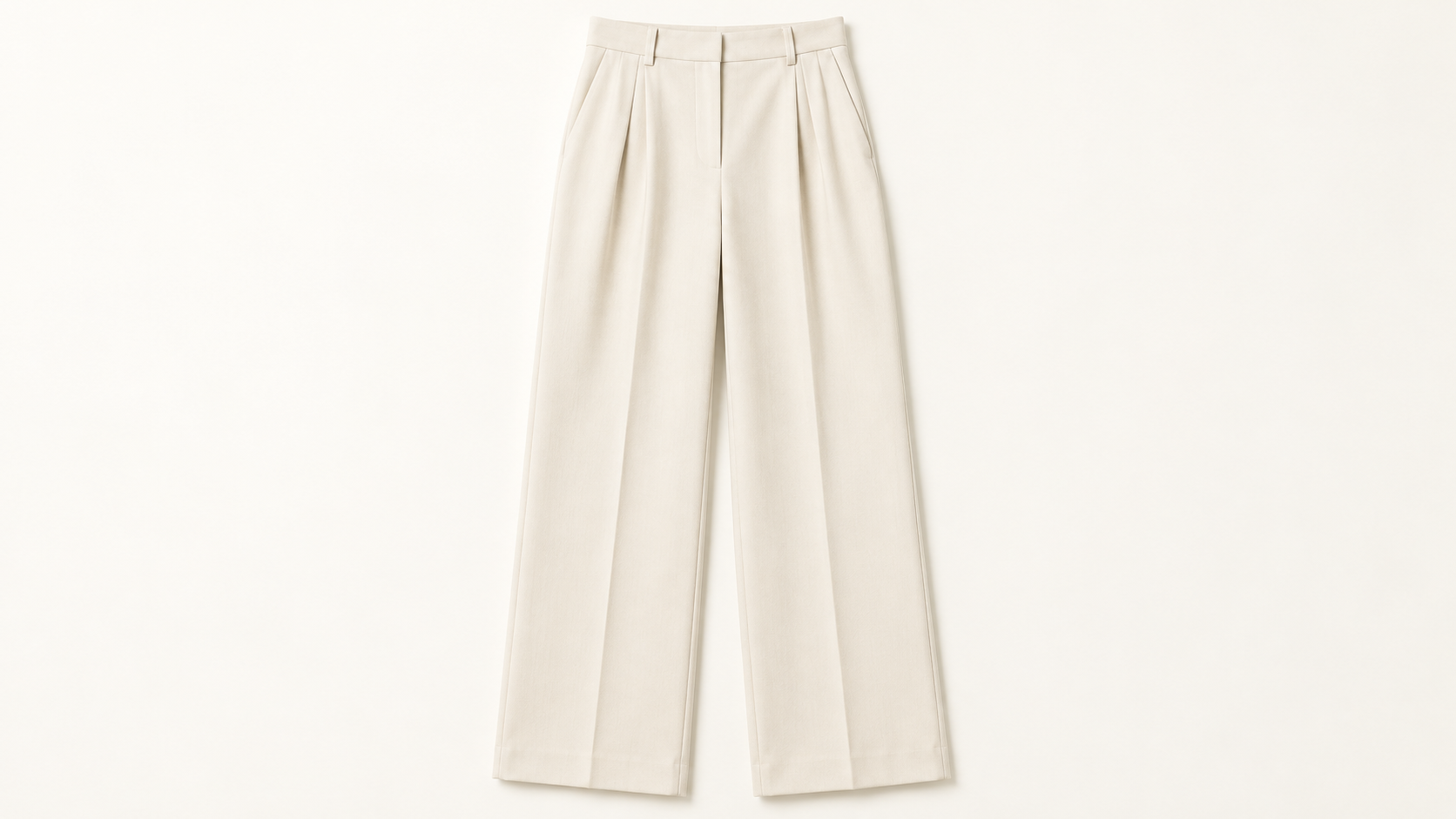
Ivory wide-leg trousers
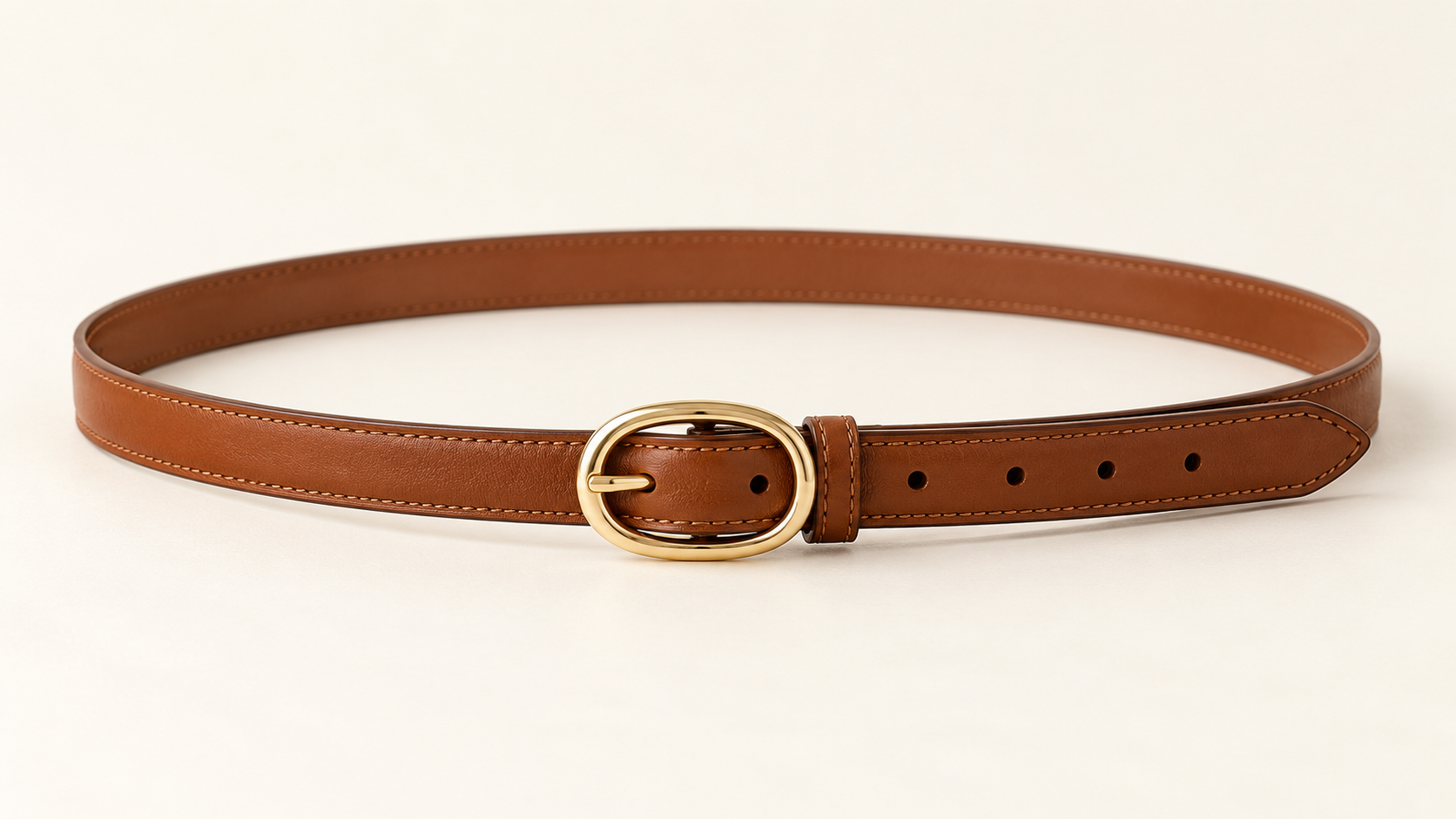
Caramel-brown belt with an oval buckle
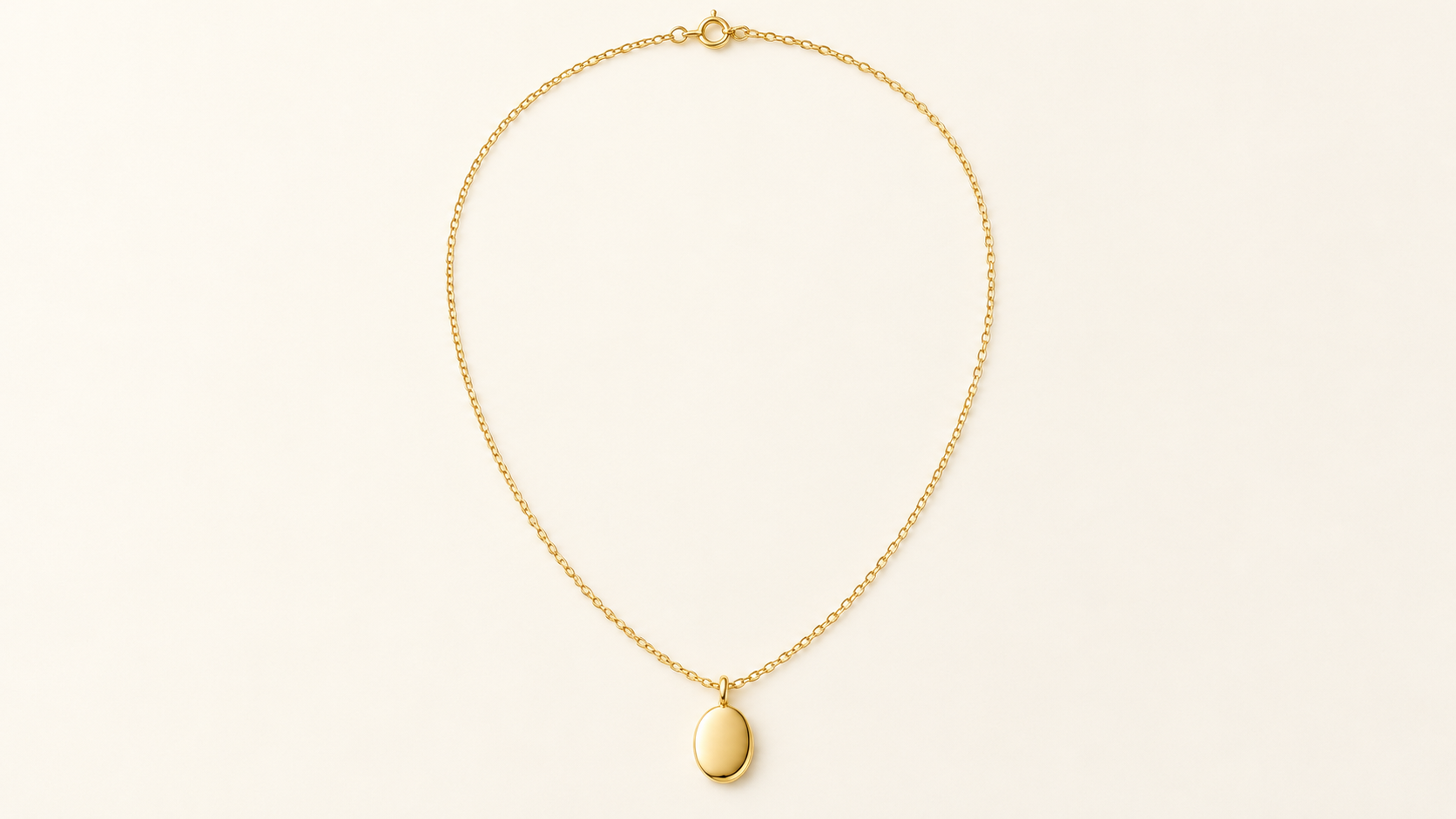
Gold oval pendant necklace
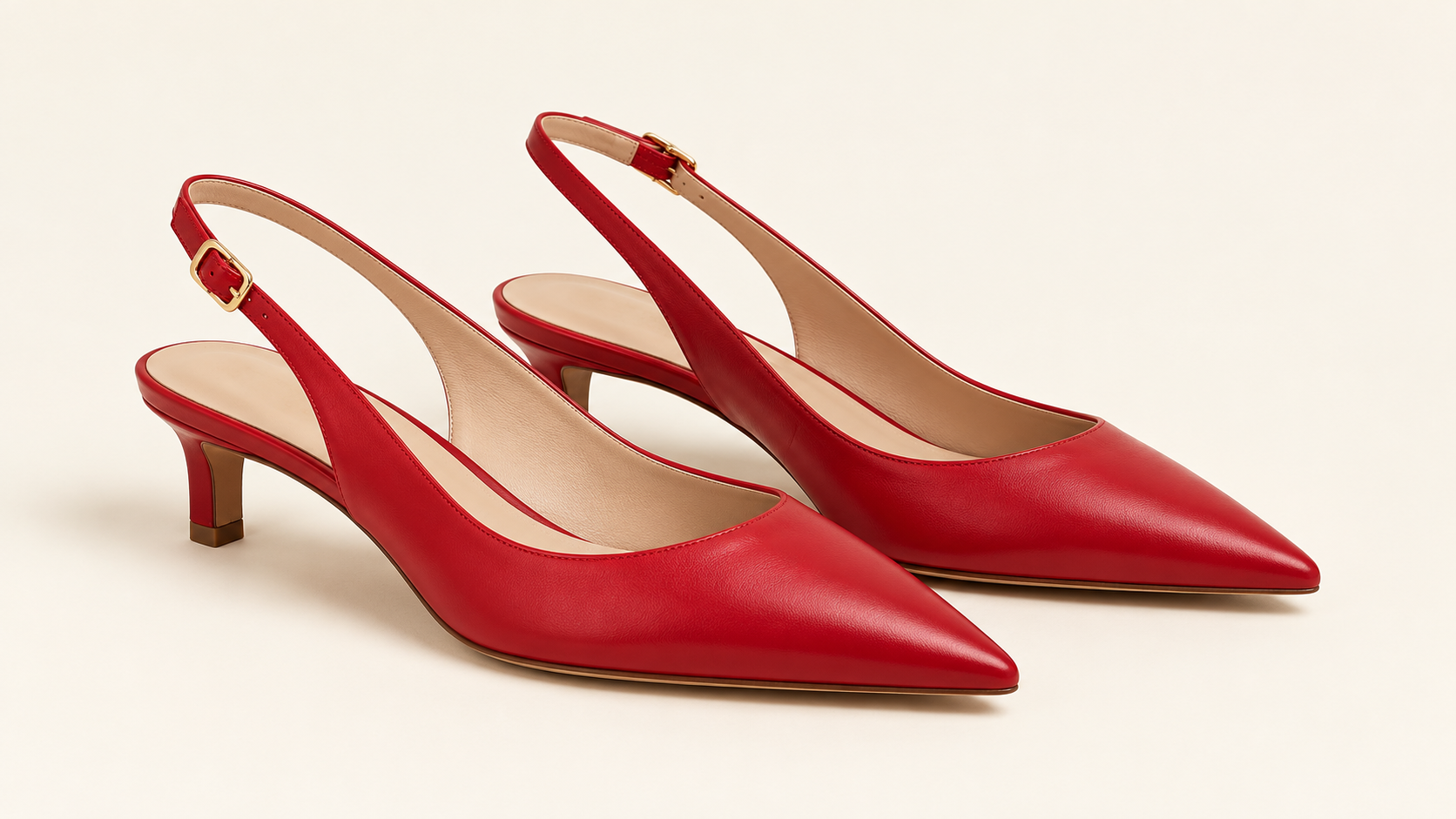
Cherry-red slingback shoes
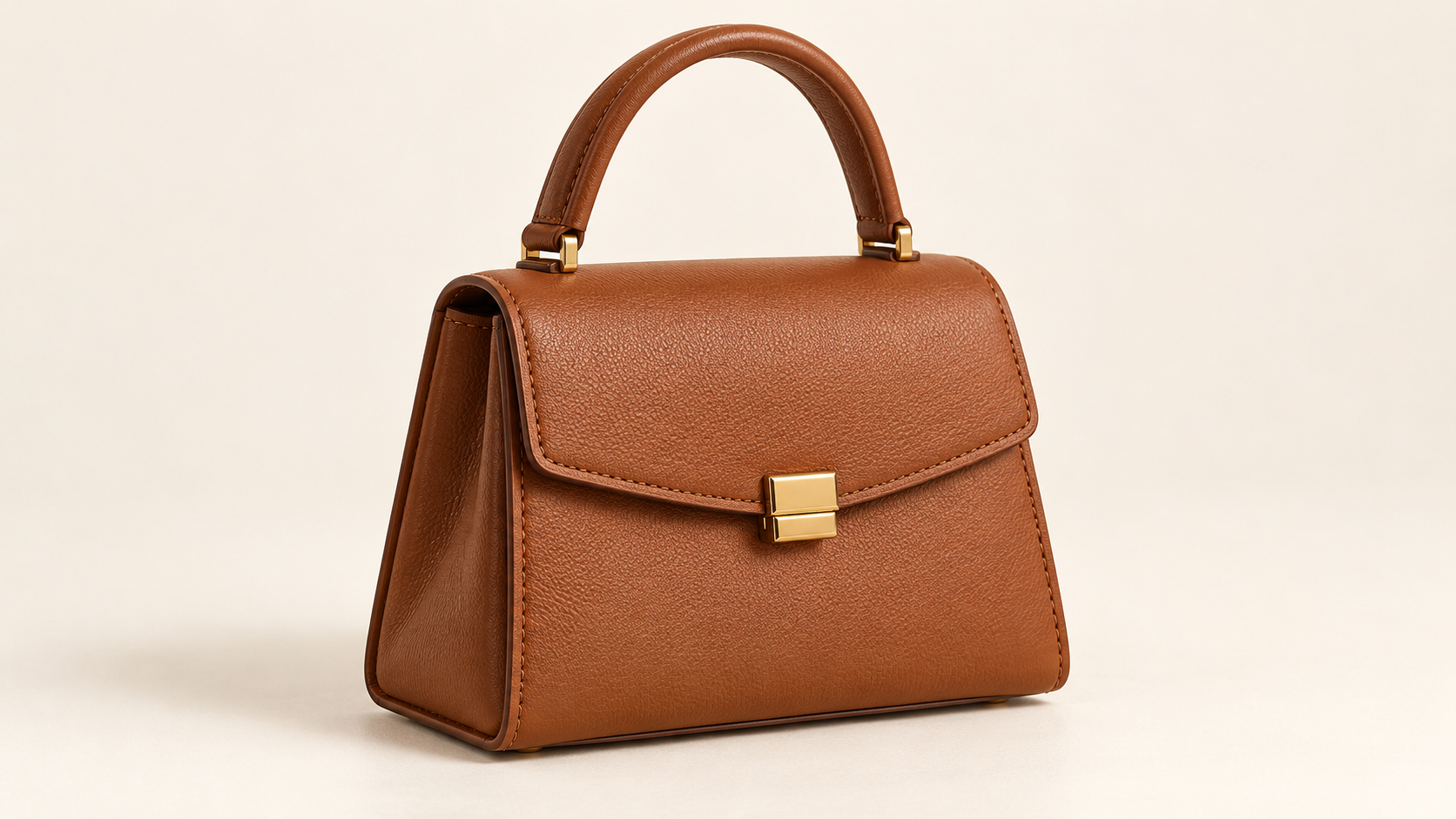
Caramel-brown handbag
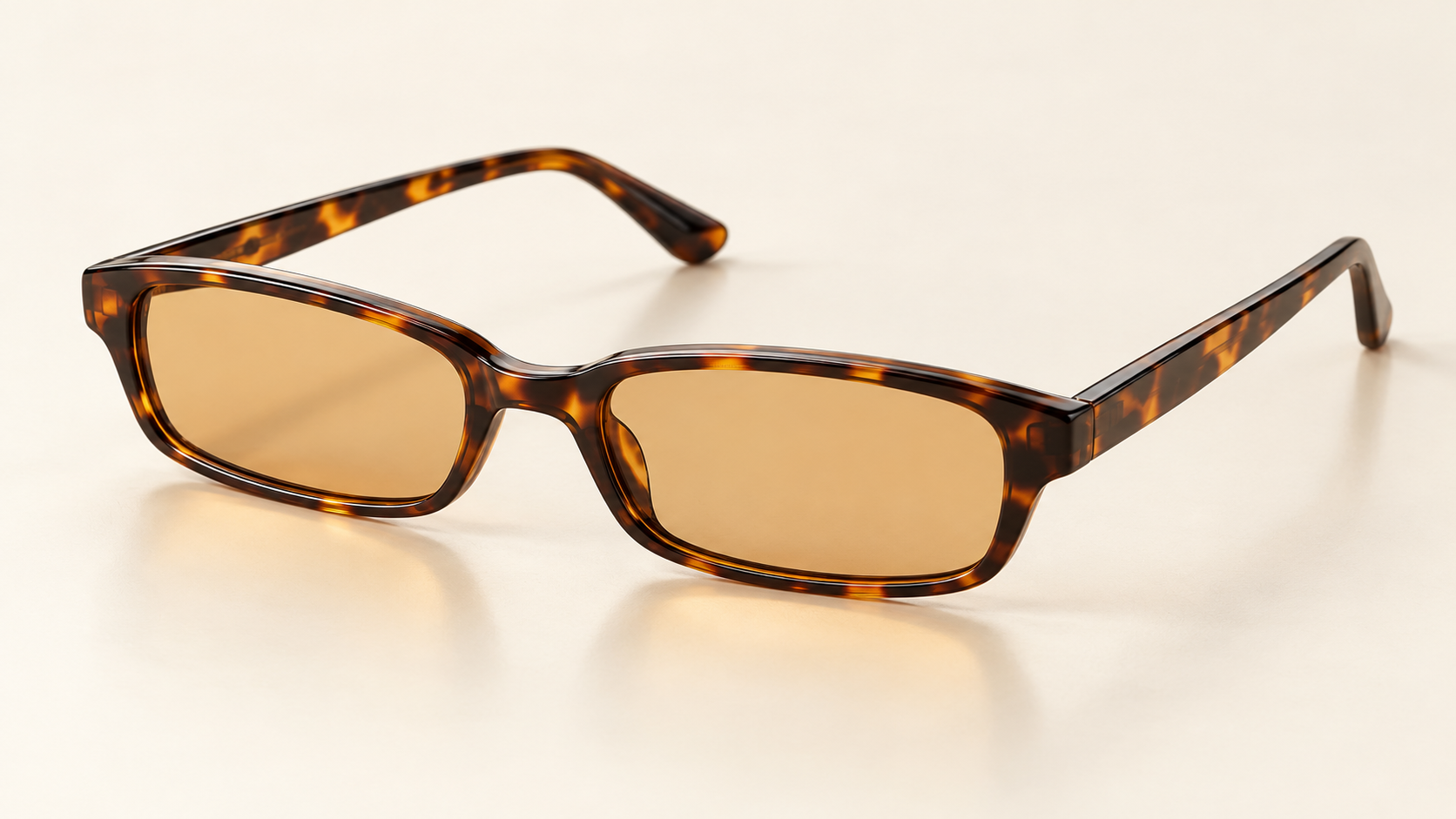
Tortoiseshell sunglasses with amber lenses
Styled Look
Model + clothing + accessories → Styled look
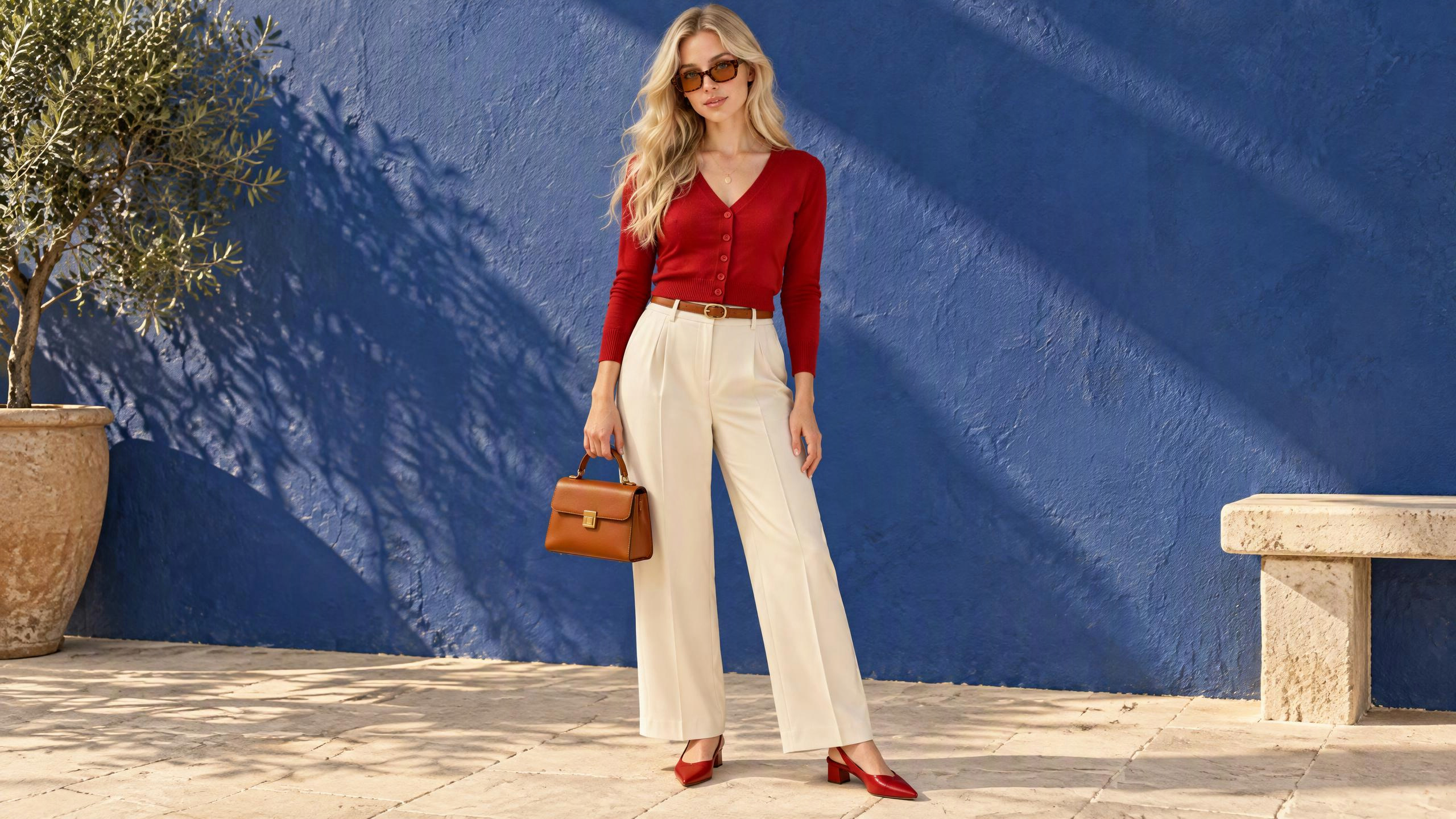
A blonde woman wearing the red and ivory outfit with brown accessories on a city street
Give a Product a New Setting
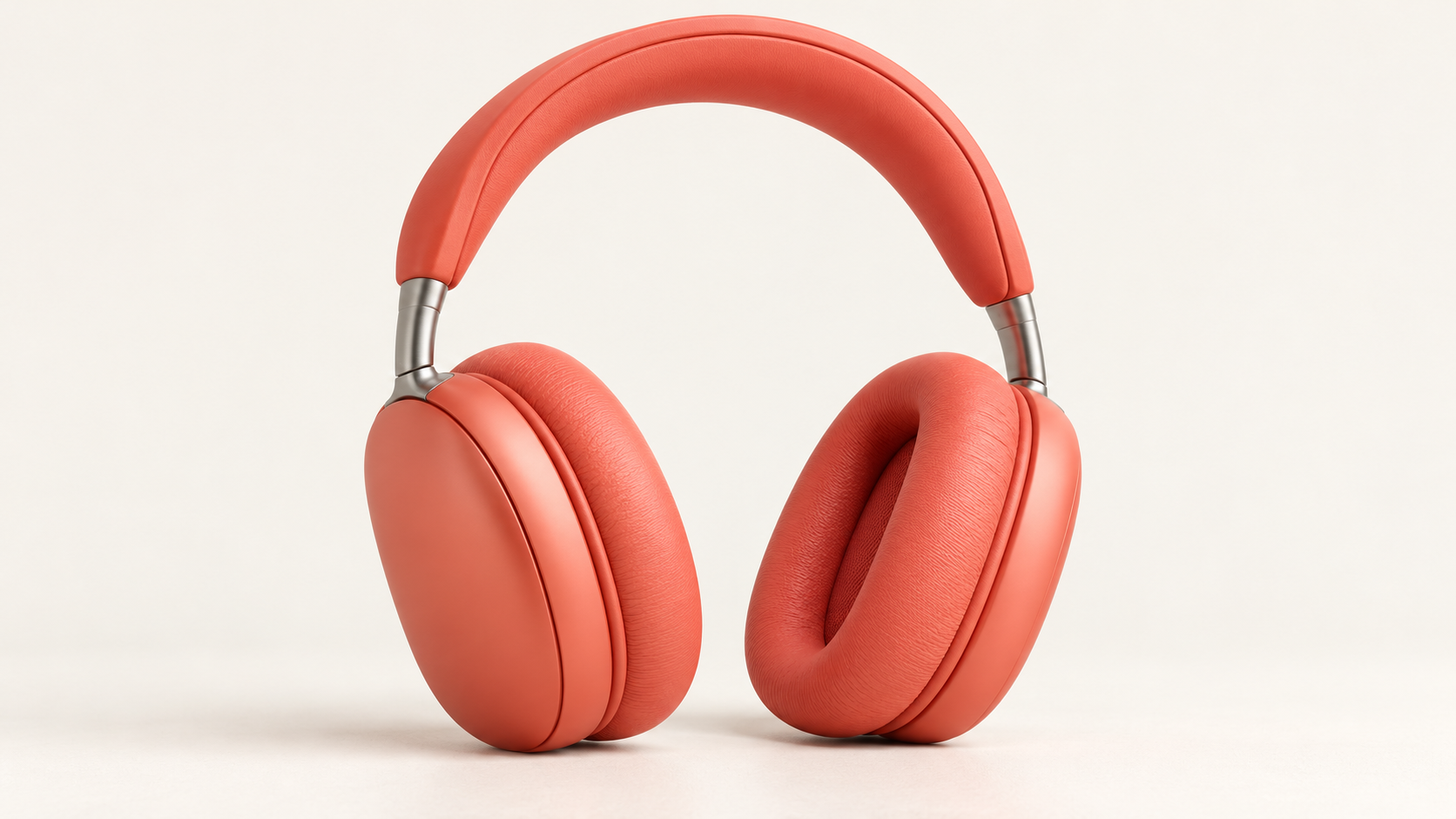
Product reference → New product scene
Take a product reference in a new visual direction. Describe the setting and lighting while identifying the shape, colors, and details to retain. Compare the new image with the original before using it.
Develop a Sketch into a Finished Visual
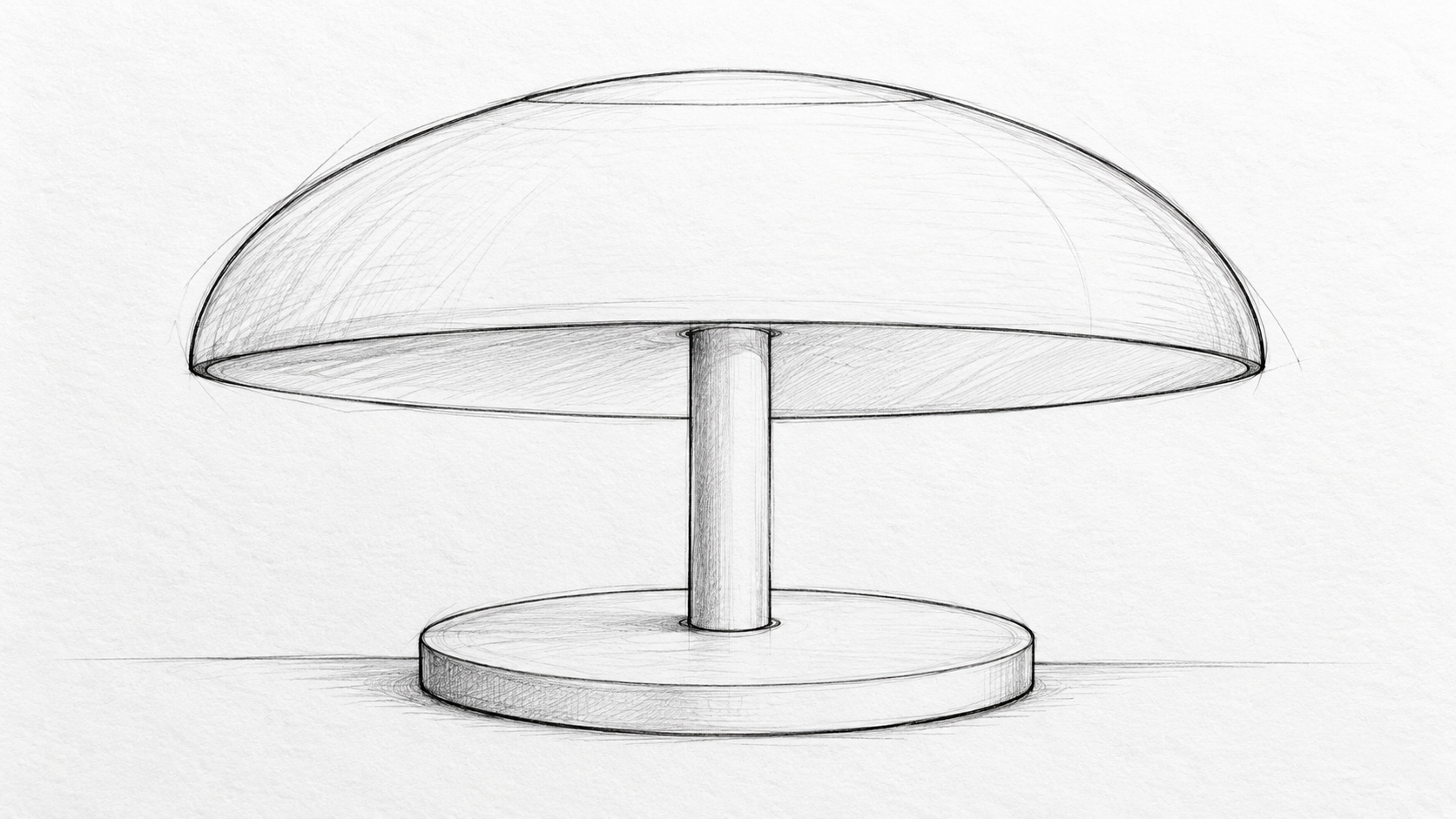
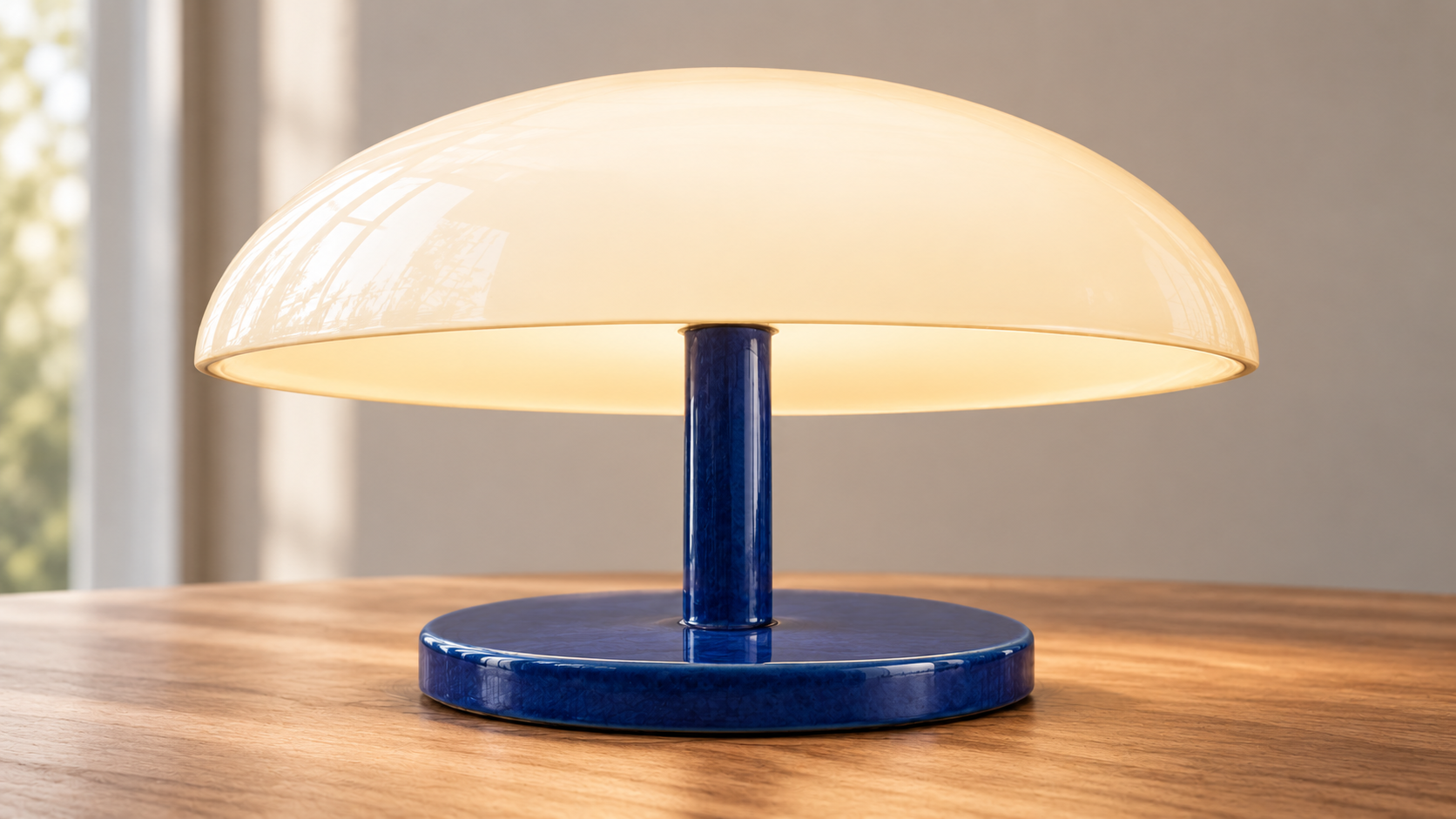
Source sketch → Rendered concept
Use your sketch to guide the silhouette and layout. Describe materials, color, lighting, and mood to explore how the idea could look as a finished image.
AI Image Generator from Image: How It Works
1. Add Your References
Start with a clear image. For multiple references, choose a model that supports them and explain what each image contributes.
2. Describe the Change
Name the edit you want, then the details to preserve. Include a visual style or setting when it helps. Choose from the image settings available for your selected model.
3. Generate and Compare
Review the result beside your references. Check faces, product shapes, small accessories, and any lettering. Refine your instructions if a detail drifts.
Tell It What to Change and What to Keep
For AI image to image editing, a focused instruction is easier to evaluate than a long list of unrelated changes.
Change
Describe the new style, setting, material, or outfit.
Keep
Name the subject details, pose, proportions, or composition that matter.
Suggested prompt
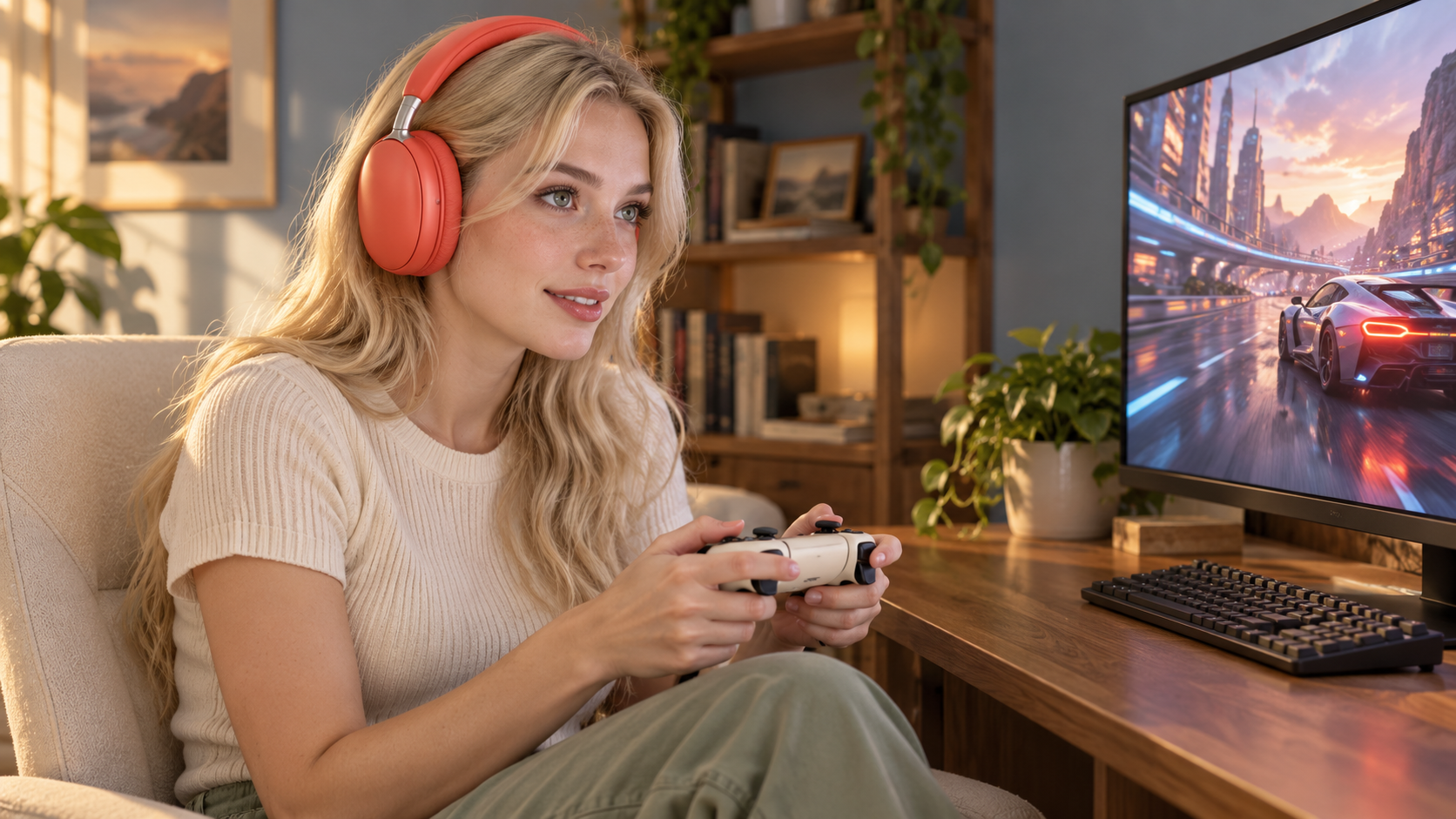
Show an adult woman wearing these coral headphones while playing a game at a warm, sunlit home desk. Keep the coral color, oval earcups, padded headband, and silver connectors from the reference. Make the fit around her ears and her grip on the controller look natural.
Start with one clear transformation. Add further edits once the main direction works.
Keep Building with Your Images
Use your image as a reference for another edit, or develop character and scene artwork for a larger project. When you want motion, continue with a video model in OiiOii; image generation and video generation are separate steps.
FAQ
What is image to image AI?
Image to image, also called img2img, uses an existing image as a visual reference for a new one. A text prompt guides changes such as a different style, background, or material. The result is newly generated, so individual details can change.
How do I generate an AI image from an existing image?
Upload a reference, choose an image model that supports it, and describe your edit. State the details you want to retain, generate the new image, and compare it with the original. Use another focused instruction to refine the result.
What is the difference between image to image and text to image?
Text to image starts from a written description. Image to image adds a visual reference to guide the subject, layout, or appearance. Use a reference when you already have a picture or sketch you want to develop.
How can I keep the subject recognizable while changing the style?
Use a clear reference and identify distinctive features, colors, and proportions. Describe the style change separately from what should stay. Check the result carefully: a reference helps guide the model, but does not guarantee identical faces or details.
Can I use a sketch as a reference image?
Yes. Upload your sketch as an image reference and describe the finished look you want. Clear outlines and readable proportions give the model more useful guidance. Specify which shapes and layout elements to retain, then check how the result interprets them.
Why does the result look different from my reference?
The model interprets both your image and your instructions. Broad prompts, conflicting references, or many simultaneous changes can move the result away from your original. Simplify the edit, clarify the important details, and compare each new result before continuing.
Give Your Image Its Next Direction
Bring a reference. Describe the change. Start creating with OiiOii.