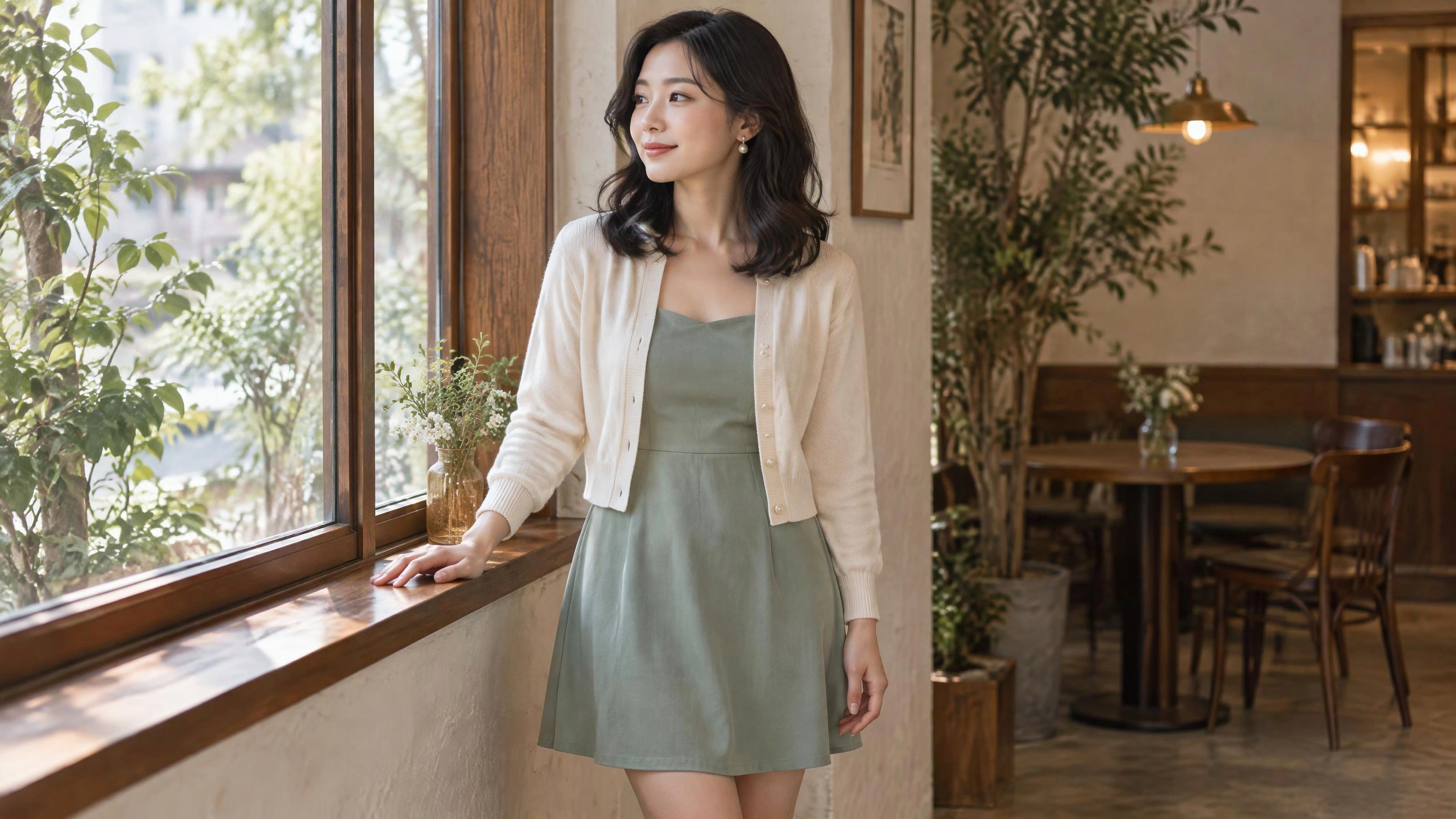
Image to Video: Bring Photos to Life
Turn a photo into a video with one image and one action. Use OiiOii's AI image to video feature to make a person wave, reveal product details with camera movement or bring a small illustrated story to life.
Describe how the subject in your image should move and how the camera should move.
Upload an image, then describe one clear action.
Prefer the full creator?
Turn a photo into a moment that moves
Give a still portrait a response
The woman by the window turns her head, raises her hand in greeting and smiles. Start with a photo and describe one clear, small action to give the still scene a response.
To animate a photo, choose an original with a clearly visible face and hands. Keep the camera fixed and ask for a single wave to make the change from image to video easier to see.
Turn a product image into a moving showcase
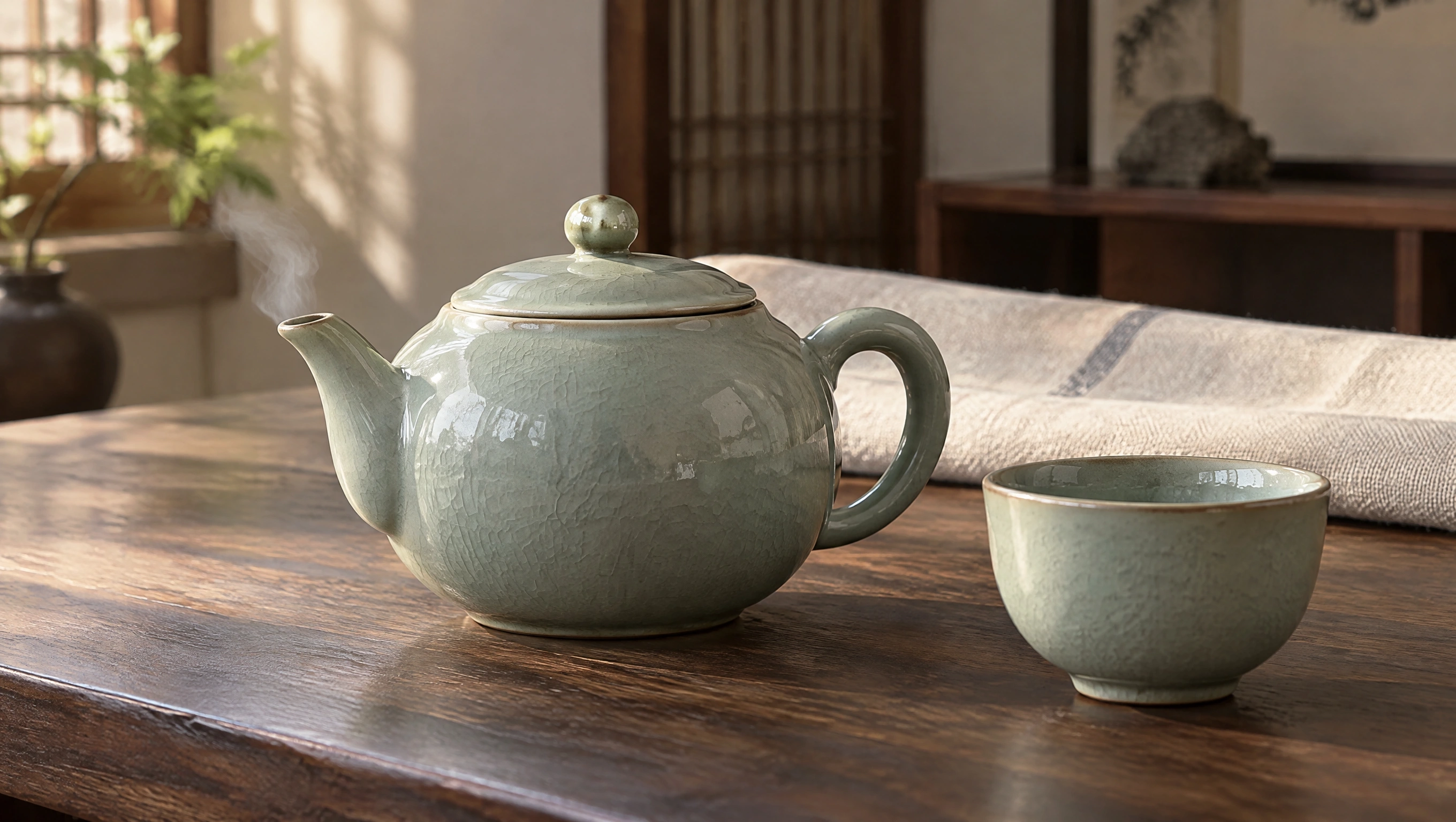
Original image
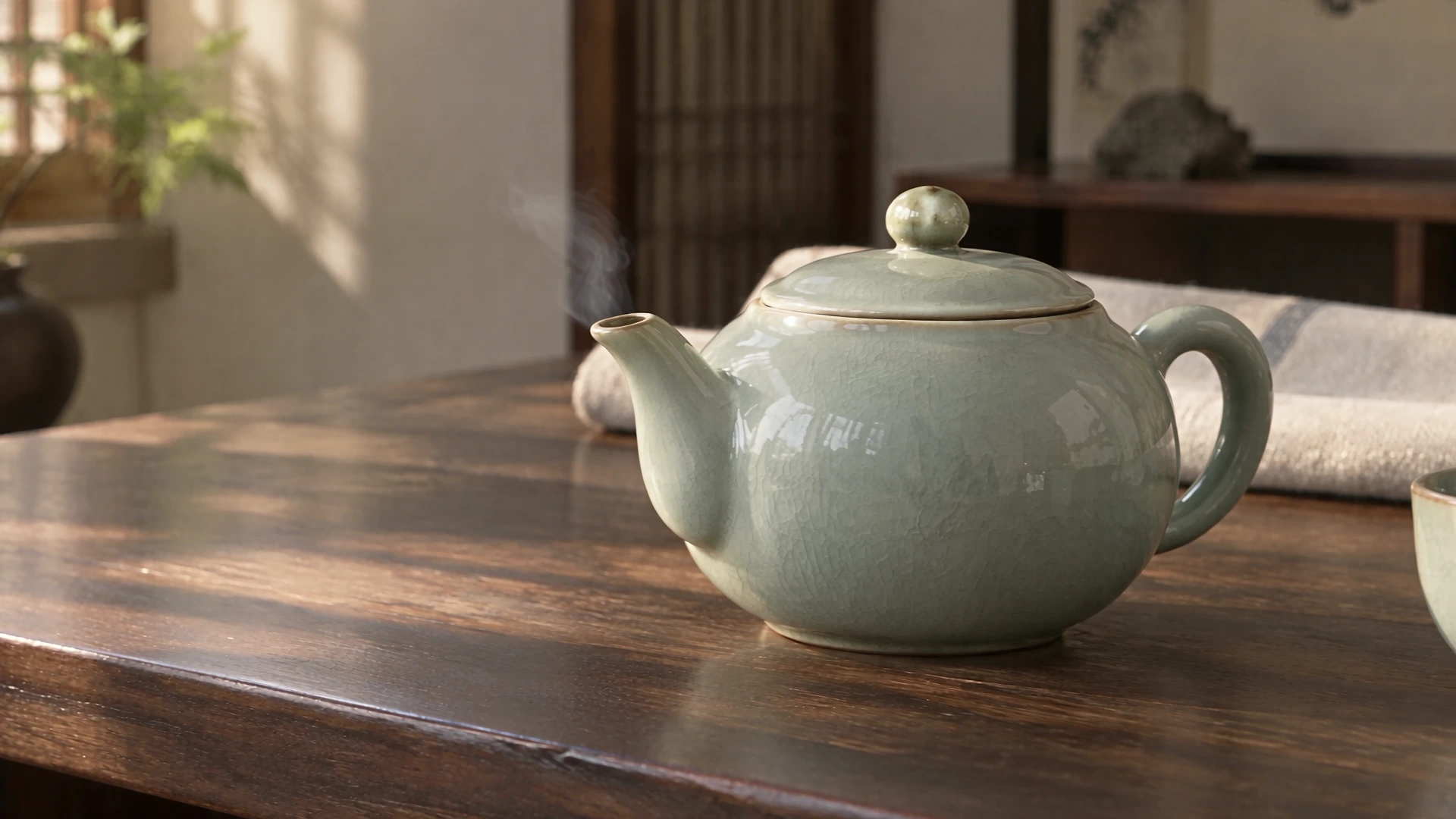
Reveal the shape and texture of celadon with camera movement
Start with a photo of a celadon teapot and move the camera slowly sideways to reveal the body, spout and handle. Rising steam adds a lived-in touch to the still product image.
Describe product motion and camera movement separately: the teapot stays on the table while the camera moves sideways. Compare the result with the original, checking the spout, handle and glaze details before choosing the segment to use.
Turn an illustration into a small event
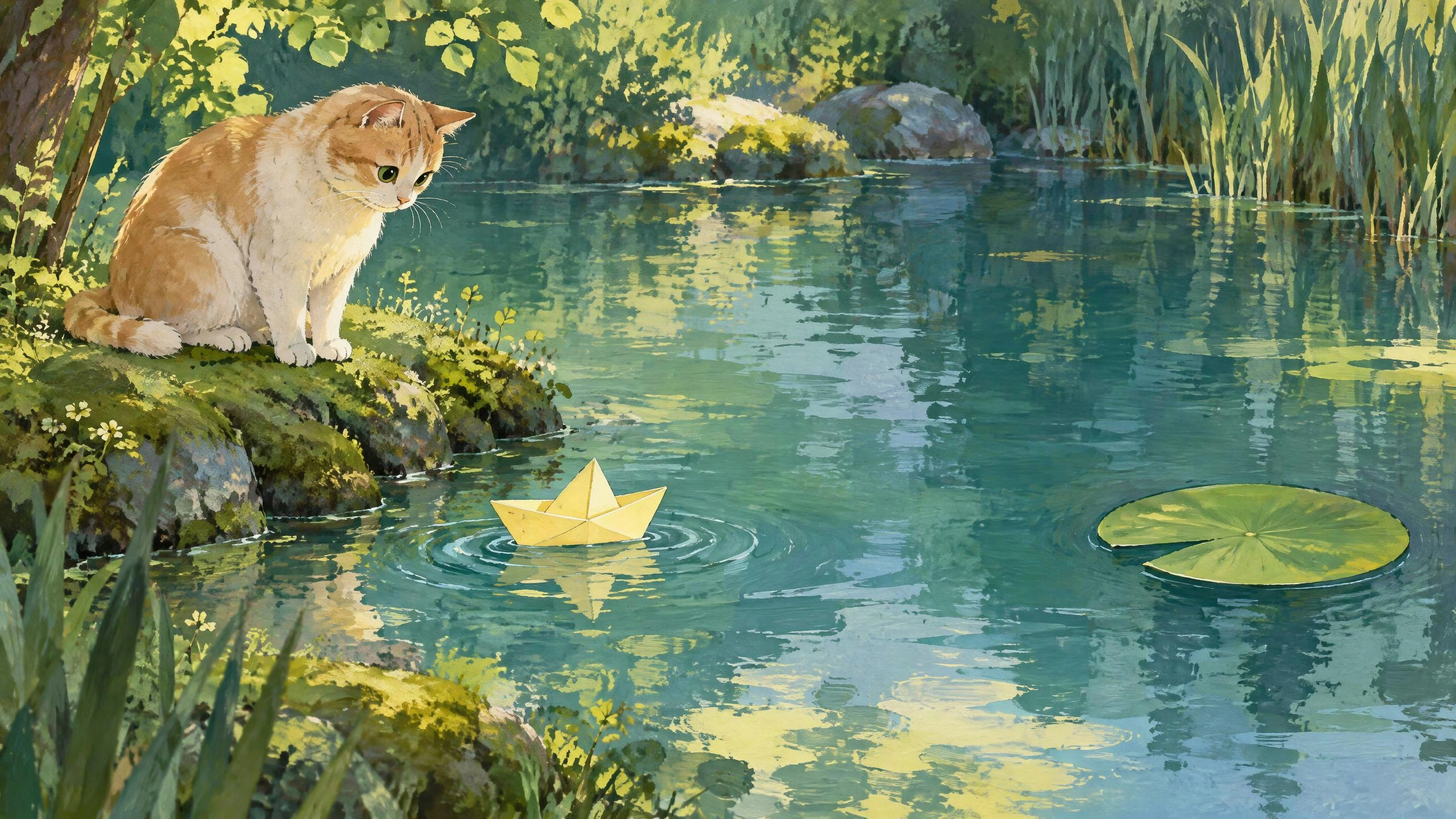
Original image
Start an AI animation from your original image
A paper boat drifts slowly across the pond as a cat on the bank follows it with its eyes. Let the illustration establish the characters, colors and setting, then use one continuous action to turn the still scene into a small story that progresses.
Give the action a simple ending: the boat approaches a lotus leaf and slows to a stop while the cat remains on the bank. Describe what moves and what should stay in place.
How do I turn an image into a video?
1. Upload your starting image
Choose the photo, product image or illustration you want to animate. Keep the subject clear and leave room in the composition for the action.
2. Describe subject and camera movement
Describe the person's or object's action first, then say whether the camera moves. Choose 16:9 for a wide scene or 9:16 for a vertical composition. Set duration and resolution using the options available in the interface.
3. Generate with AI, then preview the full video
After generating in OiiOii, play the result from start to finish. Compare it with the original and check the main action, faces, hands and object shapes before deciding what to adjust next.
Choose movement that fits your photo
Portraits: keep expressions clear
Begin with one expression or gesture. If the face is too small or hidden by hair, choose a clearer photo before increasing the movement.
Products: separate object motion from camera motion
Decide whether the product moves or the camera moves around it. A short sideways camera move helps reveal its outline while requiring less reconstruction of a back view absent from the original.
Illustrations: give the action an ending
Choose a small event that fits the scene: a paper boat reaches the shore, a character looks up or a door slowly opens. Also say which characters and objects should stay in place.
Composition: leave room to move
Match the original composition to the video aspect ratio. If a person will wave or a product will move, leave space around faces, hands and objects so the action stays in frame.
Image to Video FAQ
What kind of image works well for video generation?
Choose a clear image with an easily recognizable subject. For portraits, the face and any hands that will move should be visible. Product images should show the shape without hiding important parts, while illustrations need room for movement. After adding the image to OiiOii, describe an action that fits the original scene. This makes results easier to assess than adding many new events at once.
How can I guide subject and camera movement?
Describe them separately. For example, have the person turn toward the camera and wave while the camera stays fixed, or keep a teapot on the table while the camera slowly moves sideways. Begin with one main action, then play the full result to check whether the direction and focus match your idea.
Should I use landscape or portrait format for image to video?
Choose 16:9 when the scene or movement needs horizontal space, such as a product display along a tabletop. Choose 9:16 for a tall subject or a vertical social media layout. Prepare the original composition for your intended ratio, leaving room around faces, hands and product edges.
What should I check first if a face or object becomes distorted?
Find the first frame where something looks wrong and compare it with the original. Is the face too small, is a hand hidden, or does the movement reveal details missing from the image? Try a clearer original or simplify the action. Watch the new result in full, paying particular attention to hand contact, turns and object edges.
Prepare your image or develop an animation idea
Choose a tool that fits the next step in your project.
Let your image start the next scene
Upload a photo and describe what you want to happen next.