
Give an ordinary setting a surprising twist
A classroom becomes the starting point for a gravity-defying fantasy. For your own short story, establish the familiar setting, introduce one impossible change, and let the characters react.
Turn an idea, script, or reference image into a video worth sharing. OiiOii pairs an AI Agent with an editable canvas to help you plan shots, create clips, and shape the final cut.
Add a script or reference image, then choose the direction for your video.
Use an AI social media video maker to turn a chase, an impossible classroom, or an unexpected character into the starting point for your next post.
A classroom becomes the starting point for a gravity-defying fantasy. For your own short story, establish the familiar setting, introduce one impossible change, and let the characters react.
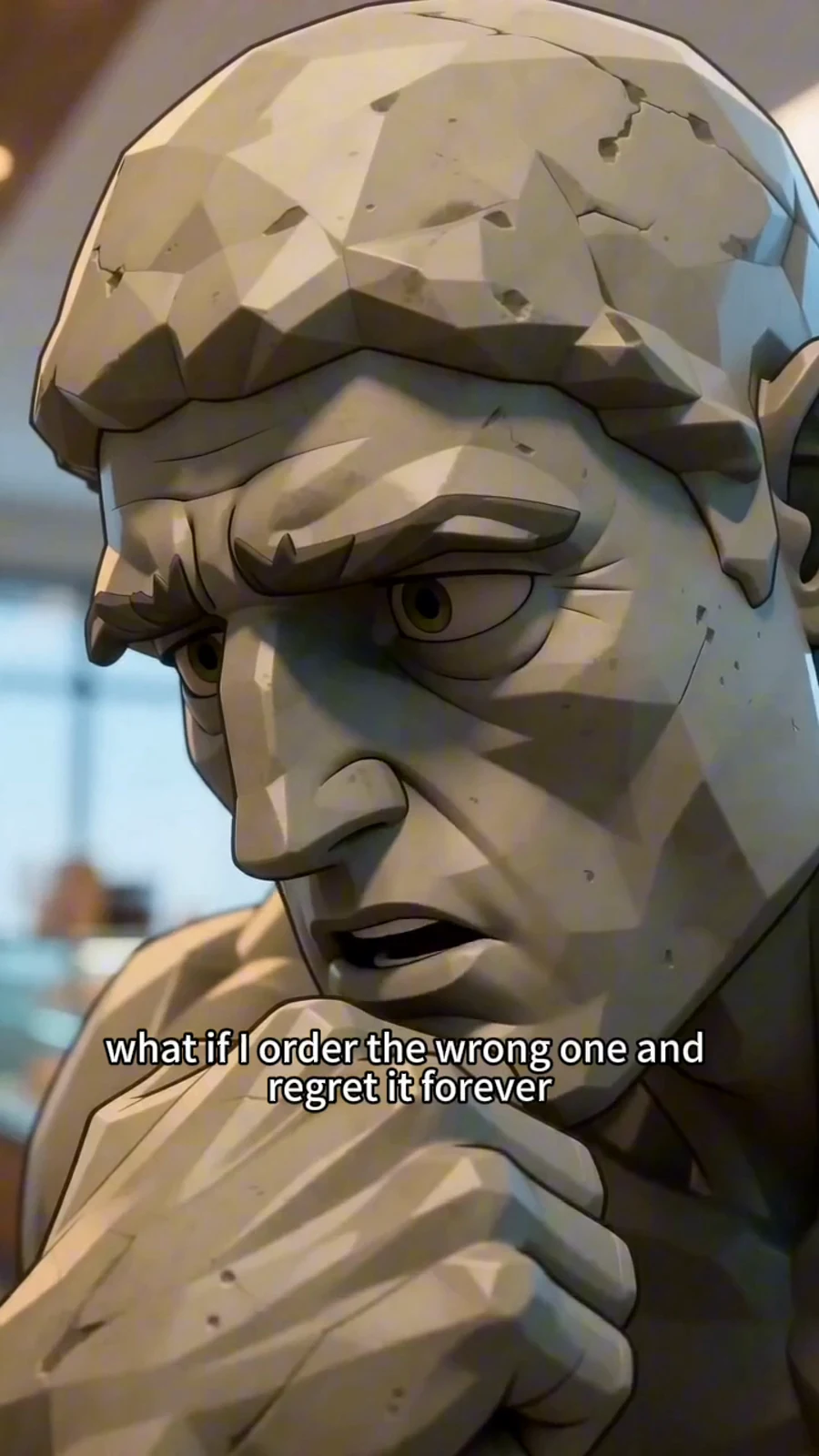
The Thinker in the city is a premise for a character-led social story. Carry a recognizable subject through new situations and give each post one encounter or visual joke to develop.
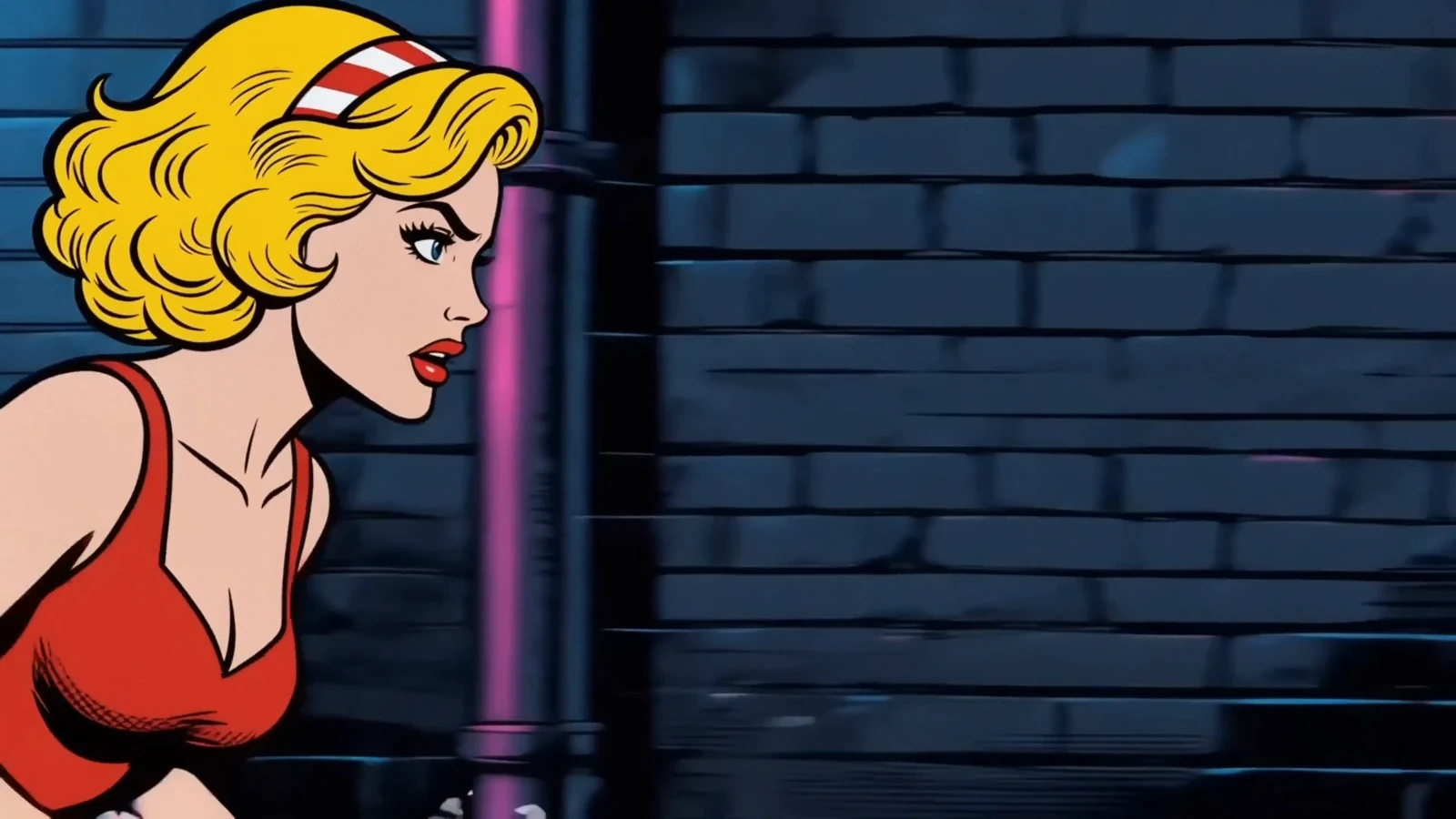
A rainy-night chase gives a short post an immediate question to follow. Build your opening around a character in motion, then plan the next shots around the obstacle and the outcome.
Your social media video creator keeps planning, generation, and editing connected in one workspace. Tell the Agent who will watch, what the video should communicate, and where you plan to share it. Add your script or reference images and choose portrait or landscape framing.
Review the story direction and shot list. Put the main action early, remove repeated beats, and decide what the viewer should see at the end. Edit the order and descriptions before generating clips.
Generate your shots, then review them on the canvas. Revise a shot that needs work, assemble the sequence, and add text, voice, or music to support the message.
Watch the complete cut with sound on and off. Check product details, character continuity, text placement, and the final frame, then download the finished video for your chosen channel.
Keep the main action near the center. Leave room around text and faces for the destination app's interface.
Use the width to show the setting and action together. Make key details large enough to recognize on a phone.
Plan the composition before you generate. These are creative starting points for two viewing styles. Preview the exported video in its intended placement and check the destination platform's current upload requirements.
Use the social media video generator to build the sequence around what viewers need to understand. Open on a character in motion, a question in the scene, or the start of a change. A chase can begin with footsteps in a rain-soaked alley, giving the next shot a reason to reveal who is running and why.
Use a short text line when it adds essential context, and give it time to read. Check the cut muted, then balance voice, music, and scene sounds so the message stays clear.
Reuse saved character, scene, or prop references for related posts. Change one story beat or opening at a time, then check each result for continuity before exporting.
Start with one audience and one message. In OiiOii, give the Agent your idea or script, add useful reference images, and review the proposed shots. Generate the clips, edit the sequence with text and sound, then watch the full video before downloading it for the channel you chose.
Create a repeatable brief and keep useful characters, scenes, and props in your assets. Plan several distinct situations around one character or topic, such as a surprising arrival, an obstacle, and a comic misunderstanding. Use those references in each project, change the relevant shots, and review every finished cut before sharing.
Yes. Add the image or script to your project and tell the Agent what the video should show. For a product photo, use a clear view and describe the action, setting, and real selling point. For a script, identify the essential lines and review how they become shots. Check the generated product details against your source image.
Choose the frame around the intended viewing placement. Portrait 9:16 gives a vertical composition for short-form viewing, while landscape 16:9 gives more room for a scene or demonstration. Keep the subject and text readable on a phone and check the destination platform's current requirements before uploading.
Compare it with the brief and the adjacent shots. Look for an unclear action, changing character details, misplaced hands, or props that appear or disappear. Simplify the action or clarify the reference, revise the affected shot, then replay the complete sequence to check the transition.
If your social post begins with a product photo or illustration, explore Image to Video for a focused image-led workflow.
Bring your next idea to an AI video generator for social media and shape it into a finished video.