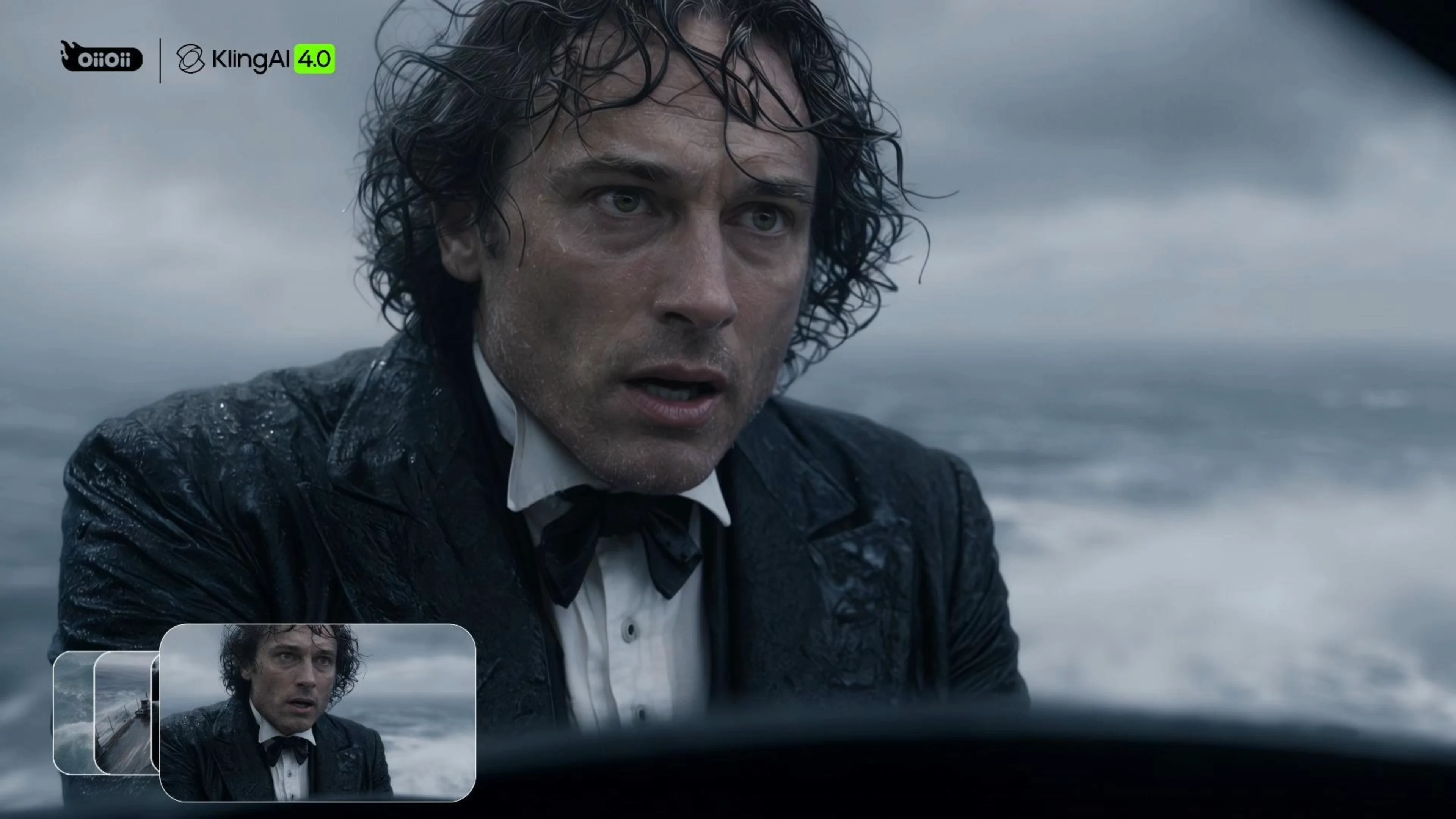
Tell Emotion-Driven Stories
Turn a story idea into expressive character moments. Shape the mood through facial expressions, gestures, lighting, and the shift from wide shots to close-ups.
Create a scene, guide its key moments, and refine what happens next. Explore Kling 4.0 in OiiOii with text, visual references, and video editing.
Develop stories, action scenes, and product ads with visual references and detailed direction. Explore what these creative approaches can look like.
Turn a story idea into expressive character moments. Shape the mood through facial expressions, gestures, lighting, and the shift from wide shots to close-ups.
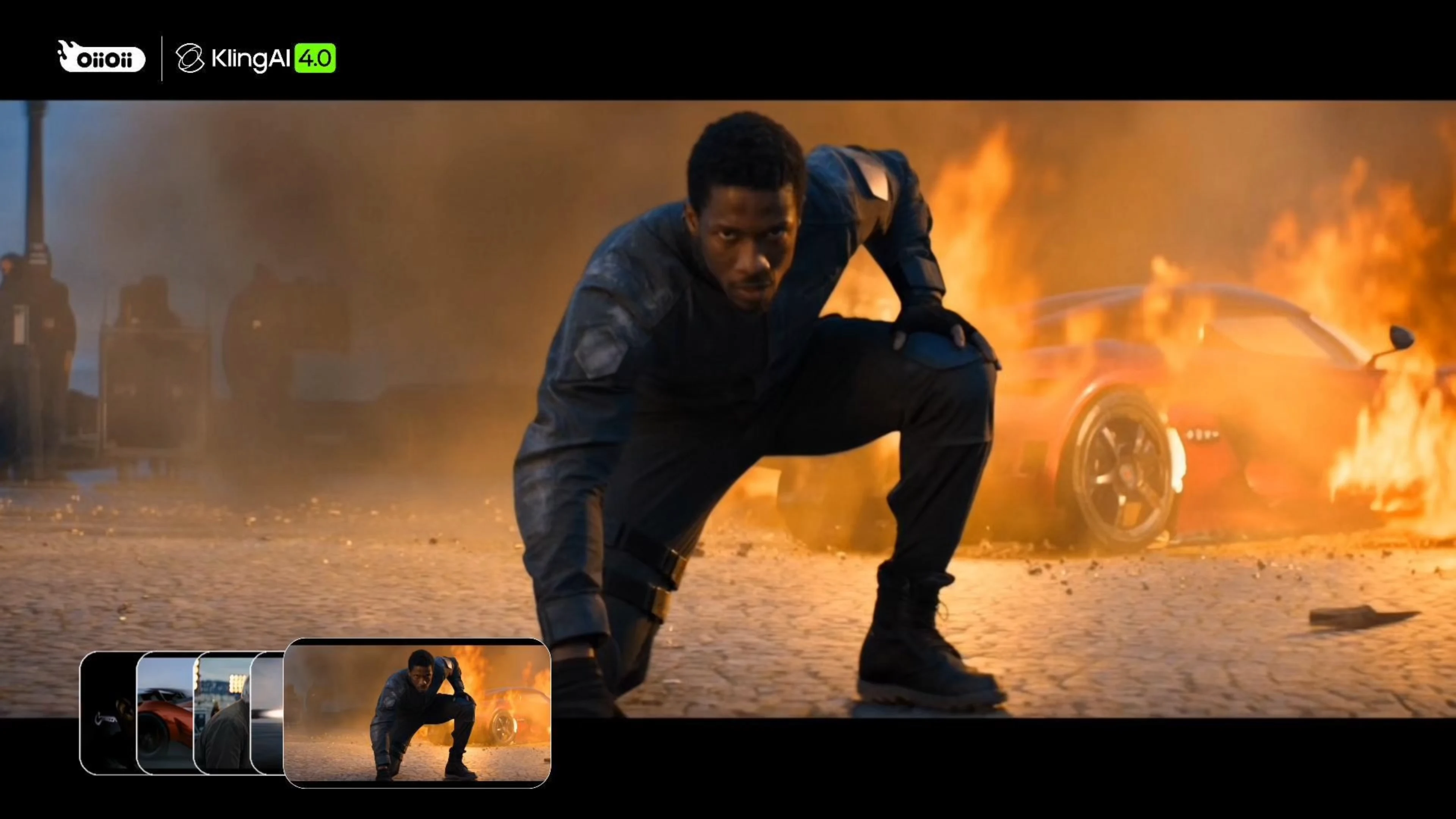
Bring action concepts and film-style promos to life. Plan movement, camera angles, and key moments with visual references, then refine the shots into a connected sequence.
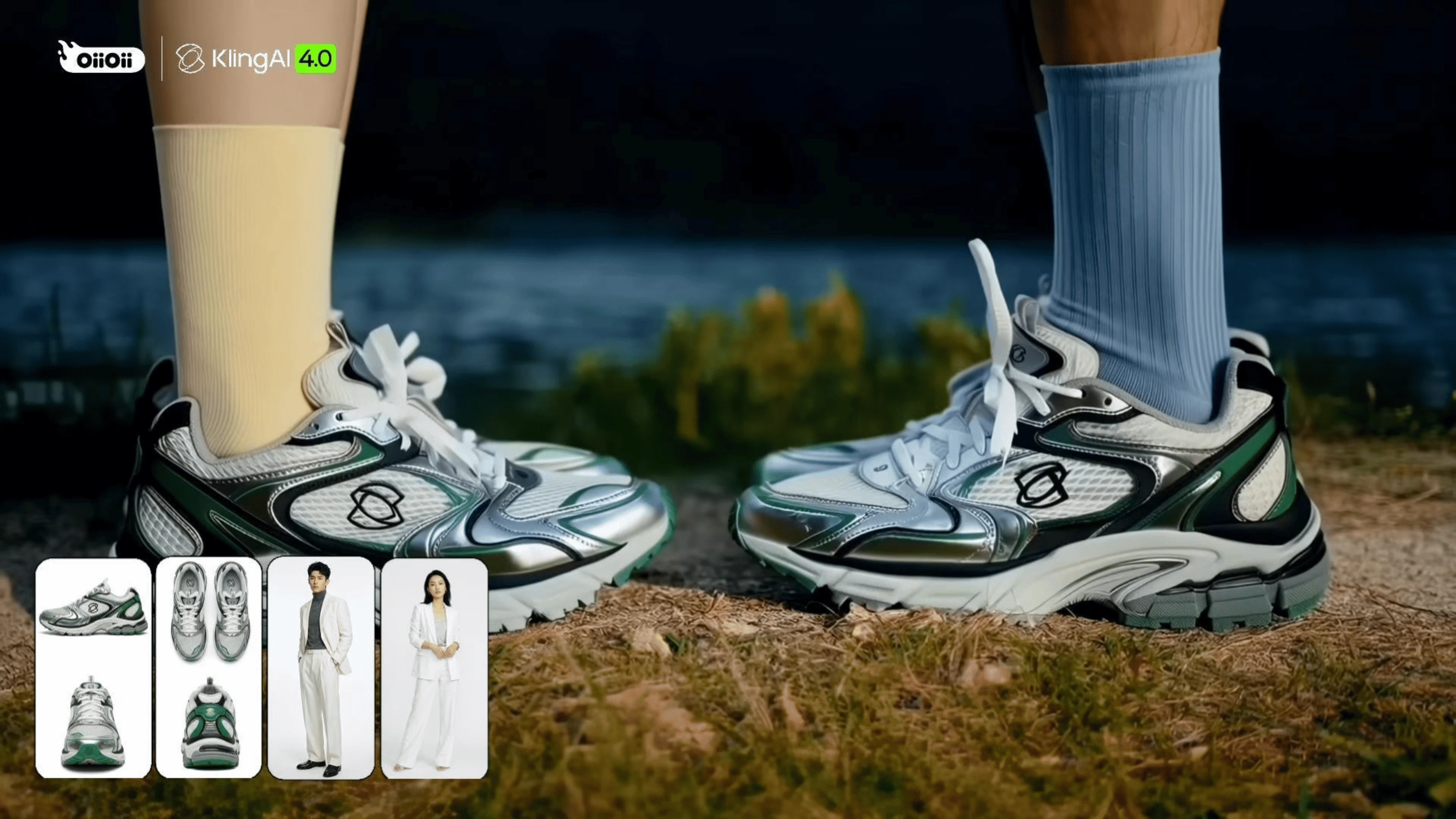
Create product-led campaign concepts across different settings. Use references to guide the look of your product and characters, and combine detail shots with lifestyle scenes.
Use these writing tips to plan a similar scene. They are guidance inspired by the examples, not the original generation prompts.
Describe the performance first, then add the sea conditions, clothing movement, and camera distance. Specify the hand action you want to see instead of relying on a general request for cinematic detail.
Break the action into clear beats: approach, stunt, and landing. Define the direction of movement and the camera position for each shot. Review contact, momentum, and continuity before assembling the sequence.
Identify the product details and character features that should stay consistent. Describe each location and action separately, using the same references where supported. Check the shoe shape, colors, and clothing between shots.
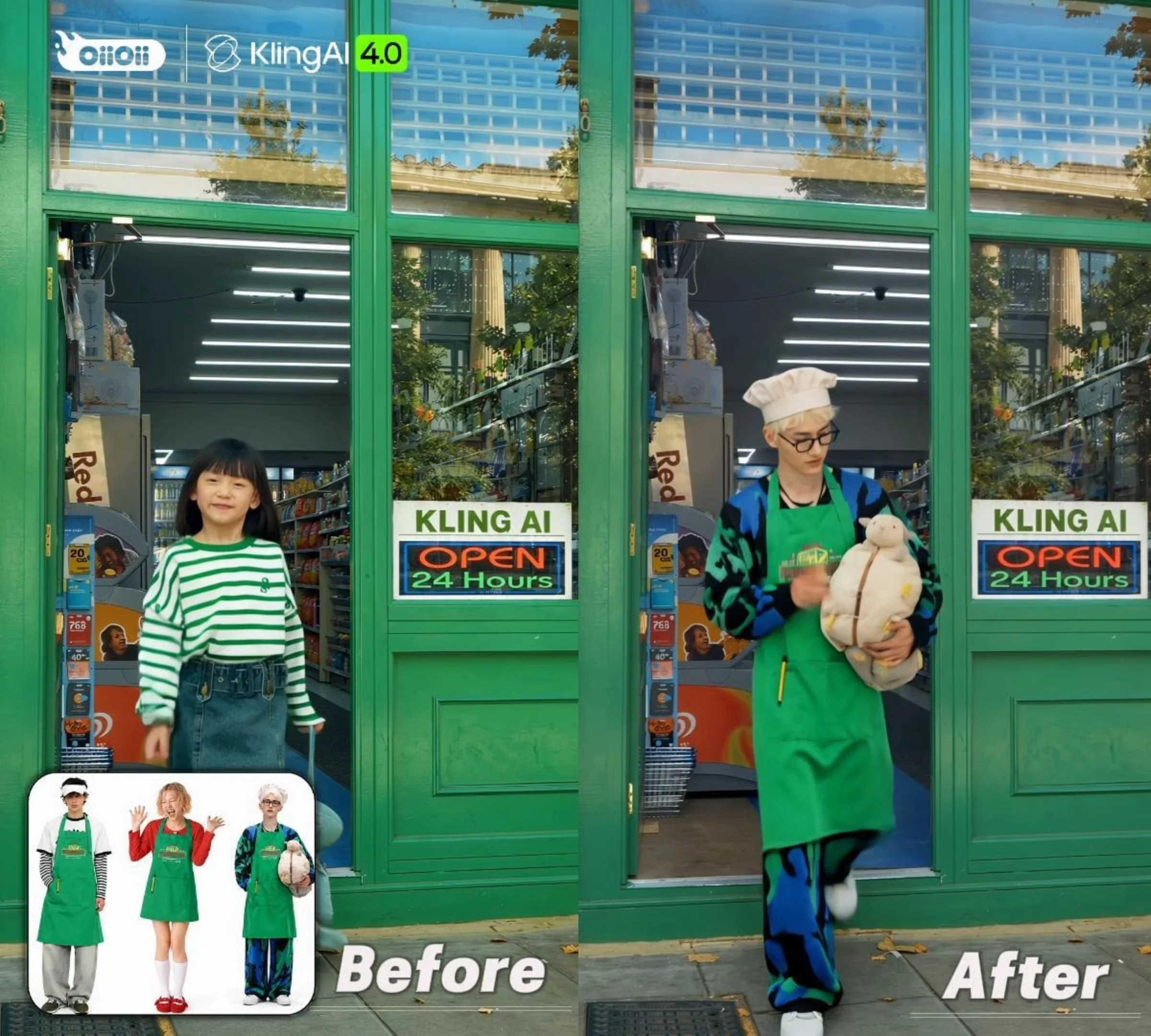
“”
Adapt a scene for a different character concept. Replace the people in existing footage, then check how their appearance and movement fit the original setting.
Before and After are shown together in the video.
The same character reference, acting prompt, 10-second duration, and 720p output. Compare how each model handles subtle expressions, gaze changes, and hand movement.
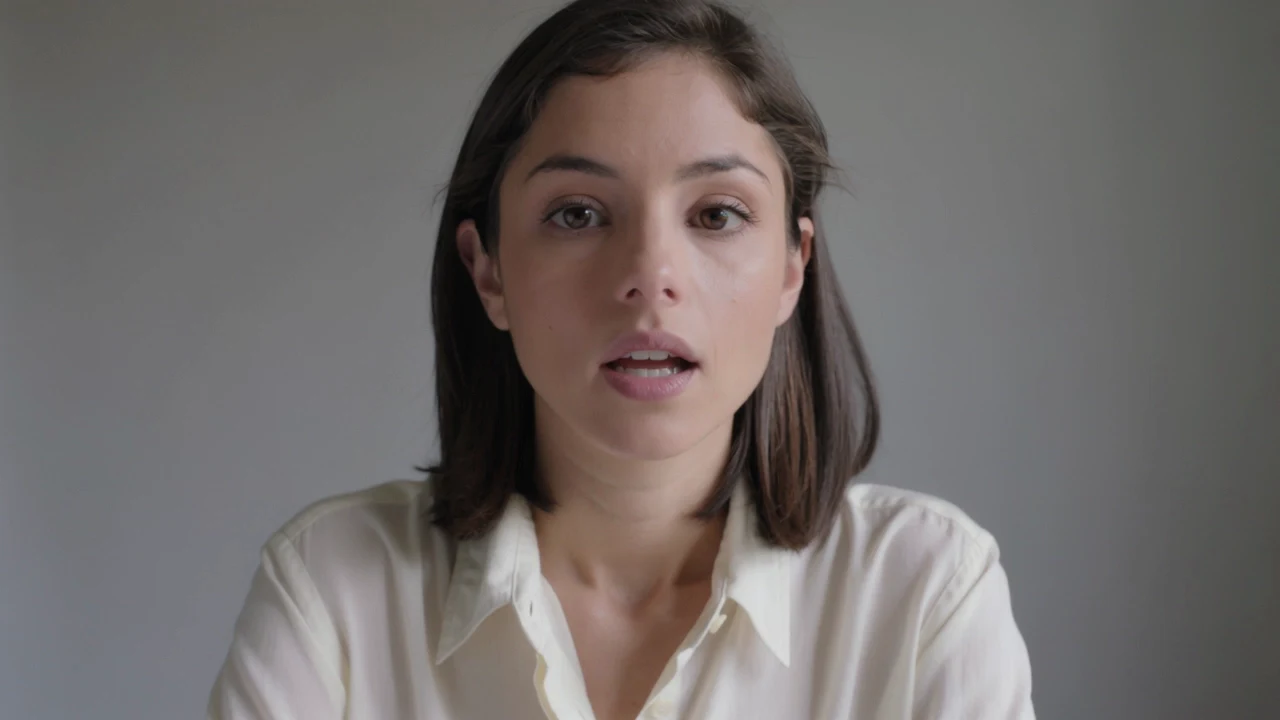
10 seconds | 720p | Same character reference and acting prompt
10 seconds | 720p | Same character reference and acting prompt
Both videos use the same added background music. This is one matched test, not a benchmark for every type of scene.
Begin with a prompt or image. For a more directed shot, prepare references that show the moments you want to create.
Choose Kling 4.0 and your settings. Review the action, framing, and details before refining the result.
Keep the shot on its own, or arrange it with other clips in OiiOii Canvas. Add music or voice to complete your story.
Both can be used to generate videos, but choosing a version also means comparing its controls and the results it produces. With Kling 4.0, this page focuses on keyframe-guided creation and video editing. For your own project, compare a short test shot, the available settings, and the Credit cost rather than assuming a newer version is better for every task.
A 5-second video takes around 30 seconds to generate in OiiOii. Higher resolutions and longer clips generally take longer. A short test helps you check your idea before spending more time on a longer version.
Use a clear image as your starting point, then describe what happens next. For example: "The pianist keeps playing as waves wash across the deck; the camera moves closer to his hands." Focus on movement rather than repeating the image's appearance. Keep the first attempt simple, then refine the action or camera direction.
Yes, it can contribute shots for product videos, campaign concepts, and narrative projects. The result depends on the model version, your references, and your prompting and editing experience. Check details, motion, and continuity, then refine the selected shots before including them in a finished production.
You can reuse character references when creating additional scenes. OiiOii lets you save a character to Assets and select it again across your workflow, rather than rebuilding the character for each shot. Keep defining features and clothing consistent, and review the results for continuity.
The available duration for one generation depends on the model and settings. Your finished video in OiiOii does not have to stop at one clip: you can create additional shots and assemble them into a longer sequence.
You can sign up and explore OiiOii for free. Video generation uses Credits, and you may need to purchase more to continue. Check the required Credits for your settings before generating. You can also earn Credits through daily check-ins.
Start with an idea. Test the movement. Refine the result.