
Product reference
Begin with the bottle shape, color, and materials.
OiiOii offers an AI ecommerce video maker that turns product images and a clear brief into product videos. Upload your references, explain what shoppers should see, and work with the Agent to plan, generate, and edit your footage. Build a focused product demonstration, a lifestyle scene, or a short product story in one creative workspace.
A product image gives the AI product video generator a visual starting point. Compare the fragrance reference with a product-focused ad and a UGC-style scene to see how the brief changes the presentation. The product ad puts the bottle at the center; the lifestyle approach gives the fragrance a place in a personal routine. For your own product demo video, choose the question the scene should answer before generating. Check the bottle shape, color, and details against your reference, and use only confirmed product information in the accompanying script.
Begin with the bottle shape, color, and materials.
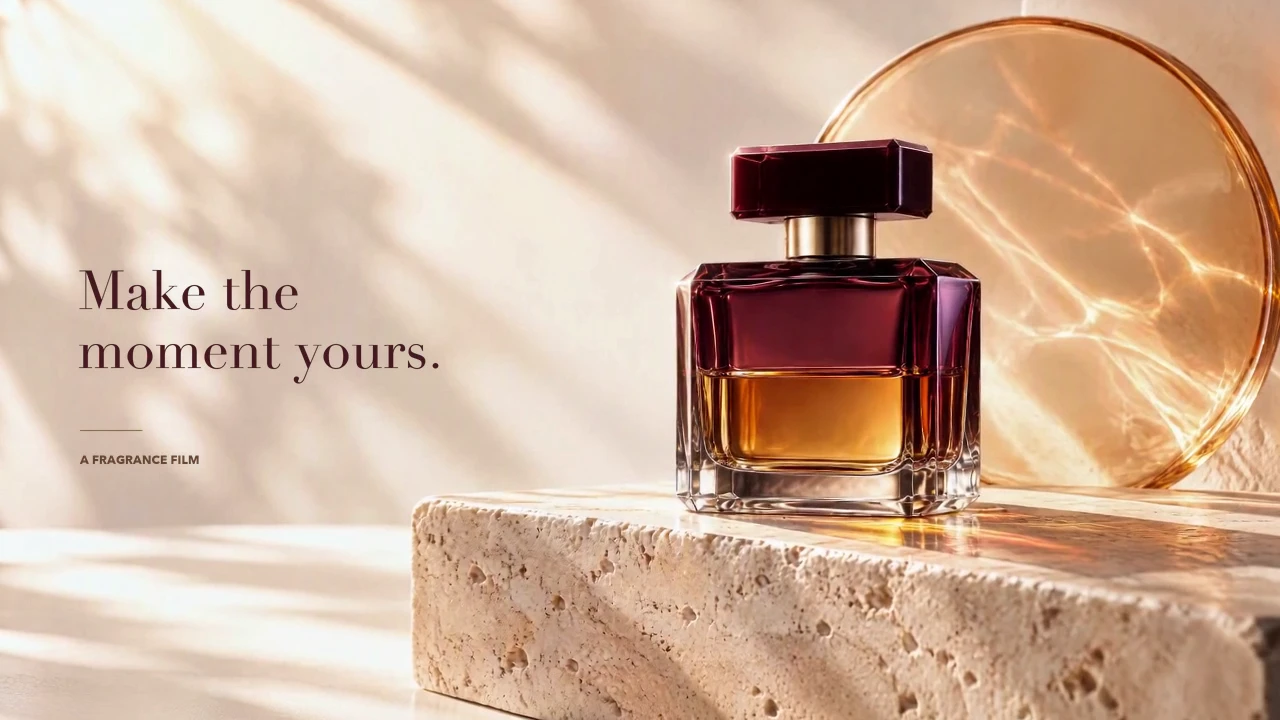
Keep attention on the fragrance and its presentation.
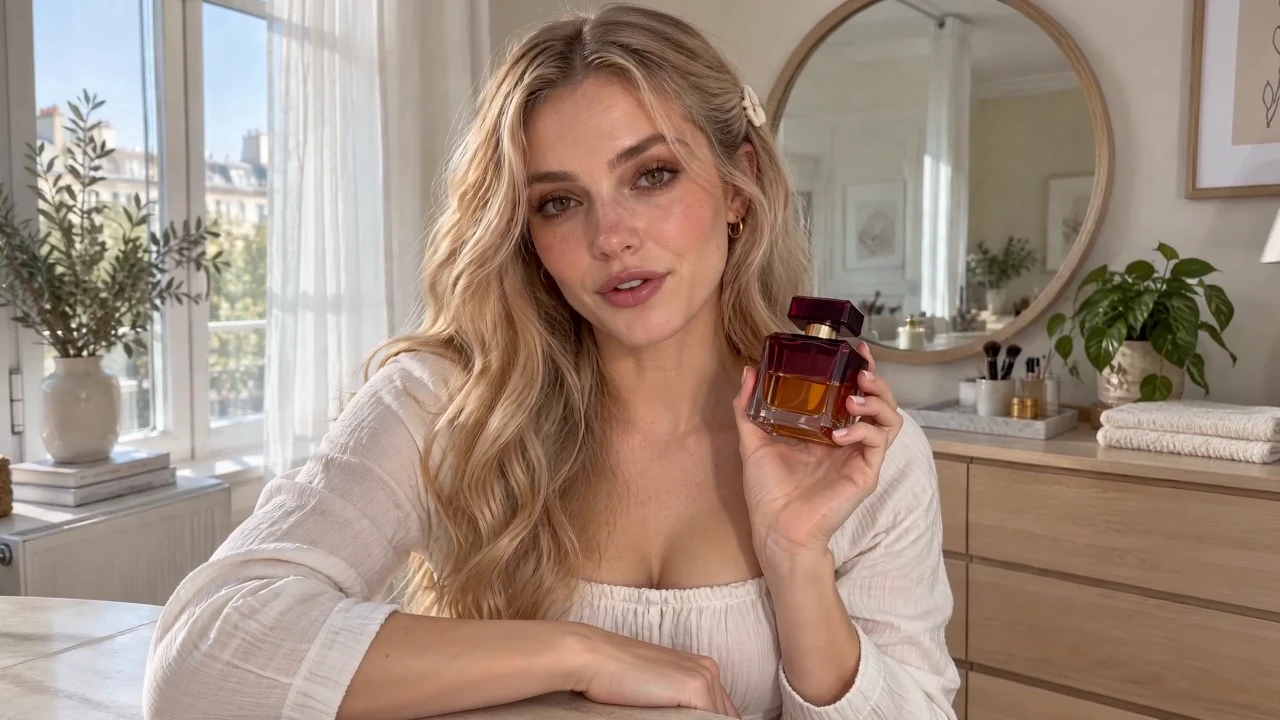
Give the product a place in an everyday routine.
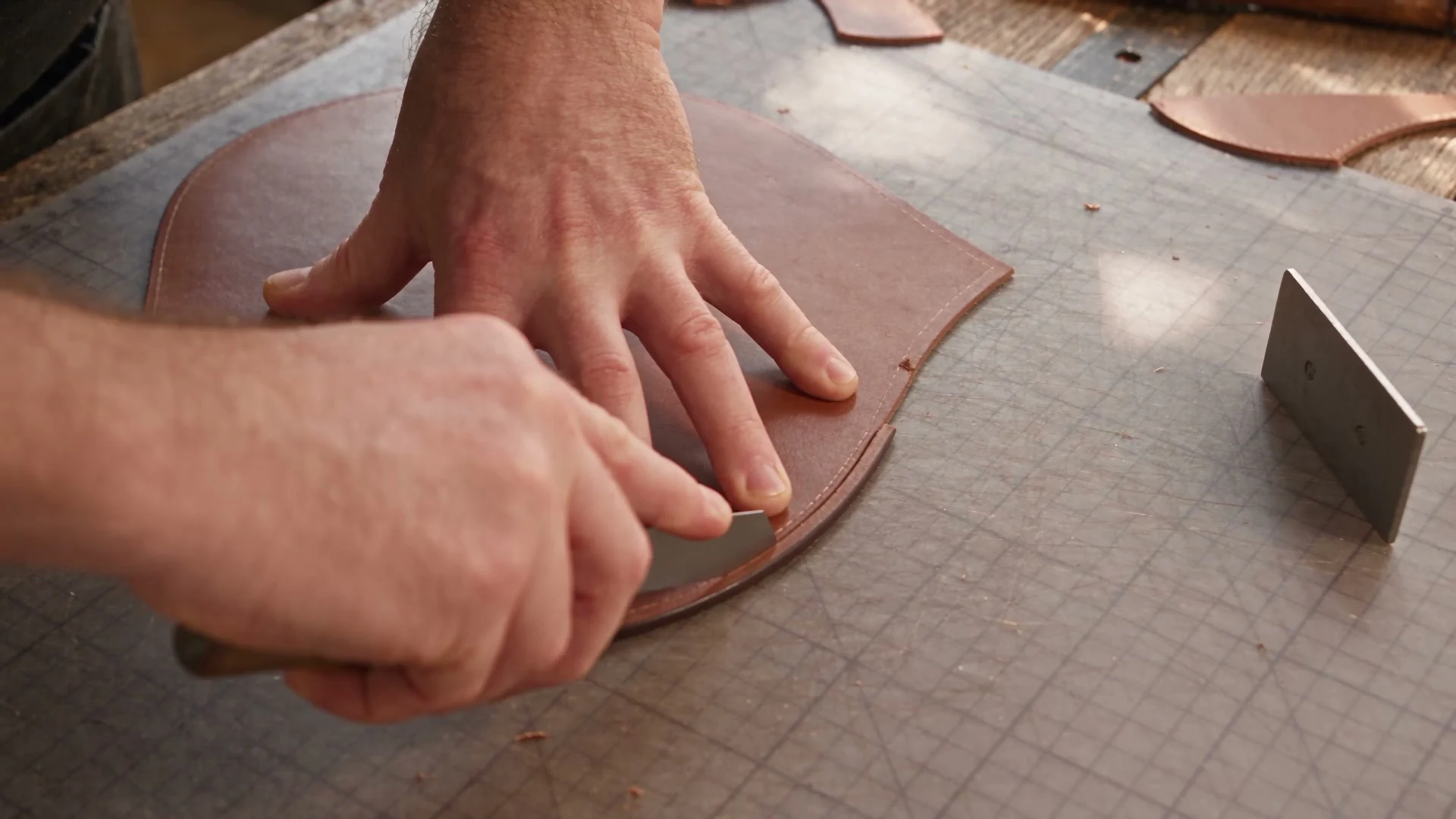
A leather bag process video follows material becoming a finished form. Build the brief around real construction stages, keeping tools and hand movements readable. Use this approach to explain craftsmanship, with scenes that reflect your actual manufacturing method.
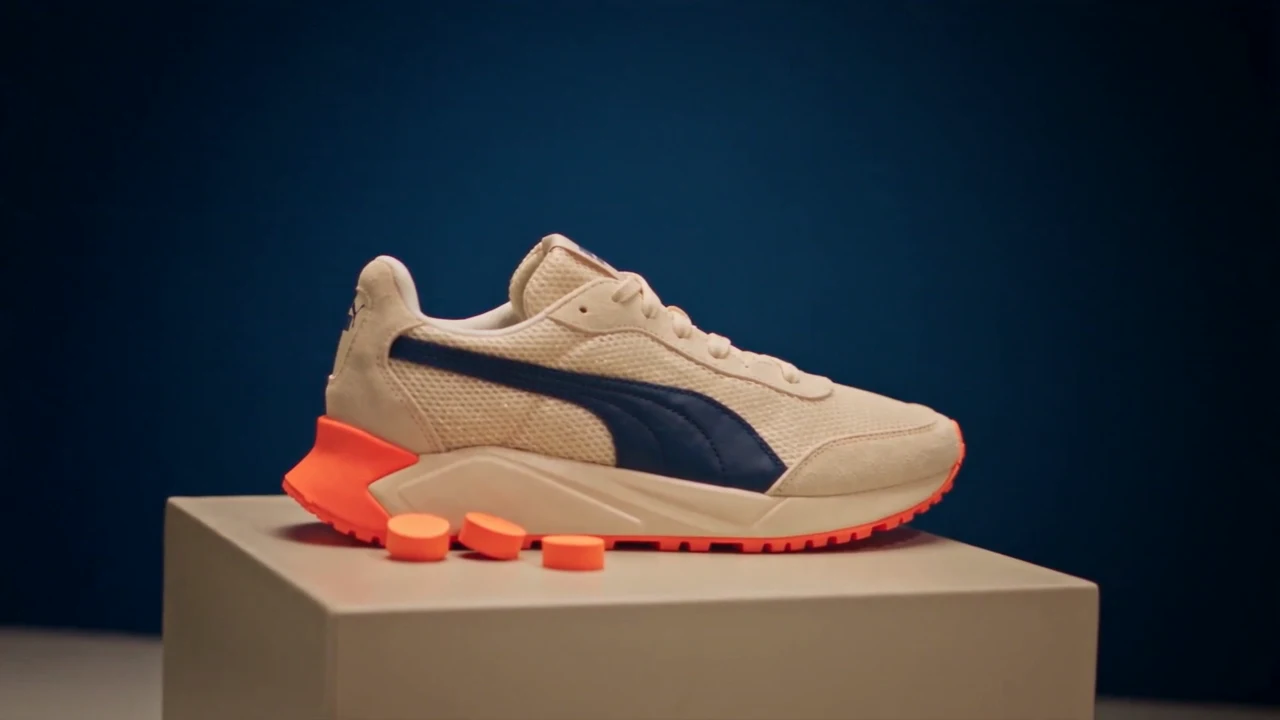
A sneaker detail video brings texture closer. Connect close-ups to an overall view so shoppers can locate each feature. Describe visible materials without treating a close-up as proof of comfort, durability, or performance.
Prepare: Clear close-up reference
Show: Material, shape, and finish
Prepare: Product reference and a real use
Show: One action with a readable result
Prepare: Product image and audience context
Show: Where the product belongs in daily life
Prepare: Product reference and a short plot
Show: A character using the product for a purpose
Choose the format around the information your customer needs. These are creative starting points for AI video for ecommerce; your product facts and intended placement should guide the final brief.
Add clear product images to the OiiOii canvas and reference them in your conversation with the Agent. Include another angle when a closure, compartment, or handle matters. State the audience and the single question the video should answer, such as how glasses sit inside a desk tray for a separate organizer demonstration. Supply confirmed product details instead of asking the Agent to invent selling points.
Ask the Agent for a product demonstration built around those references. Review the proposed scene and shot sequence: establish the item, show the action, then hold the result long enough to understand it. For the tray example, keep its compartments visible while the glasses are placed. Adjust the shot description before generating so the camera does not hide the feature you want to show.
Use the selected product image or prepared scene as the reference for video generation. Describe the movement separately from the camera: the glasses move into the tray while the camera stays close enough to show contact. Preview the whole clip, especially the placement. If the tray changes shape or the object passes through it, revise that shot and compare the new version with the reference.
Combine the useful shots in OiiOii and remove repeated setup. Add concise text or voiceover that describes the visible product detail; use music to support the pace. Watch the complete sequence with sound, check the wording against your product information, and download the finished video. Keep a useful close-up available as an individual clip when you need a simpler product presentation.
An ecommerce video generator is most useful when you can refine the explanation after the first result. Select the relevant canvas material and tell the Agent what needs to change: shorten the opening, replace an unclear shot, or adjust the spoken description. OiiOii supports combining generated or existing clips with text, music, and voice. Review the revised sequence as a whole so the soundtrack and captions still match the product action.
Prepare clear images, accurate selling points, and the intended audience and placement. Include close-ups of any feature the video must explain. If an important surface is hidden, add another view rather than expecting the generator to infer its design.
Yes. Use the product photo as an image reference in OiiOii, then describe the scene and movement. Begin with one action or a clear camera move. Compare the generated clip with the original image before using it in a product listing.
Yes. You can work with clips on the canvas, revise selected material, and combine footage with text and sound. Describe the specific change you want. A request to change a generated shot may require regeneration, so review its product details again.
Use the destination to guide framing: 9:16 suits a vertical composition, while 16:9 leaves more room for a wide scene. Plan enough time to show the action clearly. A generated clip and an edited multi-shot video have different lengths; do not confuse the two.
Check shape, color, logos, contact, and the function being shown. Confirm that text and voiceover match your actual product. For an animated story, make sure the playful setting does not imply a product feature you do not sell. Correct misleading details before sharing the video.
For a focused first clip, explore Image to Video and develop the movement around one product reference. Bring that shot into your wider product video when you need a longer explanation.
Bring a clear product image and one detail worth showing. Build the demonstration, refine the shots, and turn your brief into a product video with OiiOii.