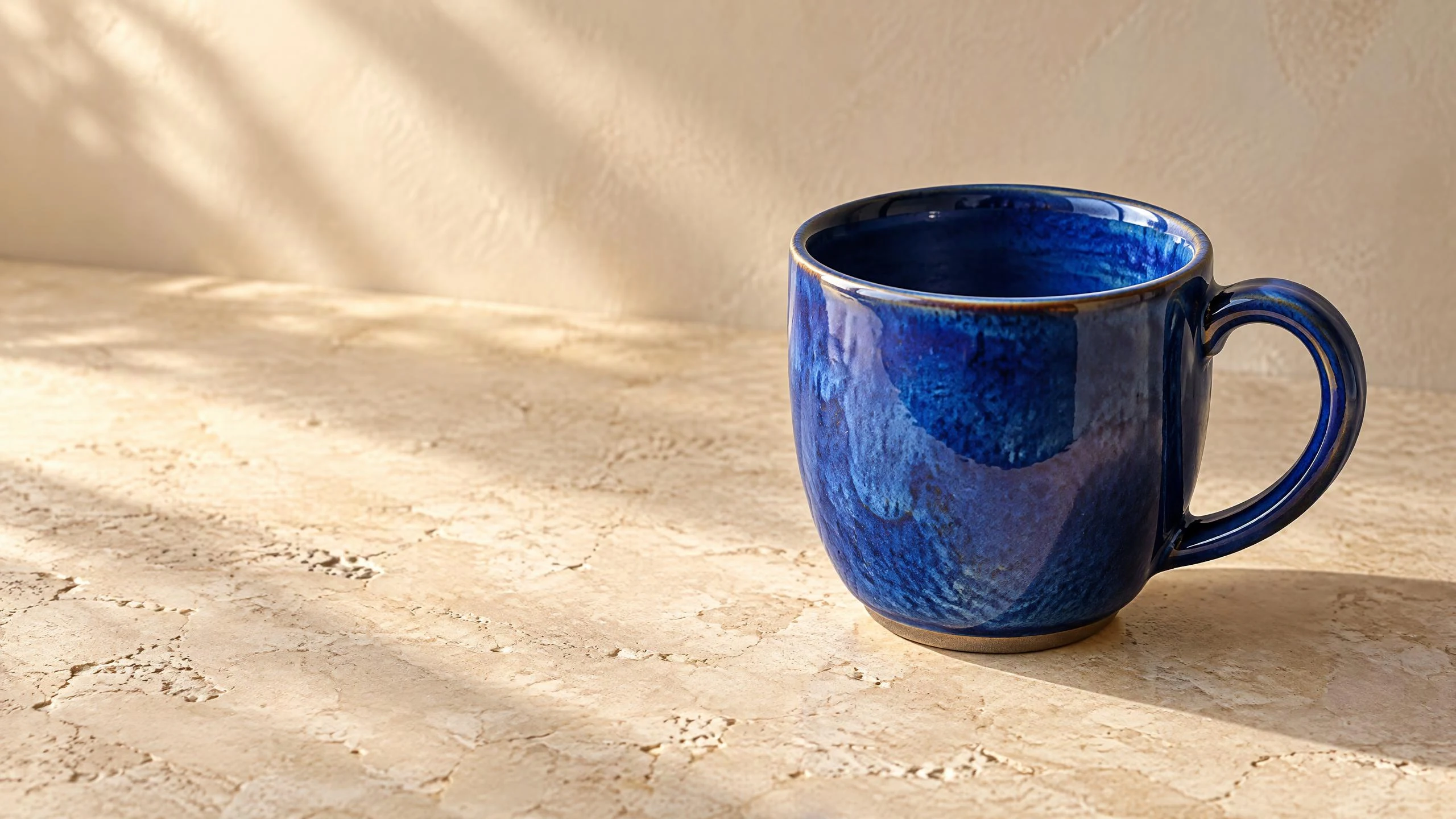
A product launch with room for a headline
Place a cobalt ceramic coffee cup on warm limestone, with a soft morning shadow and open space to the left. Specify the handle direction and camera angle so the composition serves the campaign layout.
Create images from a description or reference with Seedream 5.5 in OiiOii. Develop a campaign visual, explore a new composition, and continue refining your chosen image on the canvas.
Seedream 5.5 is part of the Seedream image-model family. In OiiOii, you can start with text or supply reference images, then bring the result into a workspace where you can select, compare, and edit your visuals. Choose this version in the image model selector when starting your image task.
Give your Seedream 5.5 image task a specific use and a clear composition. The creative concepts below illustrate two starting directions.
Place a cobalt ceramic coffee cup on warm limestone, with a soft morning shadow and open space to the left. Specify the handle direction and camera angle so the composition serves the campaign layout.
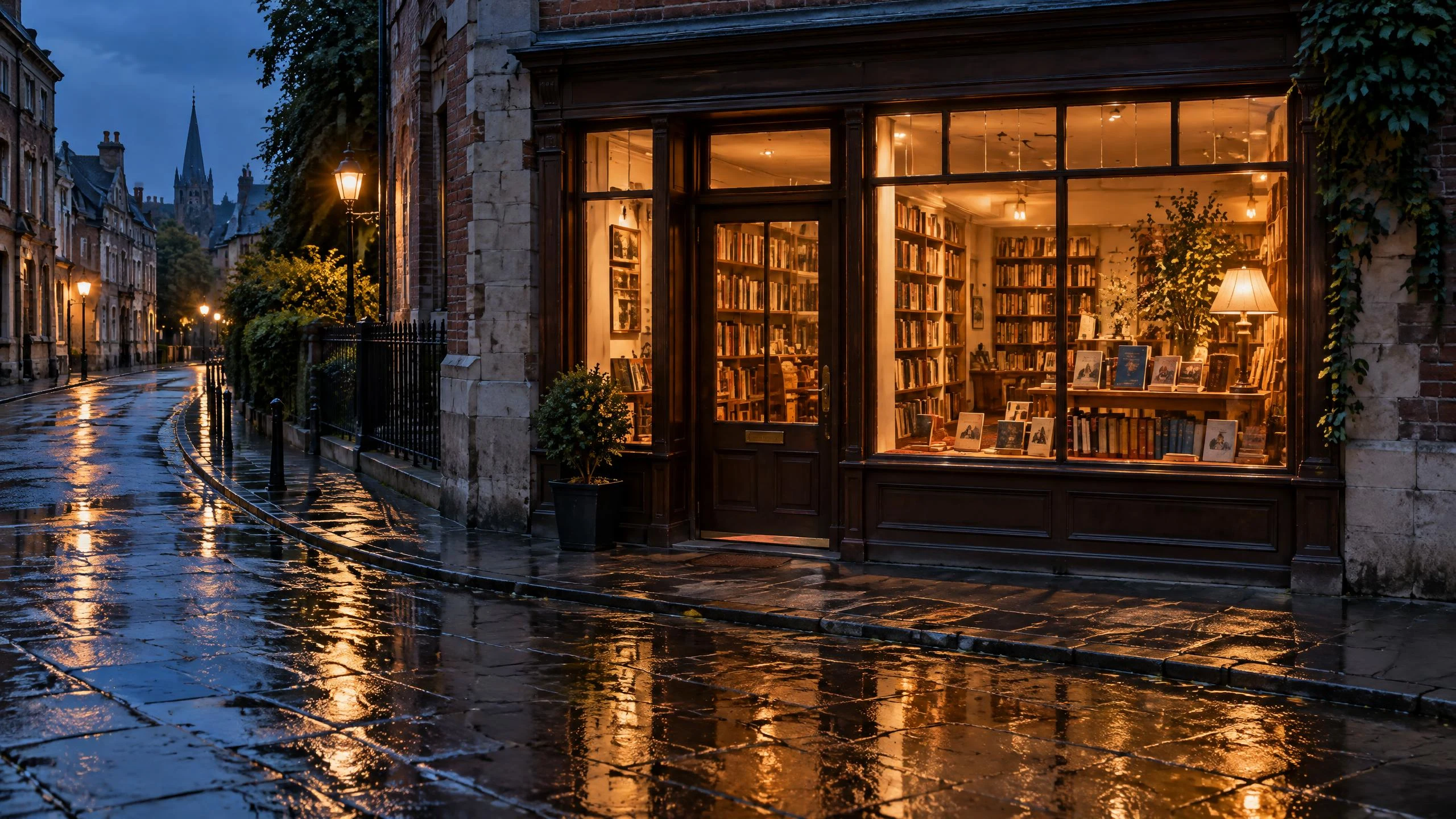
Describe a tiny bookshop at blue hour, with amber windows reflected in rain-darkened pavement. Give the doorway a clear position and keep foreground objects sparse so the viewer knows where to look.
Attach a reference image to your Seedream 5.5 task and explain what it should guide. For a product launch, identify the cup silhouette and blue glaze, then describe the new breakfast setting. For a scene, identify the doorway position and warm window light before requesting a different time of day. Compare those details with your reference when choosing a result.
Select Seedream 5.5 for an image task. Begin with a written description, or attach a reference image and explain its role.
Useful Seedream prompts specify the subject, composition, materials, lighting, and intended use. For the coffee launch, describe the blue glaze, limestone surface, side light, and space for a headline.
Choose the available aspect ratio that suits your placement. Inspect the result for object shape, repeated details, edge quality, and any requested lettering before choosing your preferred image.
Select the image on the OiiOii canvas and ask for a focused change, such as softer shadows with the cup position and blue glaze retained. Compare the new result with the earlier version before making the next change.
Continue on the OiiOii canvas with the image you want to develop. For the bookshop scene, ask to keep the doorway and warm window light, remove a distracting foreground sign, and reduce the pavement reflections. Select the relevant image before sending the request. Compare the new version with its earlier state, then build on the result that best serves your scene.
Decide where your headline or product copy will sit before generating. Leave intentional space there, and check the final crop at the intended placement size.
When an image needs words, supply the exact wording and placement. Check every letter, accent, and line break in the result. Keep essential campaign copy separate when it must remain editable.
State which details define the reference and which may change. A product silhouette, material finish, and background mood are different requirements; describe each explicitly.
Describe the subject first, followed by composition, materials, lighting, and the image's intended use. If you need space for a headline, say where it belongs. For a revision, name the details to retain and the specific change to make.
Yes. Attach your reference images to the image task and explain what each should guide, such as subject appearance or composition. Use clear images and inspect the generated result against the reference before making further edits.
Select the image on the OiiOii canvas and describe a focused revision. You might ask to soften the lighting, adjust the setting, or remove a distracting object. Compare the new version with the earlier one, checking important details as well as the requested change.
Provide the exact text and describe its placement. Review spelling, punctuation, and legibility at the final display size. If the wording will change between campaigns or languages, reserve space for editable copy in your final layout.
For a broader overview of text and reference-image creation, explore the OiiOii AI Image Generator.
AI Image Generator - Explore image creation workflows beyond a single model.
Bring a clear description or a reference image, then develop your chosen result in OiiOii.