1. Choose a version and a scene
Open Mini, Fast, or Pro and start with one clear moment: a character reacting, a product revealing a detail, or an animated scene with a visible beginning and ending.
Bring your next scene to life with Seedance 2.0 on OiiOii. Explore Mini, Fast, and Pro, compare their output options, and choose where to start—from a quick creative experiment to a more detailed final shot.
Start with the output you need and the way you like to work. Mini and Fast offer 480p and 720p options, while Pro also includes 1080p and 4K. All three support 4–15-second clips and landscape, portrait, square, and wider aspect ratios.
| Output or cost | Mini | Fast | Pro |
|---|---|---|---|
| Available resolutions | 480p, 720p | 480p, 720p | 480p, 720p, 1080p, 4K |
| Clip duration | 4–15 seconds | 4–15 seconds | 4–15 seconds |
| Access | Members only | Members only | Members only |
| Aspect ratios | 16:9, 9:16, 1:1, 4:3, 3:4, 21:9 | 16:9, 9:16, 1:1, 4:3, 3:4, 21:9 | 16:9, 9:16, 1:1, 4:3, 3:4, 21:9 |
| 480p — estimated Credits/second | 4 | 5 | 7 |
| 720p — estimated Credits/second | 8 | 11 | 14 |
| 1080p — estimated Credits/second | Not available | Not available | 35 |
| 4K — estimated Credits/second | Not available | Not available | 72 |
| 10-second clip at 720p — estimated Credits | 80 | 110 | 140 |
Credit estimates checked on October 29, 2026, using member-tier quotes without video references. Actual charges can vary with the final settings and applicable offers; check the generation estimate before submitting. Credit costs are separate from the price of a membership or Credit purchase. At the same 720p setting, Mini has the lowest estimated Credit cost of the three. Pro adds higher-resolution choices, with higher Credit estimates at 1080p and 4K. Use the examples and the output you need to guide the trade-off.
Resolution is one part of the choice. Review the actual movement, composition, and subject details in a clip before deciding which result works for your project.
Compare these Seedance 2.0 videos to see how Mini, Fast, and Pro interpret the same scene. The new clips share a creative brief and reference images, with a 15-second duration, 16:9 framing, and a 720p setting. Look at the timing of each miss, the character's reaction, and how the final catch becomes a small emotional payoff.
A Little Moon, a Big Surprise
A tiny astronomer keeps missing a playful miniature moon. After a string of failed grabs, a gentler approach turns the chase into a small moment of wonder.
These are individual creative examples, not a model ranking. A different scene, prompt, or setting can produce a different result.
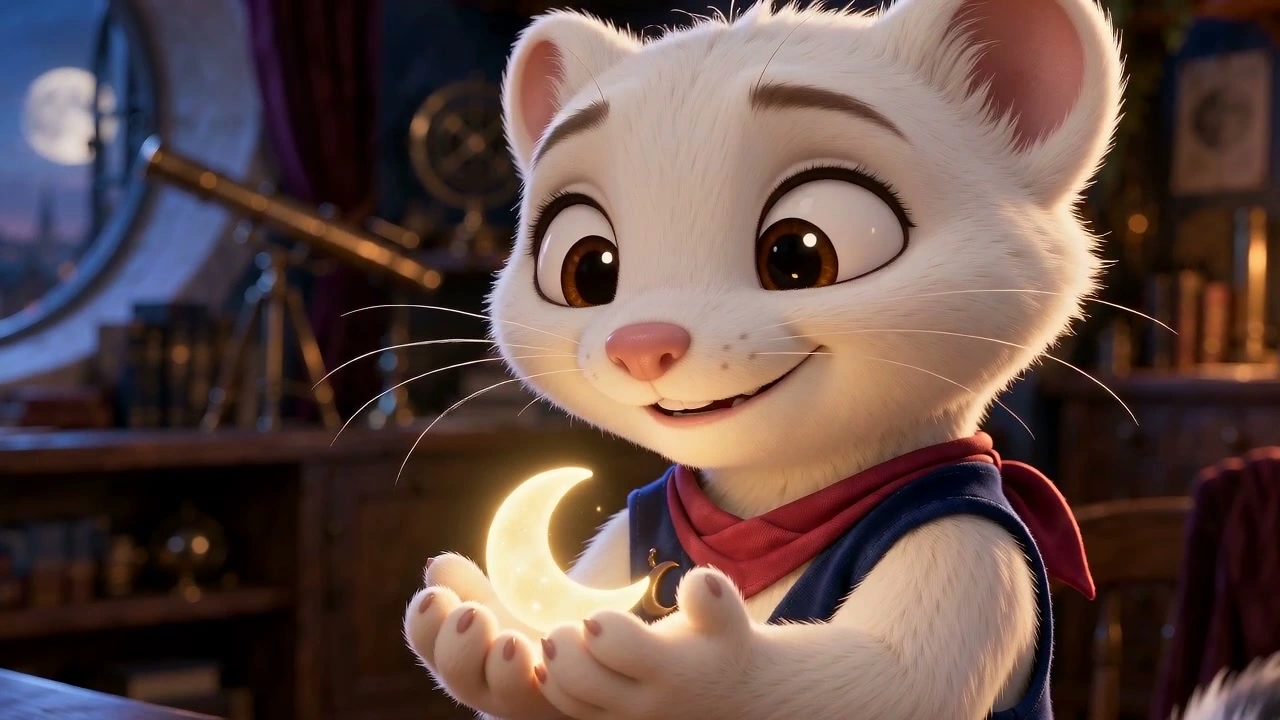
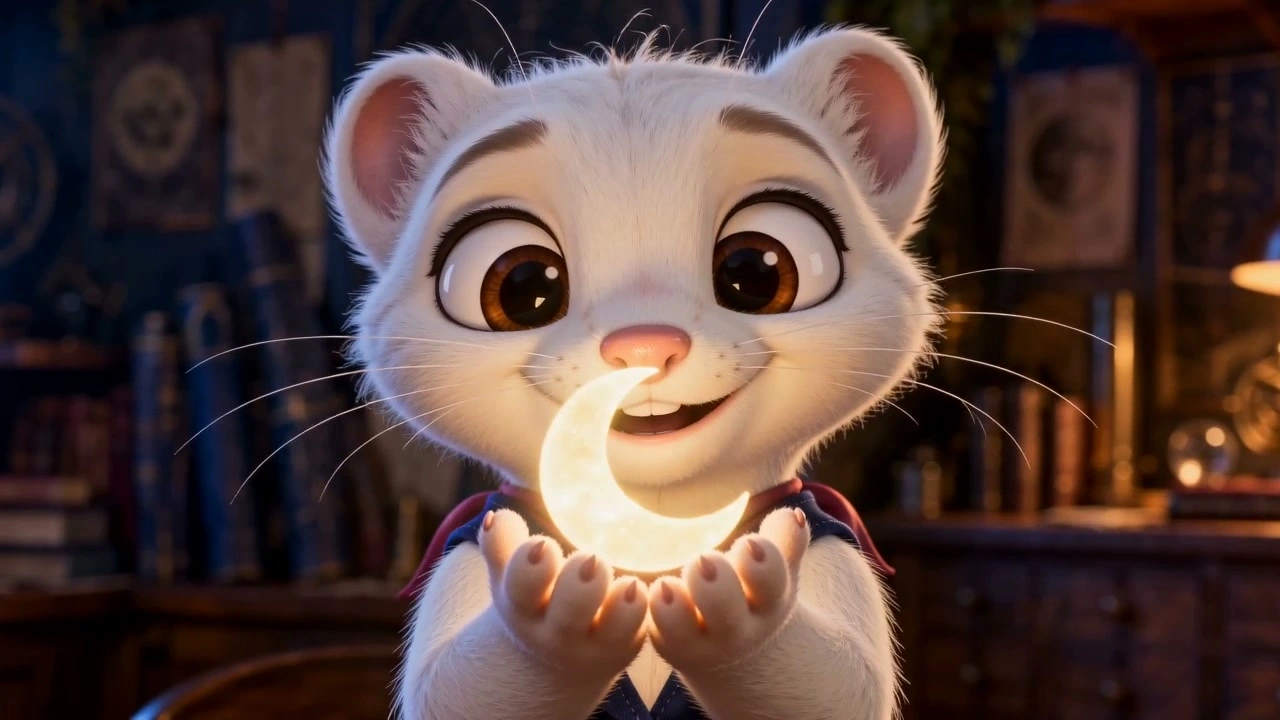
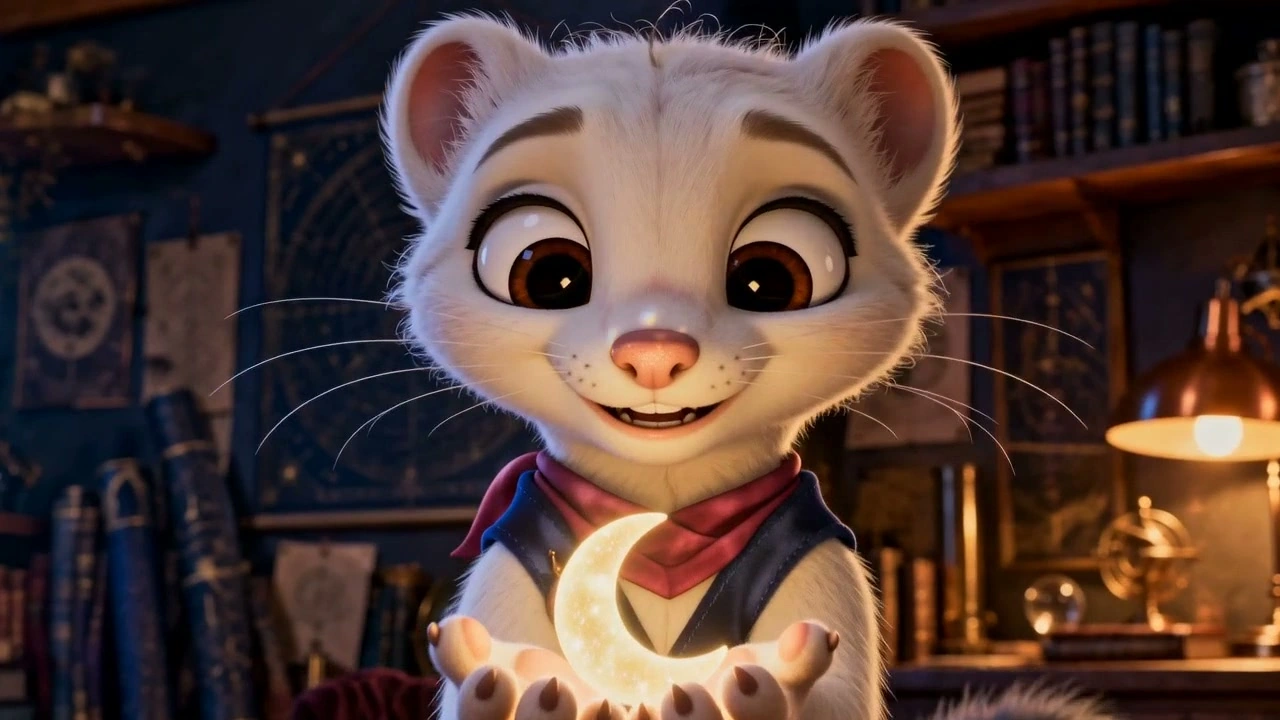
Seedance 2.0 Mini · 720p · 16:9
Open Mini, Fast, or Pro and start with one clear moment: a character reacting, a product revealing a detail, or an animated scene with a visible beginning and ending.
Explain what moves, where it goes, and how the camera follows. If you use a reference image, say which subject, appearance, or scene details it should guide. Choose the available duration, resolution, and aspect ratio for your version.
Watch the complete clip. Check the main action, subject details, transitions, and ending before refining the idea or developing another shot.
An accidental coffee spill becomes a slow-motion moment during a daytime city walk. The camera circles the surprised heroine in a suspended moment, then the coffee falls to the ground.
A character close-up guides the face, expression, and skin texture. Full-body, rear-view, and plaza references guide the styling and setting. Generated with Seedance 2.0 Pro.

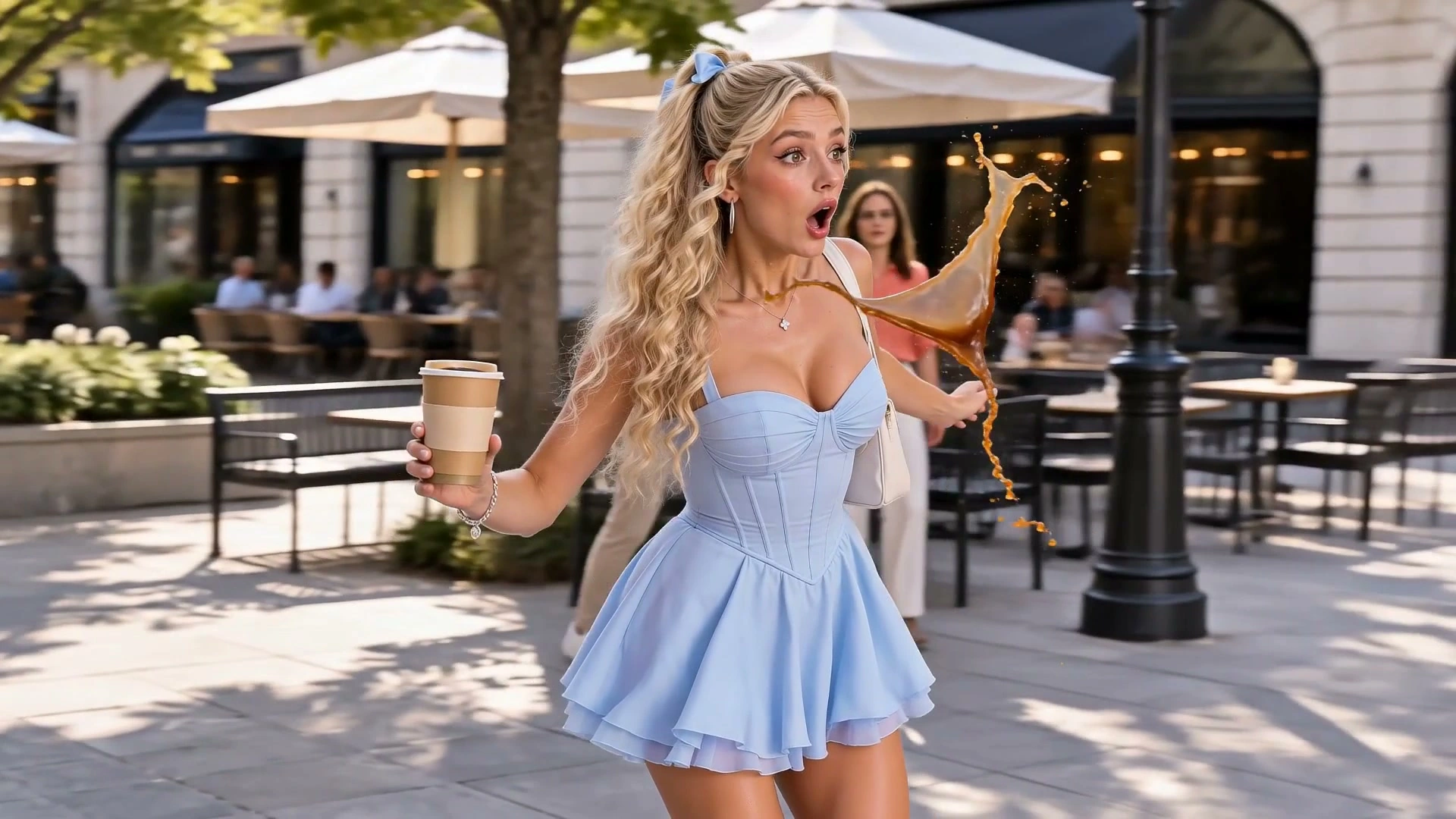
Character reference
A useful Seedance 2.0 prompt gives the scene a clear subject, action, setting, and camera direction. Describe what should stay the same and what should change. A few precise instructions are more useful than a long list of visual adjectives.
For animation, name the visual style and the character's emotional change. For a cinematic scene, connect the camera movement to the event you want the viewer to notice. If a prop is picked up or put down, explain its starting position and where it ends.
Start with this scene brief:
“A tiny white ermine astronomer repeatedly misses a floating miniature moon. Show each failed grab clearly, then slow down for a gentle two-paw catch and a delighted reaction in the warm workshop.”
This is a short creative starting point. The example clips use a longer production prompt with timed shots, reference roles, and sound instructions.
A tiny paper boat is trapped between a closing wave and a raised page edge. Show the blocked route, switch from the blocked boat to a plane, then follow its narrow escape above the wave.
Use distinct shots for the threat, the blocked route, and the escape. In this edited example, a match cut turns the boat into a plane before it clears the wave.
Generated with Seedance 2.0 Pro; edited for this example.
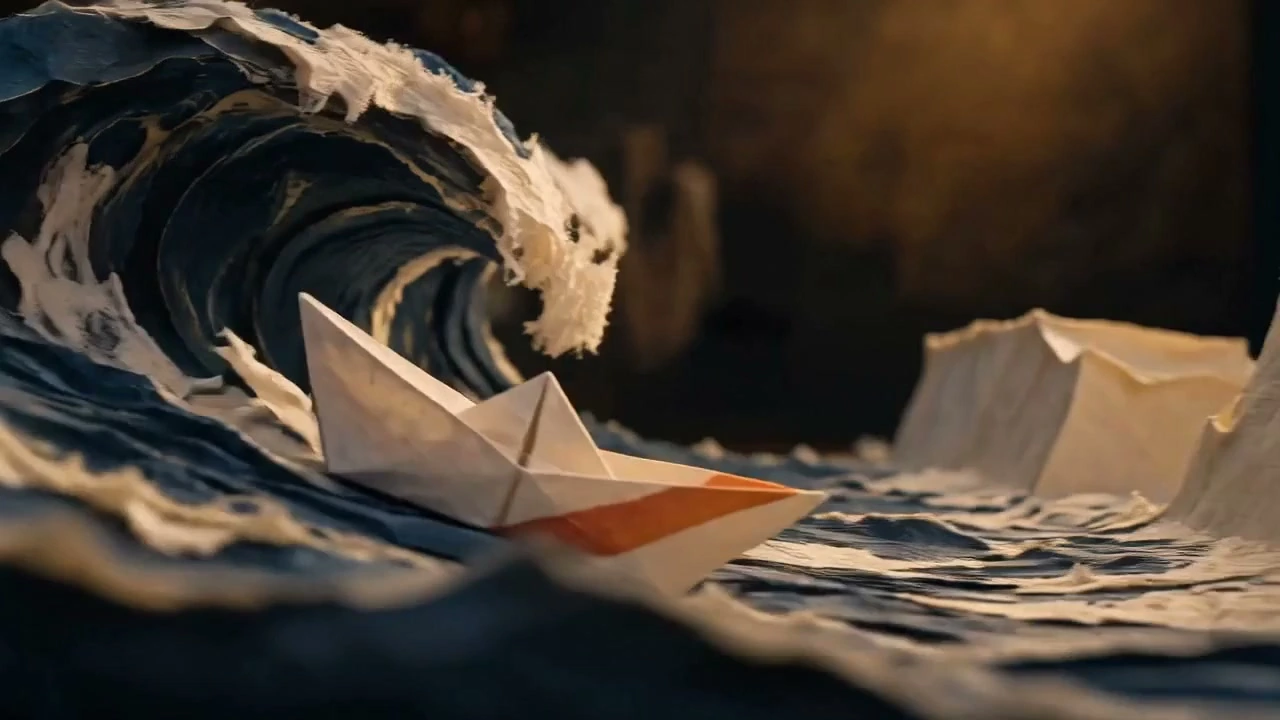
Watch the paper escape.
Seedance 2.0 is a video generation model family developed by ByteDance Seed. On OiiOii, you can explore Mini, Fast, and Pro and choose a version for the scene you want to create.
Mini is positioned as a lightweight option for everyday creation, while Fast focuses on an efficient iteration workflow. Both offer 480p and 720p output options. Pro adds 1080p and 4K options. Compare available settings and actual examples rather than assuming that a model name guarantees a particular result.
Start with Mini for lightweight concept exploration, or explore Fast for social and marketing variations. Choose Pro when you need the additional 1080p or 4K options. Your scene, references, and final output needs should guide the decision.
Use the Mini, Fast, and Pro links on this page to explore their OiiOii generation entries. You can start with a single scene and review the clip before developing a larger project.
Describe the subject, setting, main action, camera movement, and ending. Explain how any reference should be used. Keep a clear physical path between actions, especially when a character moves or handles a prop. The prompt guide above gives you a concise starting point.
Animation, anime-inspired concepts, and cinematic short scenes are possible creative directions. Give the clip one readable event and a clear visual style, then review how the result handles movement and continuity. The examples above explore one stylized animated scene rather than promising the same outcome for every style.
Choose a version, shape the action, and turn one clear idea into your next video experiment.