Image to Video
A chase with a visible consequence
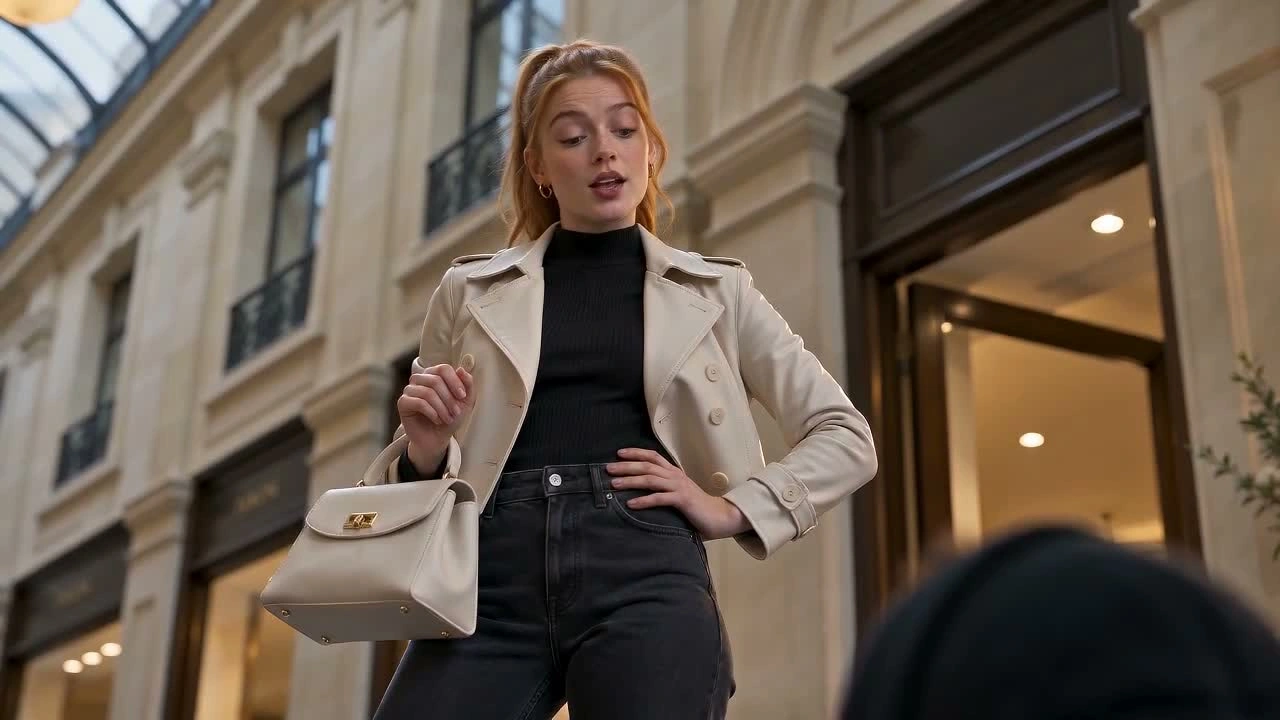
Build momentum around a character's goal and an obstacle. Describe the route, the camera's position, and the moment the action changes direction.
A quick getaway runs into an unexpected obstacle.
Turn a prompt or image into a short video with Seedance 2.0 Mini on OiiOii. Explore a chase, a comic reveal, or a tiny animated story in 480p or 720p, then refine the direction you want to keep.
A single action can tell you a lot about a video concept. Use a focused scene to explore composition, movement, and mood before building a longer sequence.
Build momentum around a character's goal and an obstacle. Describe the route, the camera's position, and the moment the action changes direction.
A quick getaway runs into an unexpected obstacle.
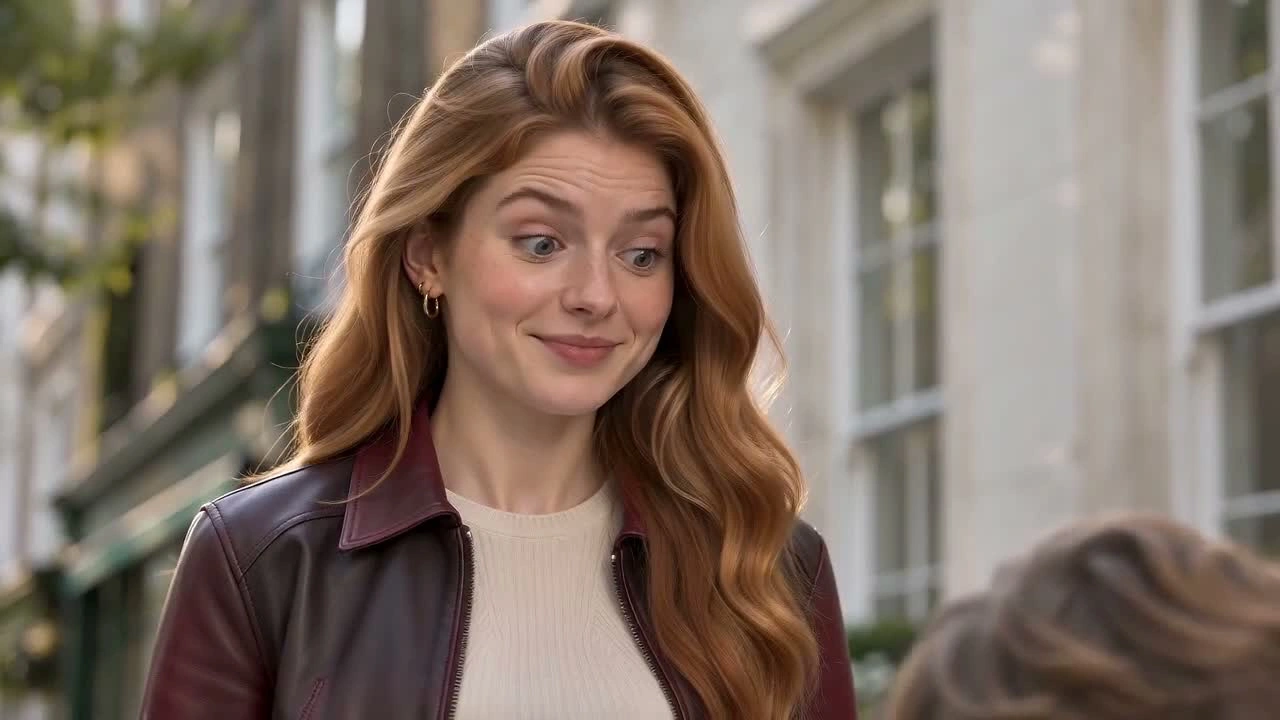
Give the first moment a clear visual hook. Test an expressive gesture, a reveal, or a change in framing that makes the viewer want to continue.
A romantic misunderstanding, revealed through a change in framing.
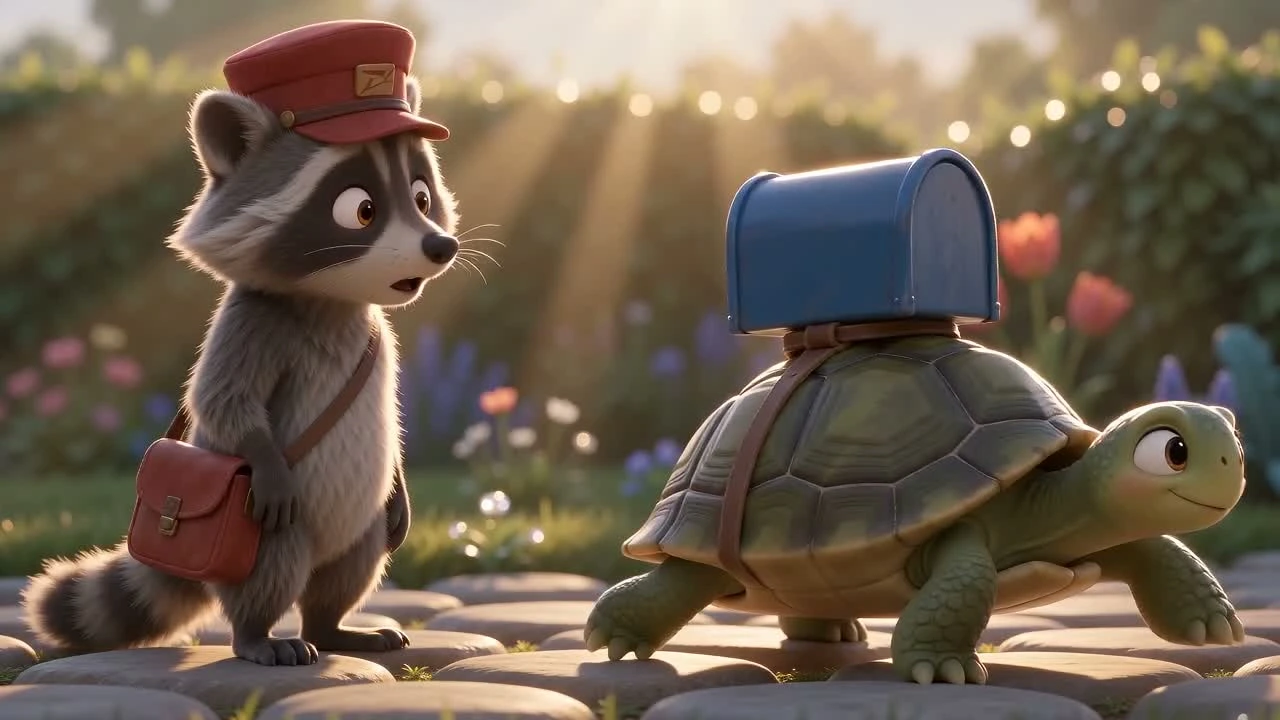
Build a short scene around a setup and a visible payoff. Keep the character's goal simple and leave time for the reaction.
A courier posts a letter before his sleepy mailbox begins to walk away.
For text-to-video, describe the subject, setting, action, and camera movement. For image-to-video, add your image and explain what should move and what should stay recognizable.
Choose 480p or 720p and a clip length of 4–15 seconds. Match the aspect ratio to the destination: 16:9 for a wide composition, 9:16 for vertical content, or 1:1 for a square frame.
Check the action, framing, and subject details. Adjust one part of the brief at a time so you can see which change improves the result.
Seedance 2 Mini is another way creators refer to the Mini variant. On OiiOii, Mini, Fast, and Pro are three distinct choices in the Seedance 2.0 family.
It is the Mini variant in the Seedance 2.0 family, available on OiiOii for short video creation. Use Seedance Mini to explore a scene from a prompt or image and review the result before developing the idea further.
Yes. Start with a written scene or add an image to guide the visual direction. Explain the action and camera movement you want, and identify the details that should remain recognizable.
Mini offers 480p and 720p for 4–15 seconds. Available aspect ratios include 16:9, 9:16, 1:1, 4:3, 3:4, and 21:9. Choose the framing before you generate so the main action fits the intended layout.
Both offer 480p and 720p on OiiOii. Start with Mini for a focused creative test, or explore Fast with the same brief and compare the outputs. Check the motion, subject detail, and framing rather than relying on the model name alone.
Mini focuses on 480p and 720p clips. Pro also offers 1080p and 4K. Choose around your required output size, then review the generated clip for the details your scene needs.
Useful video prompts describe a subject, one main action, the setting, and a camera path. Keep the first test focused. If a hand touches an object or a character changes position, explain the starting point and the visible result.
Yes. Bring selected clips into OiiOii Canvas to organize and edit your sequence, then add music or voiceover. Building the longer project happens in the OiiOii workflow, beyond the individual clip generation.
Start with one scene. Find the movement, framing, and mood you want to build on.