Seedream 5.5 Is Here | Limited Time: Subscribe & Create Credit-Free for Up to 30 Days Subscribe Now

AI Explainer Video Generator

Turn your product, process, or lesson into a video people can follow. Build a script, shape each scene, add narration, and refine the finished explanation with OiiOii.

Describe your audience, the idea they need to understand, and the facts to include.

What would you like to explain?

Prefer the full creator?

Make the explanation visible

An explainer video connects a question with a clear answer through scenes and narration. Use OiiOii as your explainer video maker to show how something works, what happens next, or why a concept matters.

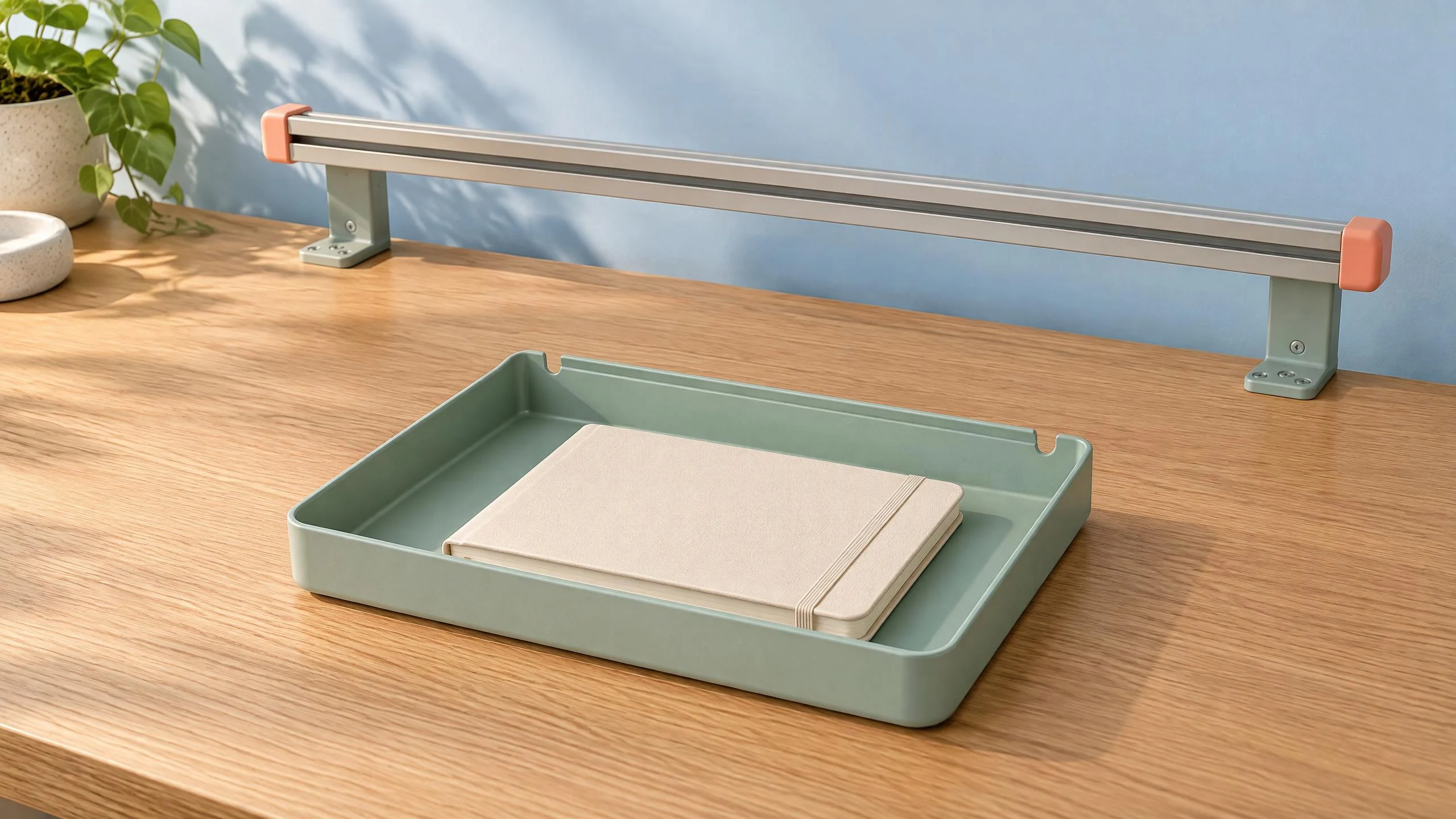
A mint desk tray slides onto a rail above an oak desk and holds a notebook.

Show how a product works

Build a product explainer video around one useful action. For a modular desk organizer, show a tray sliding into its rail, the items it holds, and the tidier workspace. Use your own product images and check the fit, shape, and operation against the real object.

A modular desk organizer explained through assembly and use.
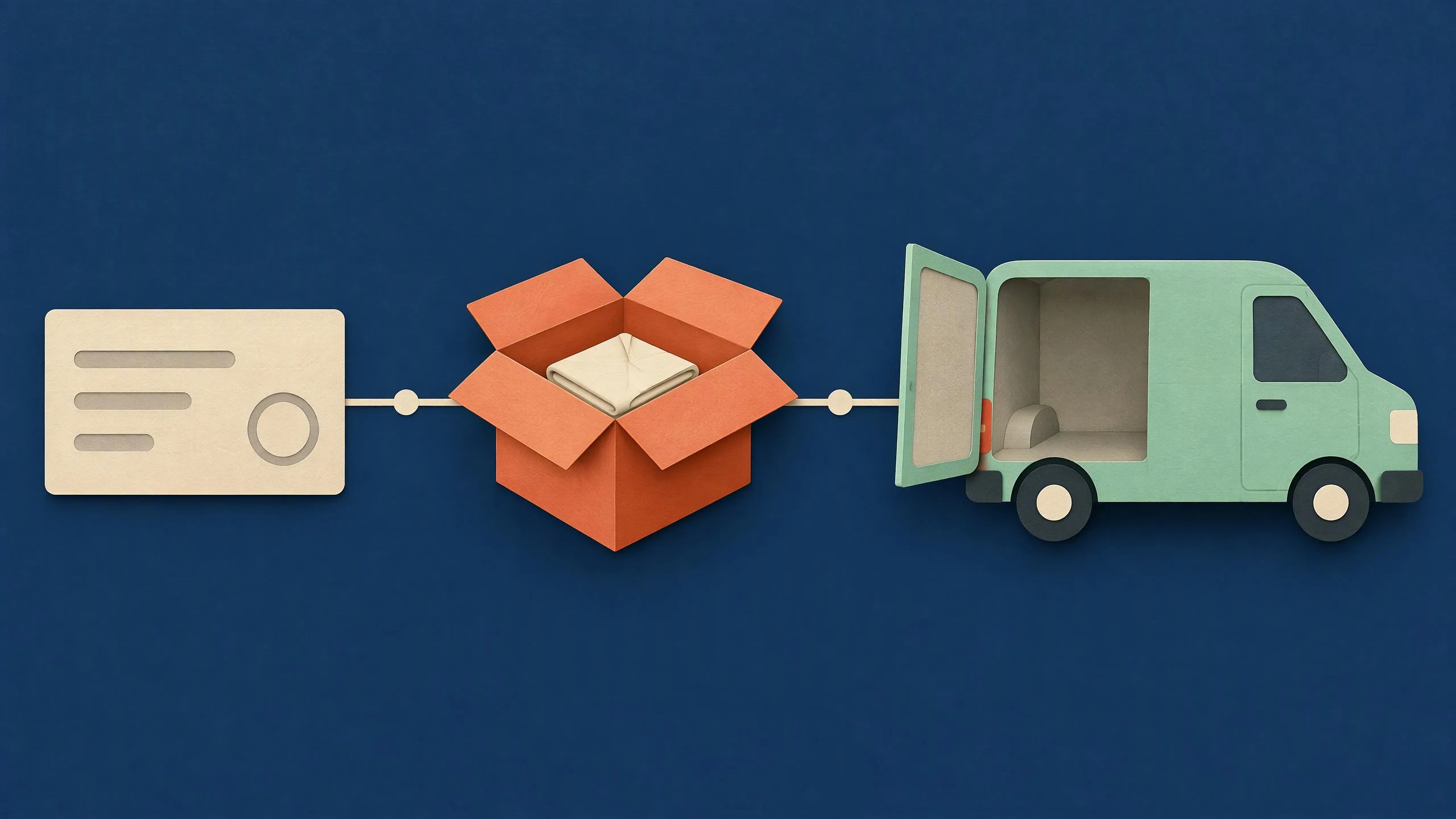
A return request, packed parcel, and collection van appear in a connected animated sequence.

Make a service easy to follow

Explain the steps a customer takes and the result of each one. A parcel-return example can move from a request to packing and collection. Supply your actual service rules so the sequence reflects what customers should do.

A parcel-return journey from request to collection.

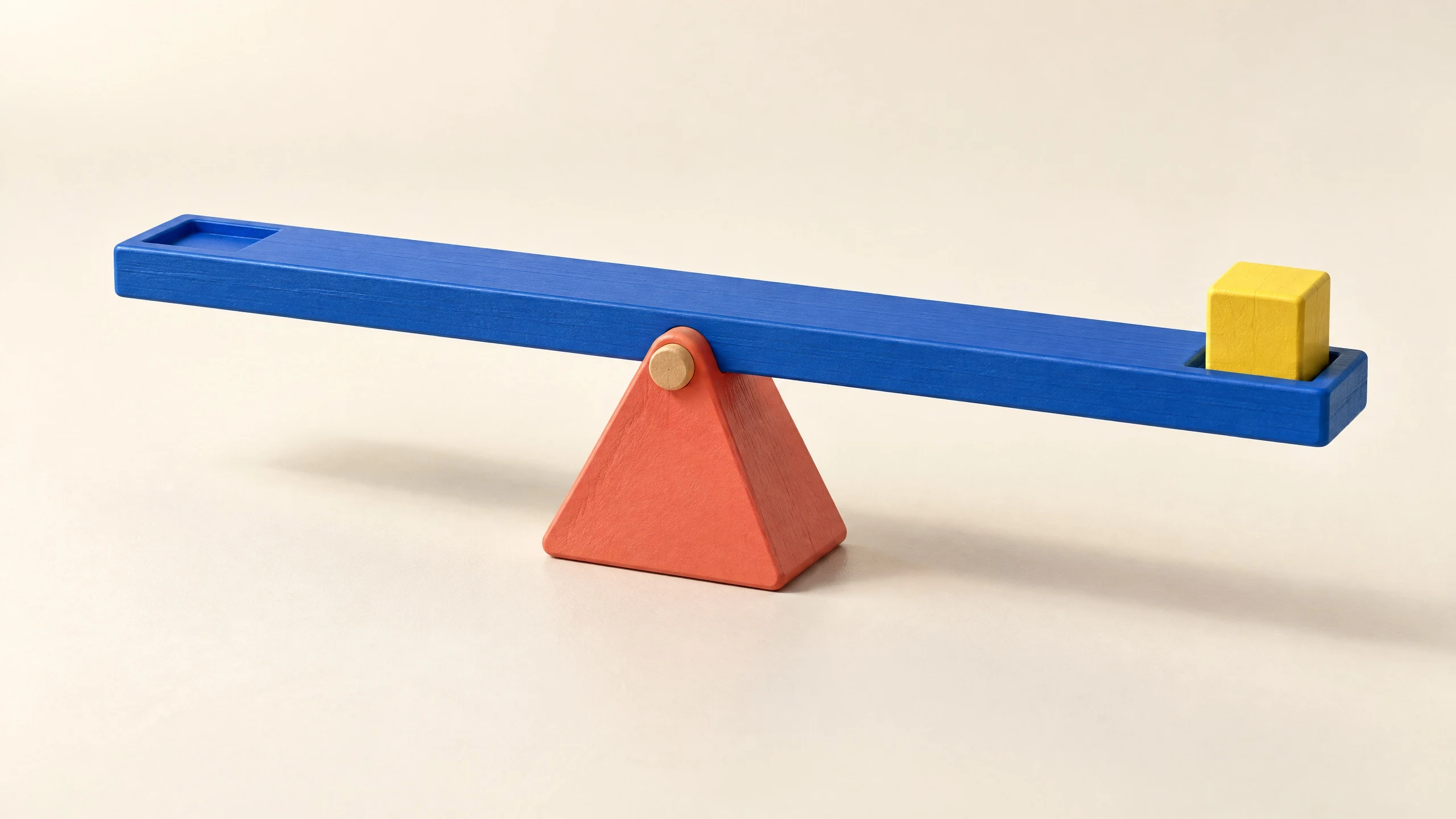
A blue lever pivots on a coral support and lifts a small yellow block.

Give a lesson a visible cause and effect

Use OiiOii as an educational video maker to develop a focused explanation. A lever example can show a bar pivoting on a support as one end lifts a load. Pair each movement with a short line of narration that names what the viewer is seeing.

A lever turns a downward push into an upward lift.

Build an explainer video script around one question

Give each scene one job. This short explainer outline uses a desk organizer to connect the viewer's problem, the action, and the outcome.

A three-scene explainer outline

Introduce the problem

Narration: Need more room to write?

Visual: A tray holding a notebook takes up the desk surface.

Explain the action

Narration: Slide the tray onto the rail.

Visual: Show the tray following the rail into its supported position.

Show the result

Narration: Keep small items above the desk.

Visual: Reveal the cleared writing area beneath the tray.

Adapt this outline to the facts and actions your audience needs to understand.

Choose a visual style that helps the idea land

An animated explainer video can make an invisible relationship or a multi-step process easier to show. Carry the same visual choices through the script and storyboard.

Style, references, and narration

Match the style to the subject

Choose 2D graphics for simple sequences or a 3D scene when shape and movement carry the explanation. Keep the main object readable and the background purposeful.

Give each scene the right references

Add product images, character assets, or scene references to the project and reference them in the relevant task. Review the subject across shots as you refine the sequence.

Let narration follow the action

Write a short spoken line for each visual step. Choose or add a voice, preview the audio, and adjust the scene timing so a key action finishes while its explanation is still clear.

Keep explainer video production editable

Move from a focused brief to a finished explanation, with room to improve individual scenes along the way.

From brief to finished video

1. Set the learning goal

Start a project with the audience, the question to answer, and the facts that must stay accurate. Add your existing script and useful reference assets.

2. Shape the script and scenes

Ask the Agent to develop the explanation into a script and shot list. Edit the wording, scene order, and action before generating the visuals.

3. Generate and refine the shots

Create the storyboard images and video scenes. Select a scene to revise its description or references, then regenerate the affected material and compare the result.

4. Bring the explanation together

Add voice and music, edit the sequence, and preview it from start to finish. Check that the visuals support the spoken facts, then download the finished video.

Questions about creating an explainer video

What should I prepare before creating an explainer video?

Prepare the audience, one question the video should answer, and the facts or steps to include. Add useful product images, diagrams, or other references. For a process, write down the correct sequence and the outcome of each step before developing the script.

Can I turn an existing script into an explainer video?

Yes. Add your script to the project and ask the Agent to organize it into scenes. Keep important terms and factual statements in the script, then review the shot list and attach the right references before generating the visuals.

Can I make an animated explainer without appearing on camera?

Yes. You can build an explanation with animated objects, diagrams, characters, and narration. Choose a visual style, describe what each scene should demonstrate, and develop the storyboard and voice around that sequence.

How can I revise one scene in my explainer?

Select the relevant scene or material in the project and describe the change. You can revise the shot description or references and regenerate that part. Compare it with the neighboring scenes and check the narration and timing when you put the sequence together.

How do I keep a product or educational explanation accurate?

Start with checked source information and real reference material. Compare each generated action, label, and spoken line with those facts. For a product, verify the shape and operation. For a lesson, check the causal relationship being shown and revise any scene that suggests the wrong explanation.

Develop your next scene

What should your audience understand next?

Bring one clear question and your key facts. Start shaping the explanation with OiiOii.