AI Texture Generator

Create custom texture images from a material description or reference image with OiiOii. Describe the grain, color and wear you need, then refine the surface on the canvas. Build stone, wood and fabric textures for game environments, design presentations and your material workflow.

Describe a material, its color, grain and wear...
Prefer the full creator?

Start with the surface you need

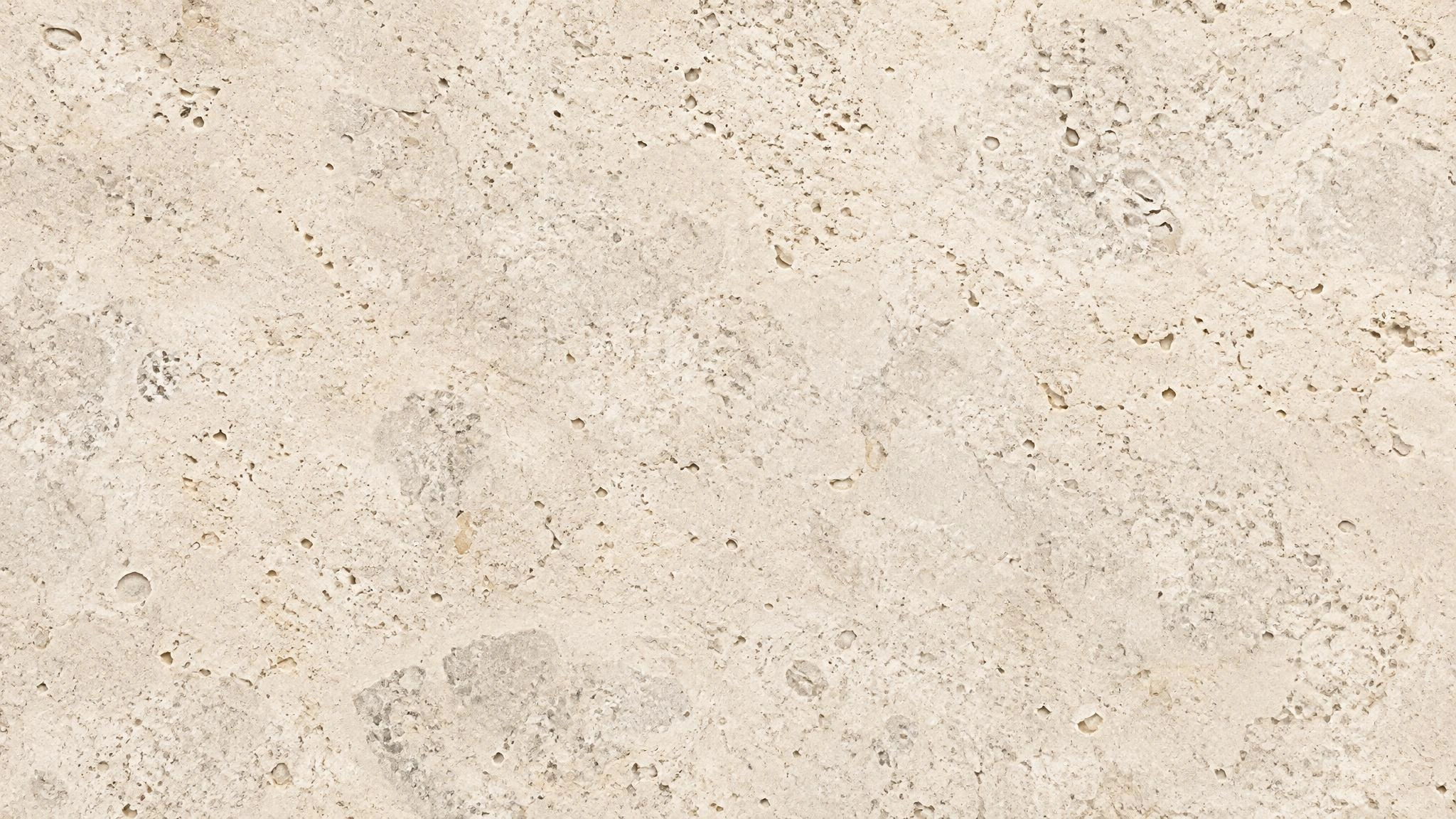
Stone with a readable surface

Create pale limestone with small pores, restrained color variation and a softly weathered finish. Describe a flat, front-facing surface when you need a texture image rather than a picture of a stone object. Keeping the lighting even makes the material easier to judge before you use it on a wall or prop.

Pale limestone surface with fine pores and subtle weathering

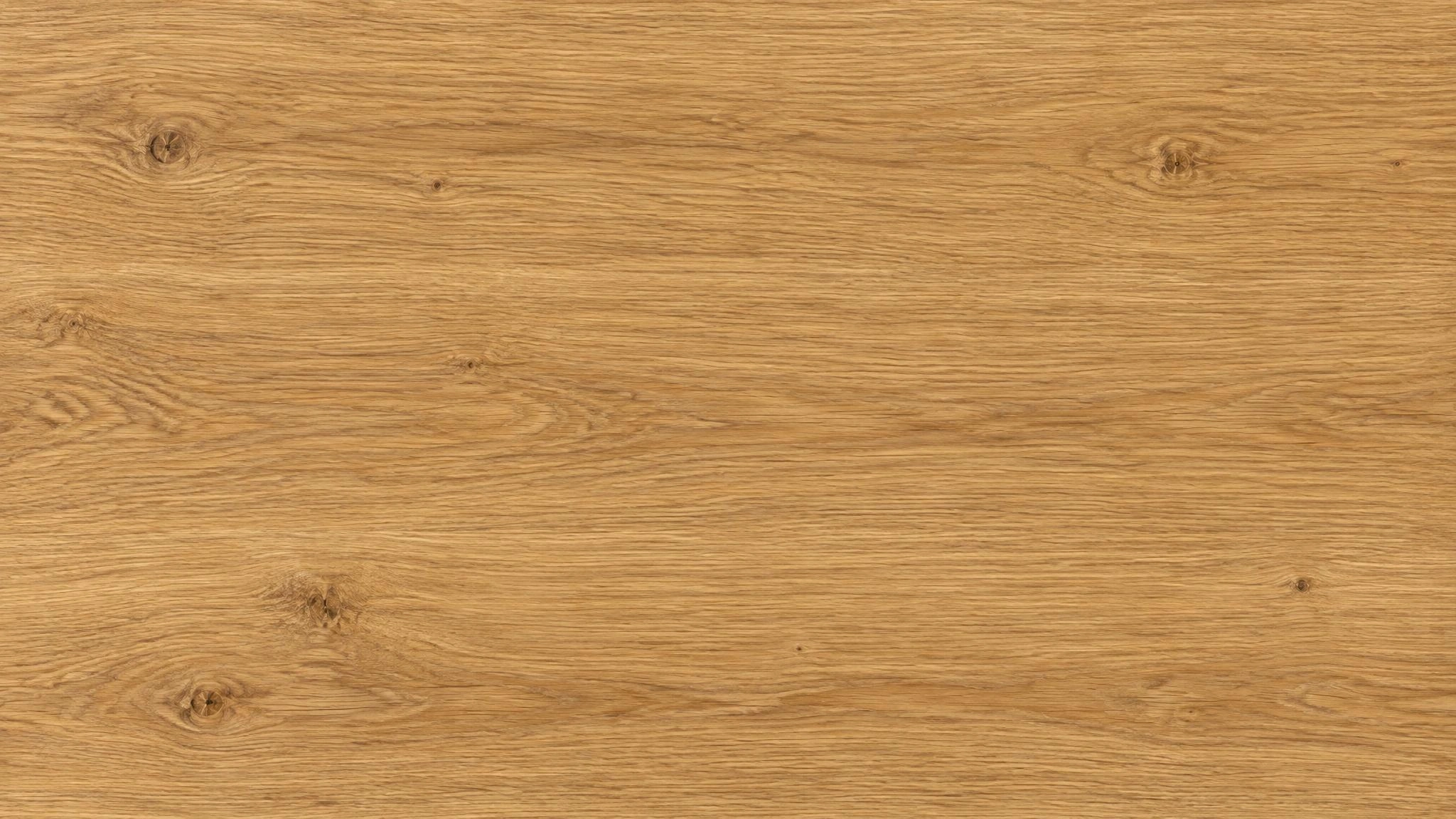
Wood with a chosen grain

Use this texture generator to explore oak with long grain, muted honey tones and a matte finish. Specify whether knots should be sparse or prominent. For furniture or flooring studies, compare the grain at the size it will actually appear; a striking close-up can feel too busy across a large surface.

Warm oak grain with sparse knots and a matte finish

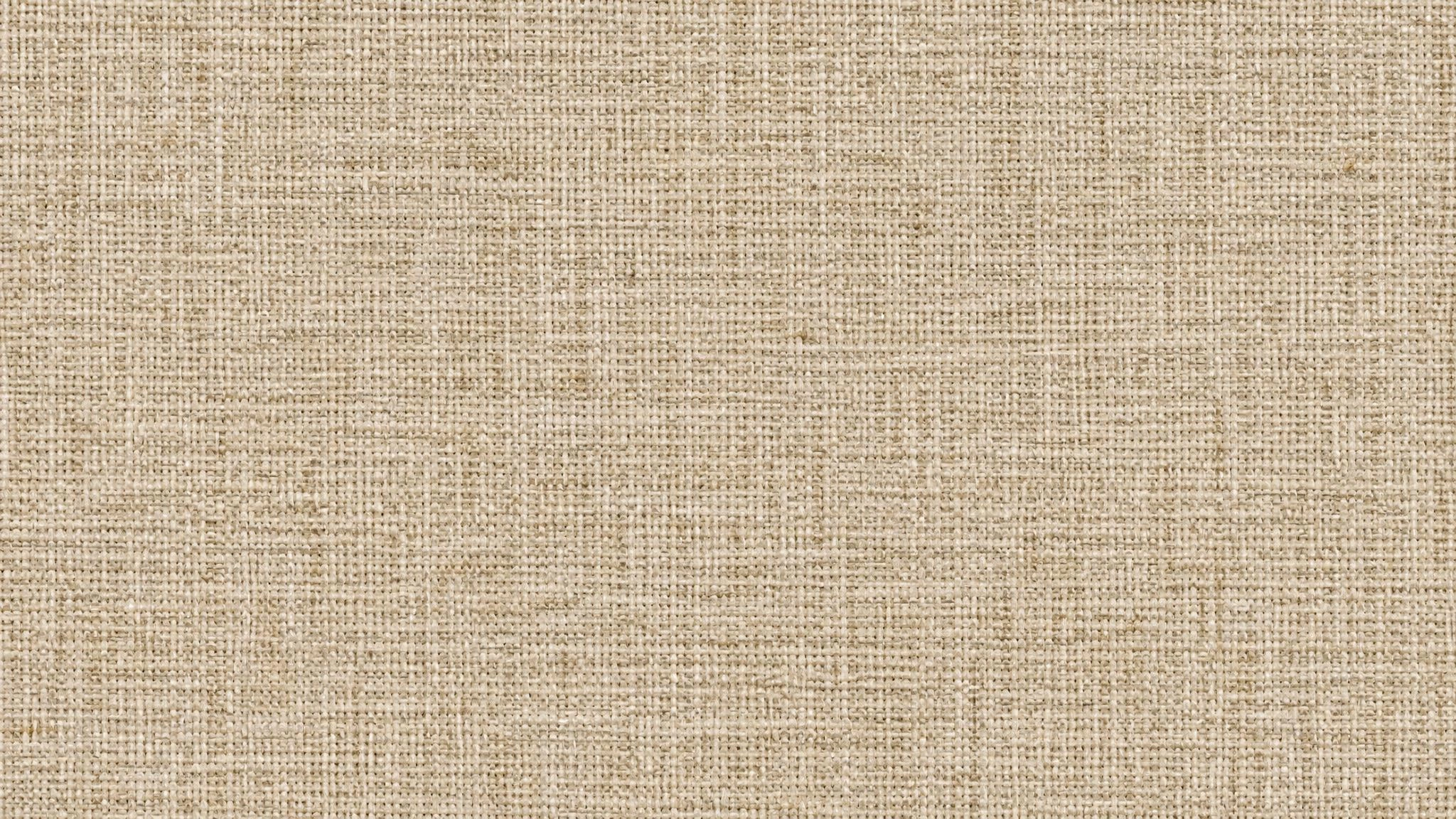
Fabric with visible weave

Generate a flax-colored linen surface with fine crosswoven threads and subtle irregularities. Ask for a flat swatch without folds when the weave is the main subject. This keeps shadows from fabric draping separate from the texture you want to use in upholstery, costume or background studies.

Flat flax linen surface with fine crosswoven threads

Image to texture: keep the direction, change the finish

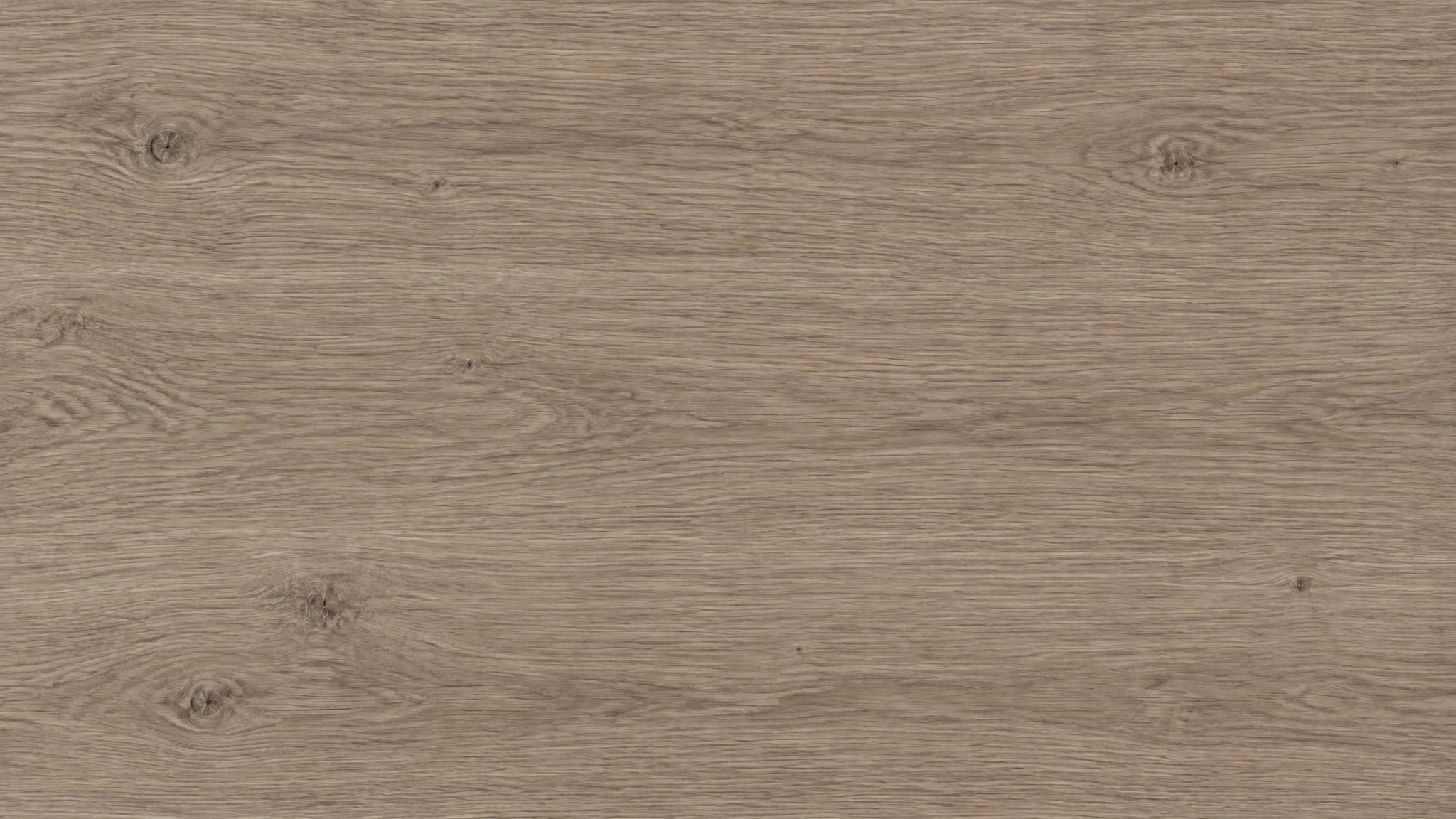
Upload a clear surface image to the OiiOii canvas and reference it in your request. Explain what to retain and what to change: keep the oak grain direction, for example, while cooling the color and reducing dark knots. A reference gives the edit a concrete starting point. Compare the result with the source before accepting it, since details can change during generation.

Warm oak source: Warm oak grain with sparse knots and a matte finish
Cooler oak variation: Cooler oak surface edited from the warm oak reference

How to generate a texture in OiiOii

1. Describe the material on the canvas

Open an OiiOii project and ask the Agent to generate a texture image. Name the surface, palette, grain size and wear: pale limestone, small pores, low contrast, light weathering. Add a flat view and even lighting if the image will serve as a surface texture. The first result gives you a material to evaluate.

2. Attach the surface reference when needed

For a reference-led texture, upload or drag the image onto the canvas and use the platform's image reference control in your request. Identify the material features to preserve, such as a straight grain or tight weave. Ask for the required finish instead of assuming that mentioning an image name attaches the correct source.

3. Edit one surface characteristic at a time

Select the generated texture and ask for a focused edit, such as finer pores, less orange in the wood or a softer fabric pattern. Keep the intended material and scale explicit. Use the image history to compare versions, then retain the one that best fits the surface rather than choosing only by close-up detail.

Match the texture to its destination

Game map or terrain

  • What to prepare: Ground texture at the intended viewing scale
  • Check before use: Repetition and readable paths

3D prop surface

  • What to prepare: Texture image plus your material setup
  • Check before use: UV placement and surface scale

Interior material study

  • What to prepare: Stone, wood or fabric variation
  • Check before use: Color and detail under scene lighting

Choose the output around the job it must do. A surface image, a repeating tile and a shaded 3D material have different checks. This overview separates those decisions so a visually convincing image is not mistaken for a finished material package.

These are workflow checks, not automatic UV, tiling or PBR export promises.

Check resolution and repetition separately

If you are comparing a 4K seamless texture generator, treat resolution and seamlessness as separate requirements. Inspect the actual image dimensions, then test repeated copies in your destination editor. Look for edge discontinuities, obvious repeated knots and lighting bands. More pixels do not fix a visible seam. Revise the texture and repeat the check after edits.

AI texture generator FAQ

Can AI generate textures for 3D models?

Yes. OiiOii can generate texture images from text or a reference for your 3D material workflow. Apply and evaluate the image in your chosen 3D editor. When comparing an AI 3D model texture generator, distinguish image creation from mesh texturing, UV work and additional material channels.

How do I generate textures for AI-created 3D models?

Start with the model's intended surface and viewing scale. Generate a matching texture in OiiOii, using a reference if you have one, and refine its grain or color. Then test the image on the model in your 3D editor and prepare any other maps your material requires.

What is the best AI for generating textures for maps?

The best fit depends on whether you mean game terrain, a flat map background or material maps for 3D shading. For terrain, prioritize scale and repetition. For 3D shading, identify the channels your renderer needs. Compare tools by the required output rather than a single attractive sample.

Why does my texture look uneven when repeated?

Strong highlights, edge shadows or one distinctive mark can become obvious bands or patterns when repeated. Request more even lighting and less dominant detail, then test the revised image again. Check it at the intended viewing distance as well as close up.

Refine another surface variation

Have a material image you want to change? Explore Image to Image for reference-based edits and restyling, then bring the revised surface back into your texture workflow.

Create the surface your project needs

Start with one material and a clear finish. Generate the texture, refine the details and compare it at the scale your project needs.