AI Storyboard Generator: Turn Scripts into Visual Stories
OiiOii turns an idea or script into an editable shot list and visual storyboard. Define your characters, settings, and story beats, review what each shot needs to show, then generate selected shots as video. Plan the sequence before shaping the finished cut.
Describe your story, characters, and the key action in your script.
Prefer the full creator?
What does an AI storyboard help you plan?
A storyboard is a sequence of images that explains how a story will unfold on screen. A shot list describes the action and framing; storyboard images make those choices visible. In OiiOii, you can start with a synopsis or an existing script, develop character and scene assets, and organize the story into shots. This gives short-film creators, animators, and pitch teams a visual plan they can revise before creating motion. A storyboard plans the scene; video generation and editing turn that plan into a timed sequence.
A girl, a dragon, and a star: follow the story beat
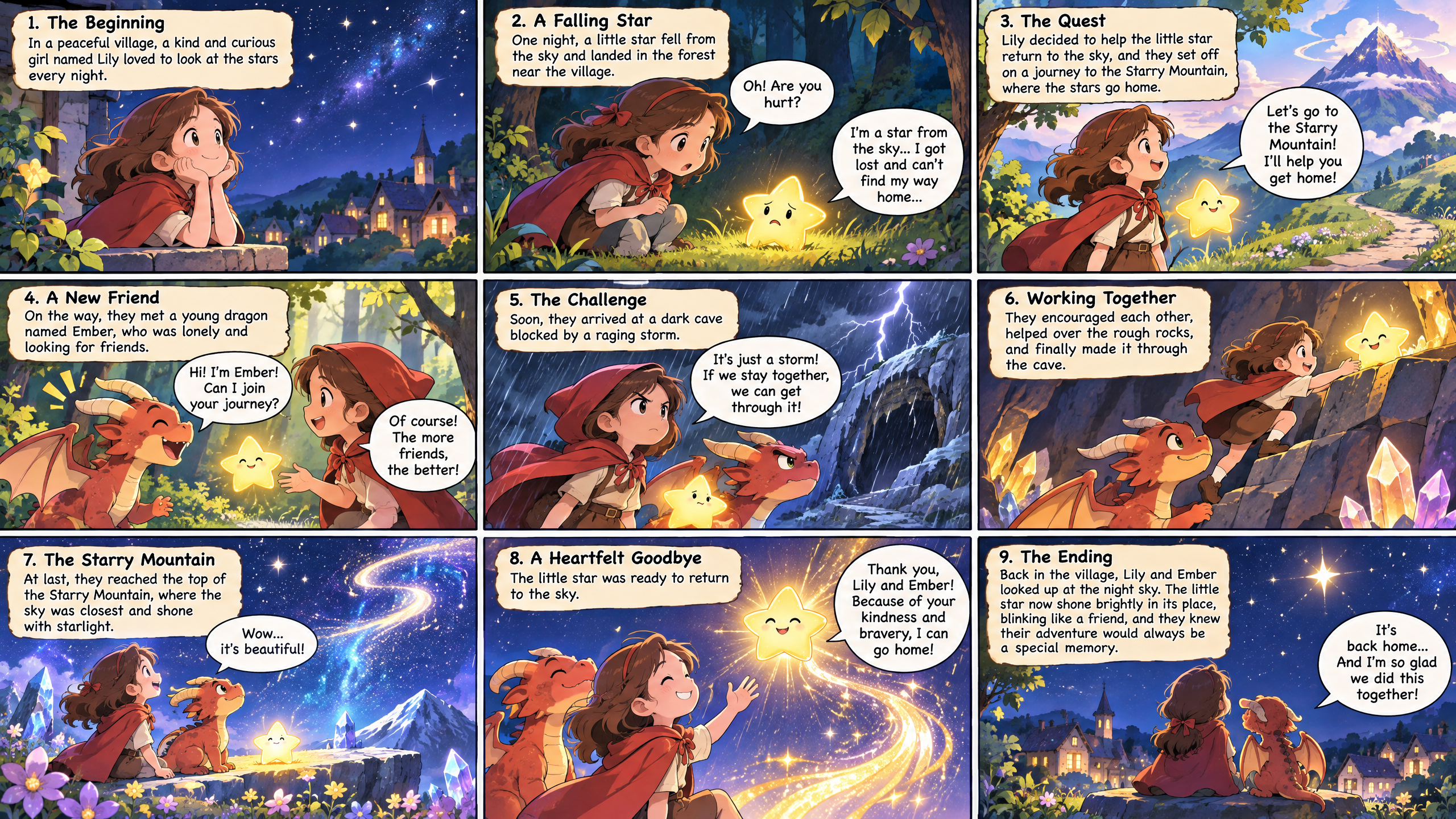
The illustrated storyboard follows Lily helping a fallen star return home, with a young dragon joining the journey. The panels move from discovery to a shared challenge and a farewell. Read the storyboard beside its companion animation to compare the planned sequence with motion. Notice how a new location or closer framing changes the information the audience receives. A useful board advances the story, rather than repeating the same pose from different angles.
Story plan and companion animation
Companion animation
Robot versus dragon: make the action readable
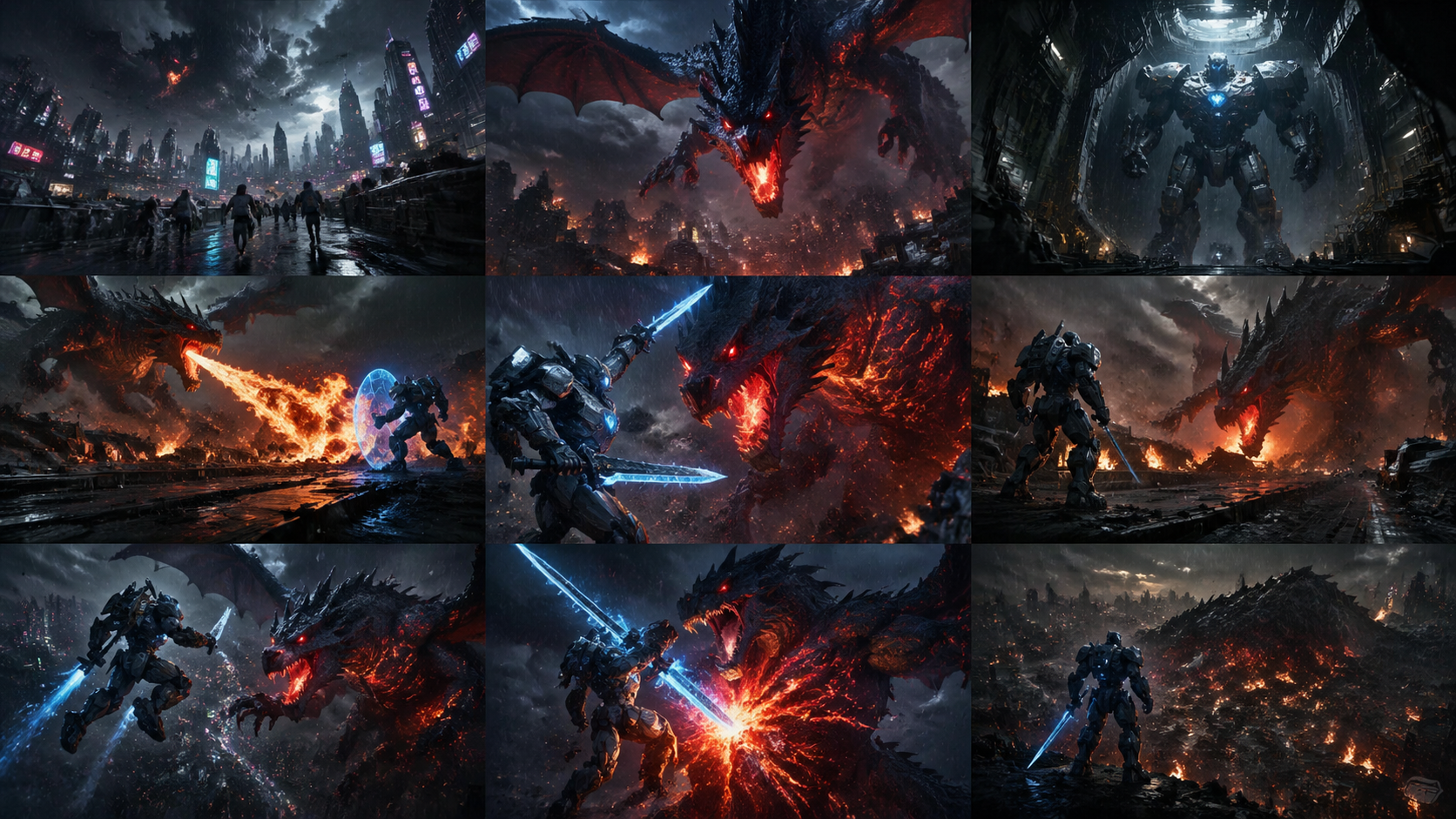
The second storyboard moves from a threatened city to a robot confronting a dragon. Wide views establish the danger; closer views show the shield, sword, and clash. Compare the board and companion animation as a pair. Track where each opponent stands and how one action leads to the next. For your own scene, reuse the relevant character, location, and prop references, then check screen direction and object ownership across shots. References help maintain continuity; visual review still matters.
Action plan and companion animation
Action plan
Companion animation
Use a storyboard template that serves the scene
A useful storyboard template connects a story beat to an observable action, framing choice, and continuity detail. Use the example below as a planning structure for your own shot descriptions. In OiiOii, add, delete, rename, and reorder shots, or edit a description when a moment needs different framing. For example, move a reaction after the event that causes it. Regenerate the affected shot when its image needs to change, then compare it with neighboring frames.
Shot-planning example
Discovery
Visible action and framing: Wide view: Lily finds the fallen star.
Continuity check: Keep the star near the forest path.
Challenge
Visible action and framing: Medium view: the companions face the storm.
Continuity check: Retain the red cape and the same dragon.
Resolution
Visible action and framing: Close view: Lily waves as the star rises.
Continuity check: Show the farewell before returning home.
An illustrative shot-planning structure, not a fixed panel count.
How to use an AI storyboard generator from script
1. Bring your script into the story workflow
Open OiiOii's story creation workflow and provide your script or synopsis. Specify the visual style, characters, locations, and key action. Review the proposed story direction and edit the script before building its shots. The confirmed script becomes the basis for asset preparation.
2. Confirm the cast and scene references
Review the characters, scenes, and props extracted for the story. Correct their appearance or descriptions and attach the relevant references. Use these assets in the shots where they belong, so a recurring character or important object has a clear visual starting point.
3. Edit the shot list, then generate the board
Organize the scene into shots and review each description against the script. Add a missing reaction, remove a redundant shot, or reorder the sequence. Generate storyboard images from that plan. Compare adjacent frames for story progression, character appearance, and the position of important props.
4. Choose storyboard shots for motion
Select the storyboard shots you want to develop into video and describe the intended action. Review each clip against its planned beat before using it. Arrange usable clips, add dialogue or music where needed, and edit the sequence into a finished cut.
Keep the storyboard useful through the edit
Storyboard to video is a handoff between planning and performance. Keep each clip tied to its intended action: an establishing shot needs to orient the viewer, while a reaction needs enough time to register. Compare the assembled sequence with the script, not just the individual images. If you are ready to develop selected frames into motion, explore the AI Video Generator.
Frequently asked questions
What should I prepare before generating a storyboard?
Bring a synopsis or script with the main action and emotional beat. Add references for characters, settings, or props that must remain recognizable. A short scene is a useful starting point for testing the visual direction.
Can I change individual shots before making the video?
Yes. You can edit shot descriptions, add or remove shots, and change their names or order. When a revised description needs a new image, regenerate that moment and review its connection to surrounding shots.
How do I keep characters and scenes consistent across shots?
Attach the correct character, scene, and prop references to related shots. Check clothing, faces, lighting, and object positions across the sequence. Reusing references supports continuity but does not guarantee identical results in every frame.
Can I turn the storyboard into a finished video?
Yes. Generate video from selected storyboard shots, review the motion, and arrange usable clips in the editing workflow. Add sound as the scene requires. The storyboard guides the sequence; the final edit establishes its timing.
How should I handle a longer script?
Use the long-script episode workflow to organize the story, then prepare assets and plan shots for each episode. Review recurring characters and locations across episodes while checking that each episode has a coherent local arc.
What is the best AI storyboard generator for my project?
Choose by the work you need to do: script input, editable shots, reusable references, and a route into video. OiiOii connects these stages in its story workflow. Test one representative scene and judge whether its cause, action, and outcome remain clear.
Can I turn my storyboard into a video for free?
Yes, when your free Credit balance covers the generation cost. Daily free Credits and purchased Credits can both generate videos; consumption varies by model. Pure conversation with the Agent costs no Credits, but generation tasks do. Free use does not mean unlimited generation.
Build the sequence your story needs
Start with a script, shape the shots, and keep the story visible through every revision.