Seedream 5.5 Is Here | Limited Time: Subscribe & Create Credit-Free for Up to 30 Days Subscribe Now

AI Product Photography

Turn your product photos into studio shots, lifestyle scenes, and detail images with OiiOii. Upload a clear reference, describe the setting you want, and generate product visuals you can keep editing on the canvas.

Describe the scene for your product image.
Prefer the full creator?

One product, different ways to show it

Use OiiOii as an AI product image builder for a focused visual set. A clean studio image introduces the product, a lifestyle scene gives it context, and a detail view brings attention to its finish. Start each variation from the same reference so you have a clear basis for reviewing the result.

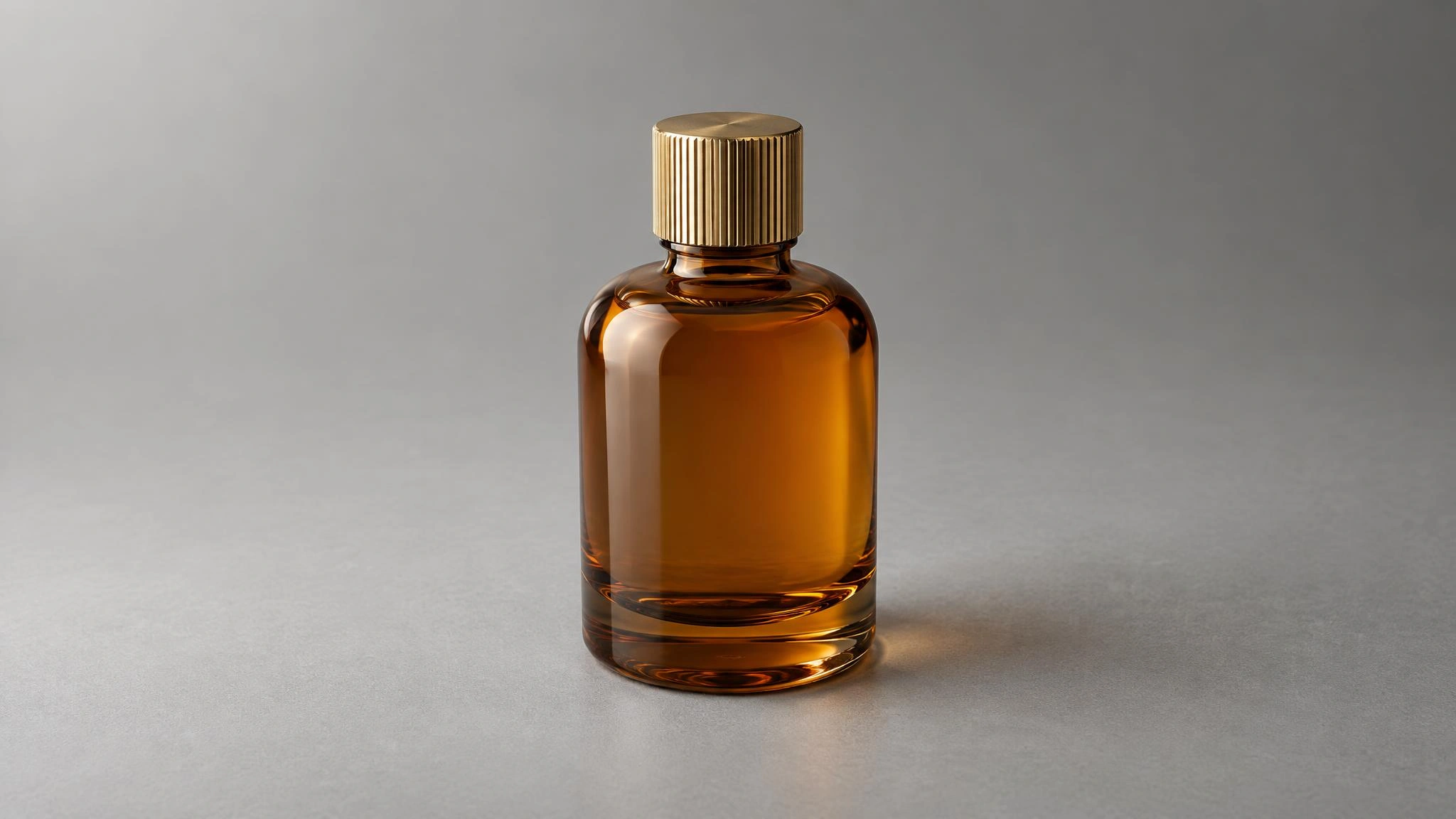
Amber glass bottle product reference

Give the product a clear silhouette

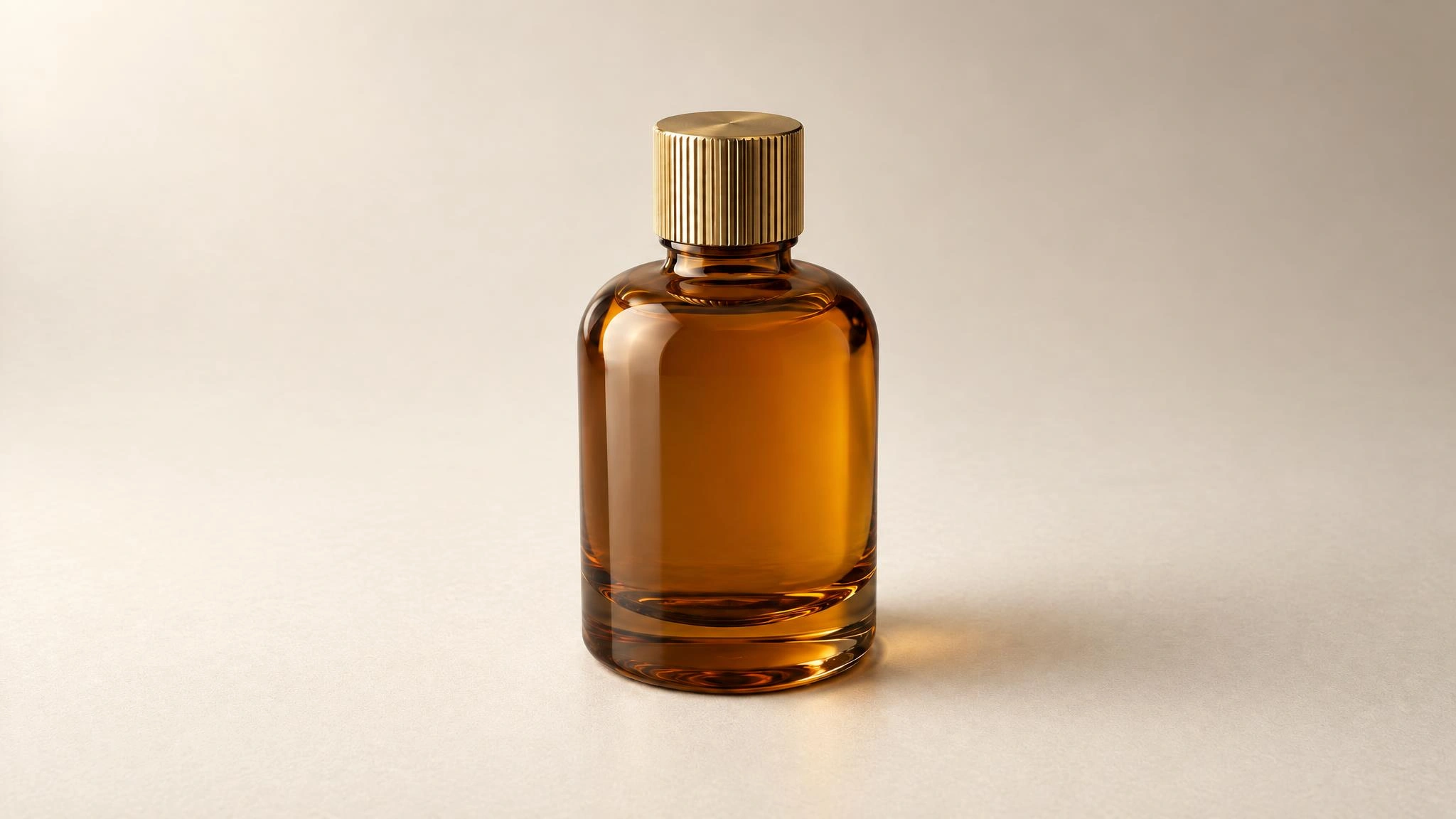
For a studio-style image, describe a simple background, the surface beneath the product, and the direction of the light. An amber bottle on warm ivory paper needs enough contrast to separate its edges from the backdrop. Keep the cap and base visible, with a contact shadow that makes the bottle feel grounded.

Studio photo of the amber glass bottle

Put the product in a believable setting

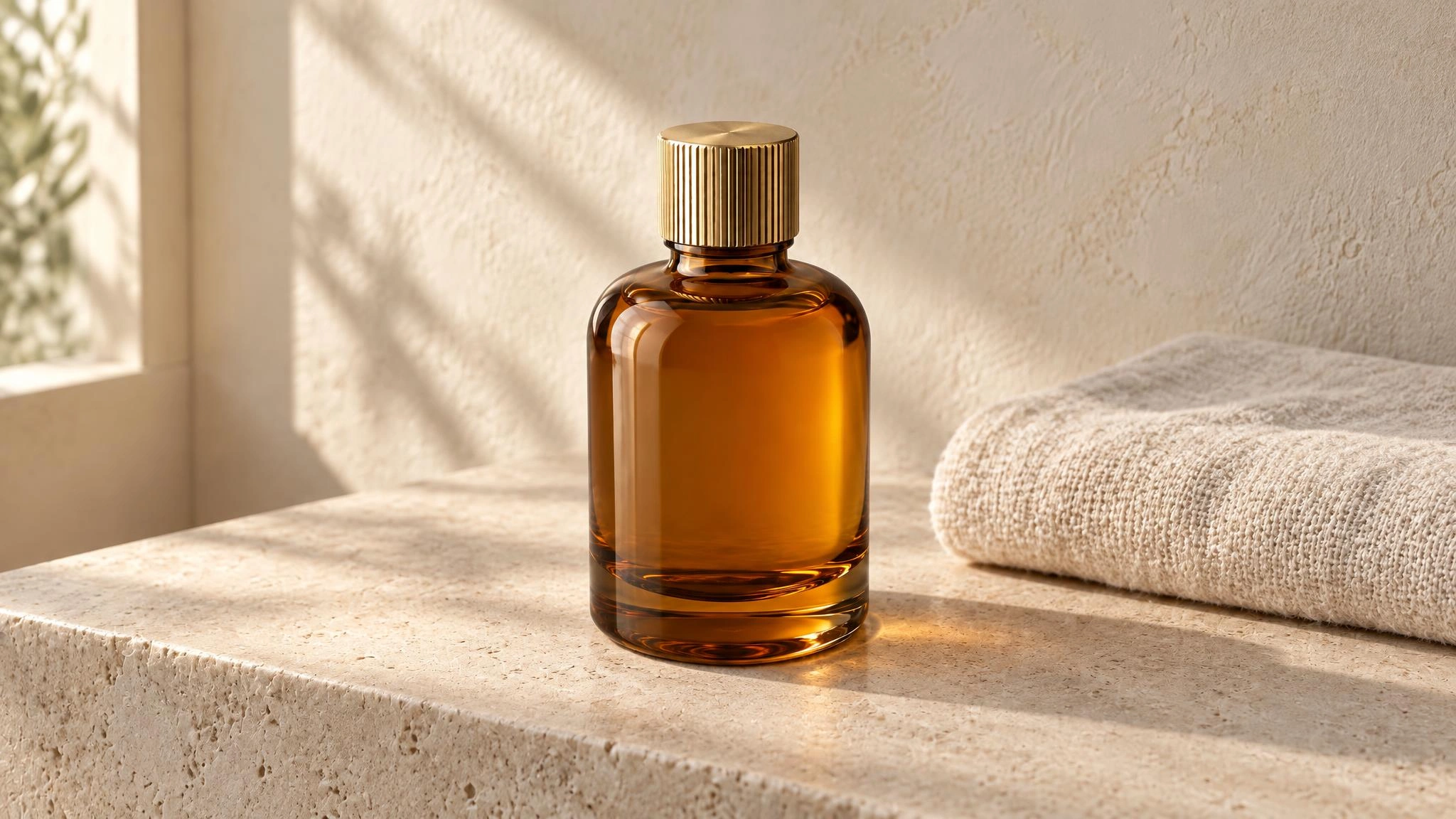
For a lifestyle image, give the same bottle a specific home: a pale stone bathroom shelf, a folded linen towel, and soft window light. Choose props that explain the setting without competing with the item. Describe where the bottle sits and how much space surrounds it, rather than asking for an undefined luxury background.

Amber glass bottle in a lifestyle setting

Make the material worth a closer look

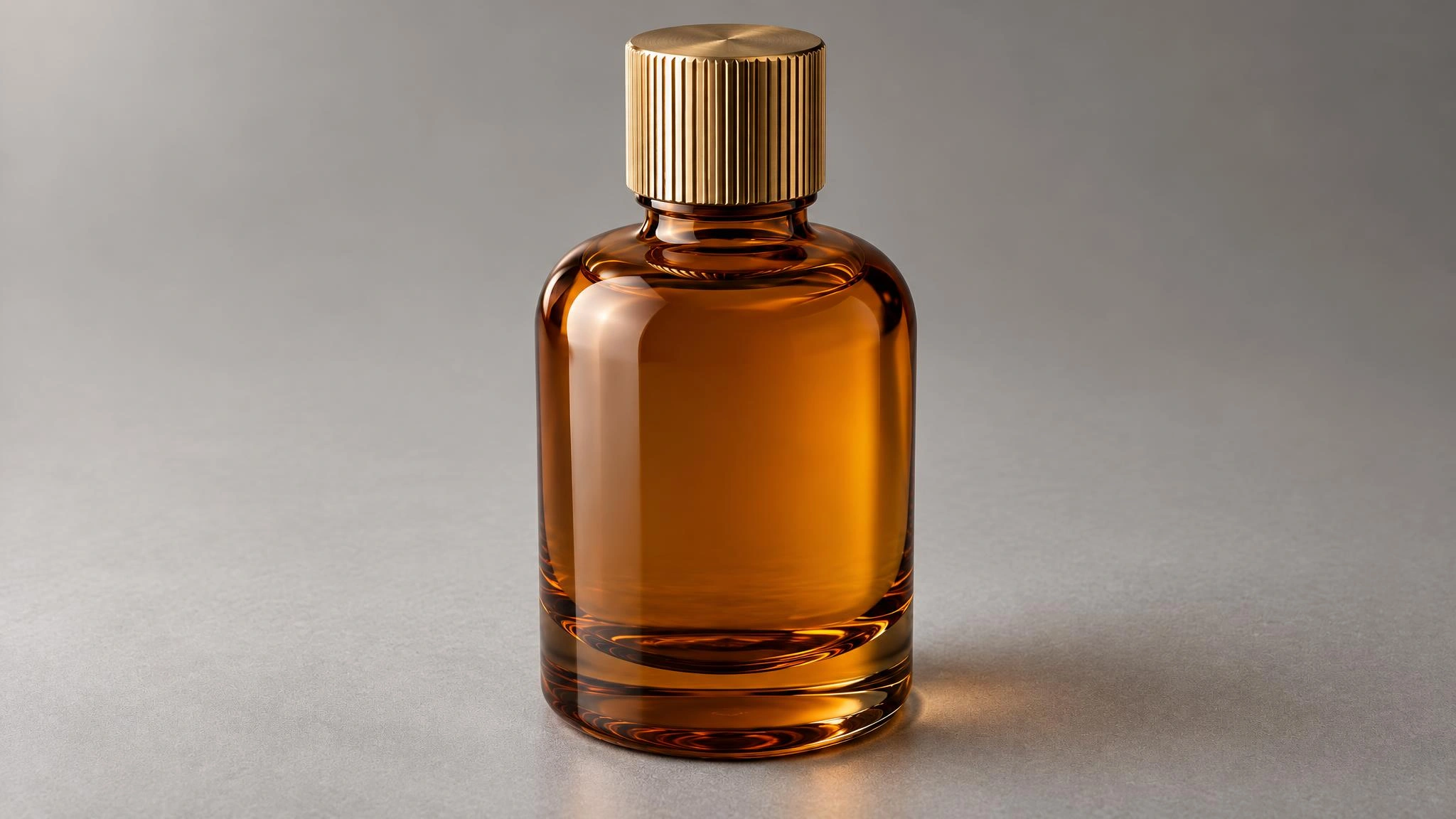
A detail image can focus on the bottle shoulder, glass texture, or cap finish. Provide a closer reference when that feature is small in the original. Ask for framing that makes the feature readable, then compare it with your source. Use the image to show a real attribute, without introducing a new finish or attachment.

Close-up of the amber glass bottle and cap

Direct the scene around your product

Separate the product facts from the creative choices in your brief. Keep its shape, color, packaging, and visible features in one description; specify the background, surface, lighting, and framing in another. This makes a request such as changing a dark stone counter to a light shelf easier to communicate while keeping the intended product appearance explicit.

Continue editing a selected image when the scene needs refinement. OiiOii supports natural-language image edits and tools for local changes, background removal, cropping, and expansion. Choose the operation that matches the problem: an unwanted prop needs a different edit from a composition that needs more space. Review the whole result after a local edit, including the product itself.
How to use AI for product photography

1. Upload and reference your product

Open an OiiOii canvas and upload or drag in a clear product image. Add another angle or a close-up if the planned shot depends on a feature the main image does not show. Reference the uploaded image in your request so the product is attached to the task, rather than only described by name.

2. Describe the product shot you need

Tell the Agent what the image is for and define the scene. For the amber bottle, request a studio view on ivory paper or a bathroom shelf with daylight from the left. State which product details should remain recognizable and where the product should sit within the frame. Generate the image from that reference and brief.

3. Refine the scene on the canvas

Select the generated image and request a specific change, such as removing a distracting prop or softening a harsh shadow. Use a local editing tool when the change concerns a defined area. Compare the new version with the product reference before using it as the starting point for another variation.

4. Organize the images by their purpose

Keep the source image and chosen results together on the canvas. Name or group the studio, lifestyle, and detail versions so each has a clear job. Check the composition at the intended display size, then select the versions that accurately communicate the product for your store or campaign.

Build the next image from work you already have

Keep a reusable product reference and scene brief instead of rebuilding the request for every campaign. You can return to a selected image, change the surroundings, and compare the new direction with previous versions. This workflow can reduce repeated set preparation and back-and-forth over visual direction; the time needed still depends on the changes and review involved.

Product photography questions

How do I use AI for product photography?

Upload your product image to an OiiOii canvas, reference it in your request, and describe the background, surface, and lighting. Generate a result, then select it for further edits. Keep the original nearby so you can compare the product details as you work.

How can AI product photography reduce time to market for e-commerce?

It can reduce repeated preparation by letting you reuse product references and develop different scenes in the same project. OiiOii keeps images available for further edits on the canvas. A new campaign can build on that work, while product review and final image selection remain part of the process.

What product photos should I upload?

Choose a sharp image with the complete product visible and enough light to read its edges and materials. Include a separate angle for features hidden in the main view. For small labels or surface details, add a close-up instead of relying on the model to infer them.

What should I check before using a product photo?

Compare the result with the actual product: shape, color, label text, cap, seams, and proportions. Check reflections and contact shadows as well as the background. Reference-based generation can alter details, so correct discrepancies before using an image to represent an item for sale.

Keep refining your product images

Explore Image to Image for more ways to work from an existing picture and develop its background, composition, or visual style. Bring a clear product reference and a specific change you want to make.

Create a product image with a clear purpose

Start with your product photo and one scene you need. Build the image, refine the details, and keep the result ready for the next creative variation.