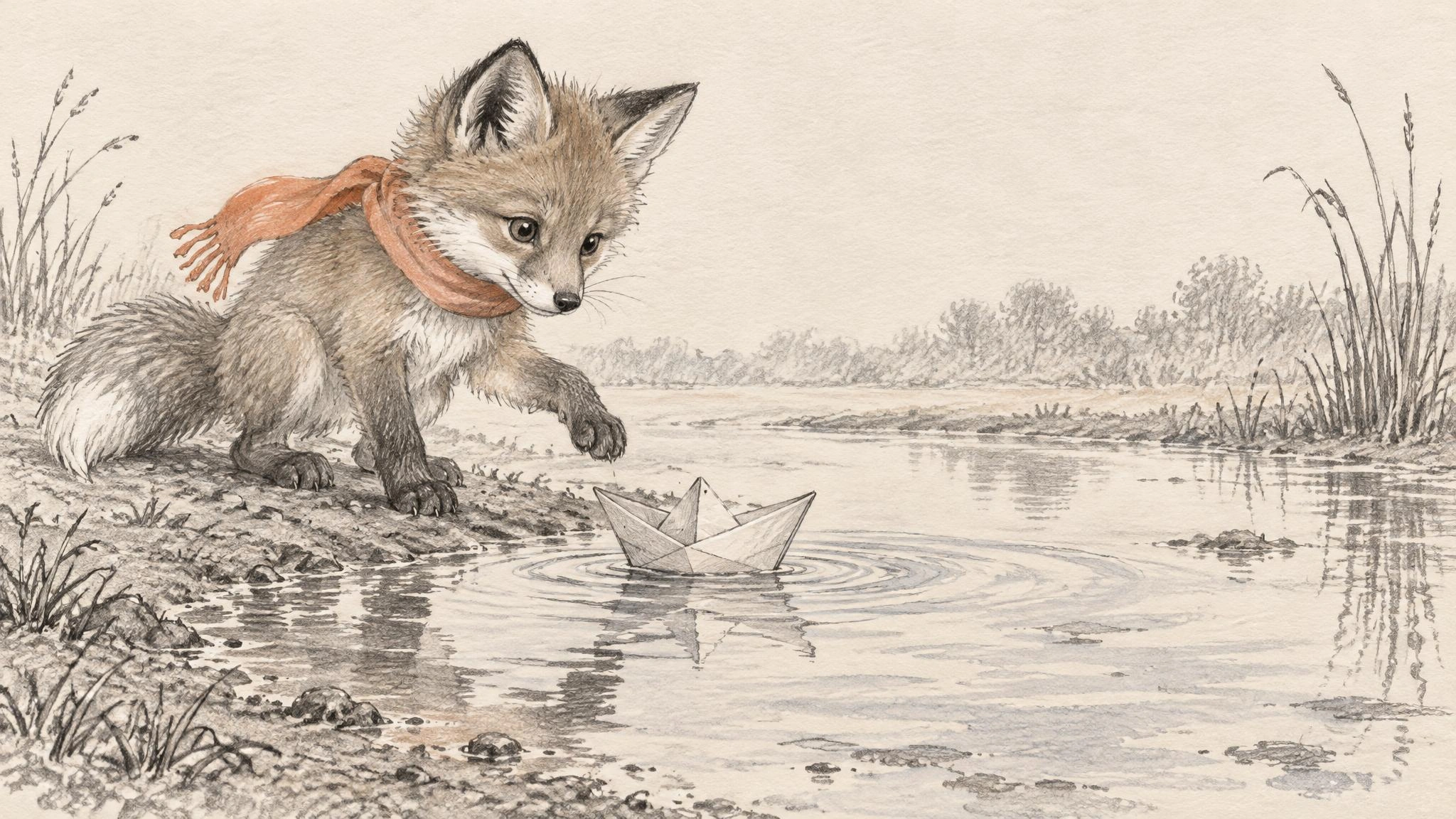
Sketch to Video AI
Turn a pencil sketch, character drawing, or storyboard panel into an animated video with OiiOii. Upload your artwork, reference it on the canvas, and describe what should move. Develop a character moment or test a shot before building a longer sequence, with your original drawing available as a visual reference.
Describe the movement you want in your sketch.
Prefer the full creator?
Make animation with drawings you already have
A small action can give a drawing a personality. Start with a fox leaning toward a paper boat, then ask for a gentle nudge that sends the boat across a puddle. The movement has a clear beginning and result, so the clip communicates more than a slow zoom over a still image.
For character animation, keep the silhouette simple and leave space around the moving paw, wing, or face. A glance, a cautious reach, and a pleased reaction can make a small creature feel expressive without crowding the shot with unrelated effects.
Cute animated drawings with a readable action
Separate camera motion from subject motion
This colored illustration shows a second route from drawn artwork to motion. A paper boat drifts right across the pond while the cat remains on the bank and the camera gently follows the boat. Describe the boat's path separately from the camera movement, and keep the painted look in the request. This is an illustration-to-video example, not a raw pencil-sketch conversion.
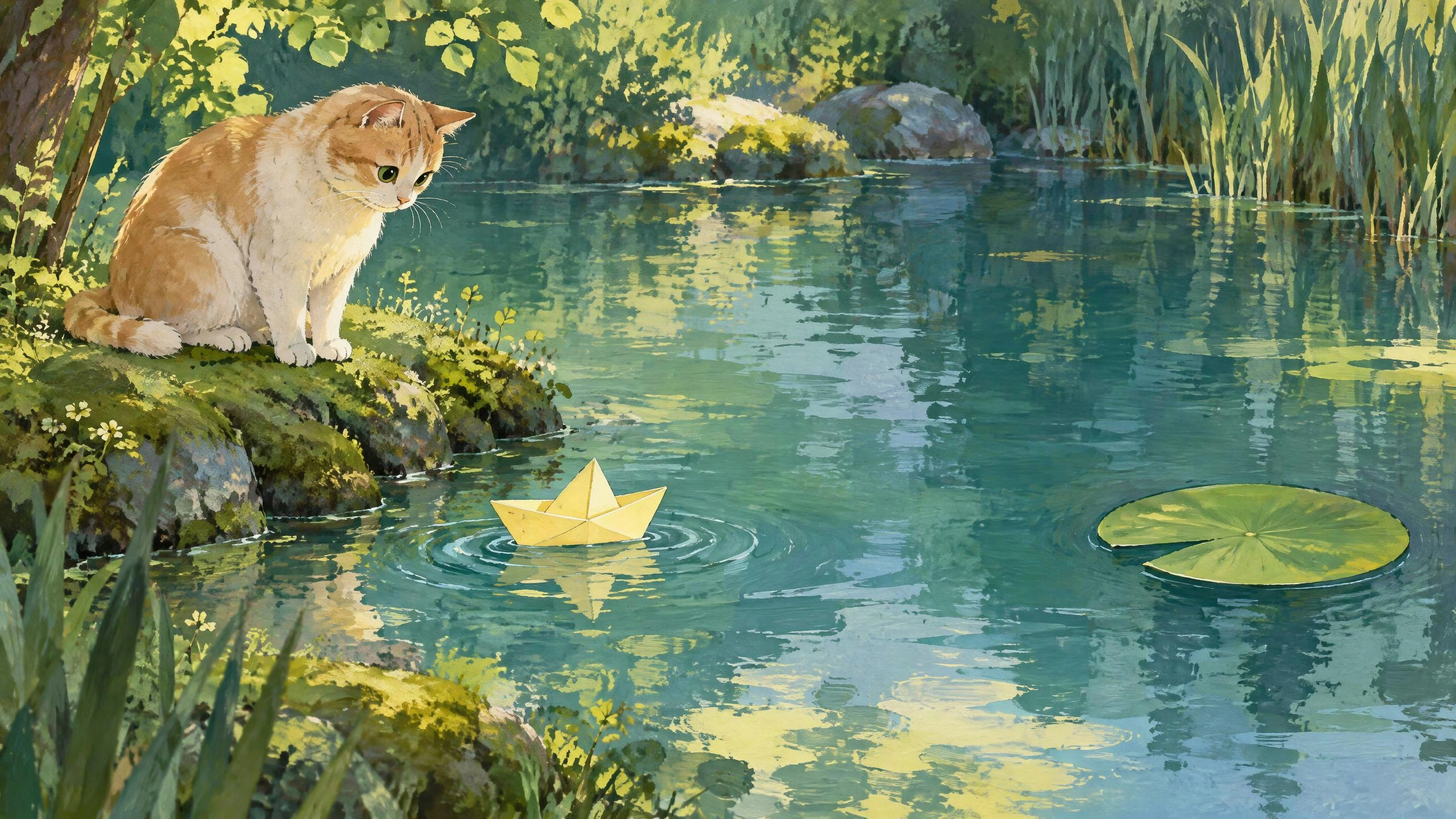
Illustration reference
Animated result
How to turn a sketch into a video in OiiOii
1. Bring a readable sketch onto the canvas
Upload or drag your drawing into an OiiOii project. Use a straight-on scan or photo with visible lines, then crop away the desk edge and unrelated notes. For a storyboard sheet, prepare the panel you want to animate as a separate image. Keep enough room in the frame for the planned movement.
2. Reference the drawing and describe its action
Select or reference the sketch in your canvas conversation so the request points to the right image. Describe the subject, its starting pose, and one visible action: the fox extends a paw and nudges the boat forward. Add what should remain recognizable, such as the pointed ears, pencil shading, and puddle outline.
3. Generate the motion from that image
Ask OiiOii to generate a video using the referenced sketch. State whether the camera holds its position or follows the action, and specify a landscape or portrait composition for the intended use. If you want the drawing to remain an illustration, include that visual direction in the request rather than asking for a photographic transformation.
4. Review the movement against your original
Play the full clip beside the source drawing. Check that the fox keeps its recognizable shape, the paw contacts the boat, and the boat moves away from that contact. Use the canvas conversation to revise the action or reference image and generate another version where needed. Compare available generation history before choosing the clip to download or edit into a sequence.
Storyboard to video AI for testing a sequence
Use several sketches to work out how a scene flows. Organize a shot list in OiiOii, assign a drawing and action to each shot, and generate the clips individually. An establishing view can introduce the setting, followed by a closer view of the moving subject and a final reaction shot. Reorder or revise the shots, then combine the chosen clips in editing.
This workflow lets you evaluate pacing and camera direction before developing a more finished version. Keep landmarks, subject positions, and movement direction consistent between adjacent sketches. Treat each generated shot as something to review; a storyboard sheet is not a guarantee of an automatically continuous scene.
Choose the visual starting point
- Pencil or ink sketch: Keep the drawn look; add a focused gesture.
- Refined illustration: Resolve color and materials before adding motion.
- Separate storyboard panels: Generate individual shots, then arrange their rhythm.
Animate your sketch directly when the linework is part of the idea. If the scene needs a more finished appearance, use reference-image creation or editing first, review the new still, and animate that version. These are two different creative routes, with the starting image guiding what the video develops.
Sketch to video questions
What should I prepare before animating a pencil sketch?
Use a clear scan or evenly lit photo, with the subject separated from distracting marks. Faint lines and overlapping shapes can make the intended action harder to interpret. Crop the image to one scene and state which part should move; you do not need to redraw every in-between frame.
How can I direct movement without changing the whole drawing?
Name the moving subject and the details to preserve, then keep the first action narrow. A fixed camera can make character movement easier to evaluate. Image references guide generation, but they do not guarantee that every line stays unchanged. Compare the full result with your sketch and refine noticeable differences.
Can I turn several storyboard sketches into an animatic?
Yes. Work shot by shot: reference the appropriate sketch, describe its movement, and generate a clip. Use the shot list and editing workflow to arrange the results. If a transition feels abrupt, revise the ending pose or the next shot rather than only changing the order.
Can I keep the sketch look or develop it into a more finished style?
Both are valid directions. Ask for the pencil, ink, or illustrated look when animating the original. To develop a new look, edit or recreate the image from your reference first. Check the revised design before generating movement so you can separate visual changes from motion changes.
Can I try sketch-to-video generation for free?
Yes, when your free Credit balance covers the chosen generation task. Credits claimed through the daily free reward and purchased Credits can both be used to generate videos. Different models consume different amounts, so available generation depends on your balance and selected task. This does not mean unlimited free video generation.
Continue from a finished illustration
Already have a colored scene or polished character image? Explore OiiOii Image to Video for the next step from still artwork to moving footage. Keep the same reference-based approach while choosing an action that suits the finished image.
Give your next sketch a moment of movement
Choose one drawing and one action worth watching. Bring both into OiiOii, then develop the motion into a clip you can review and build on.