Reference to Video AI with Visual References
Reference to video turns your visual starting points into a new moving scene. Bring character, setting, or product images into OiiOii, assign each source a role, and describe the action. Keep your references and revisions together on an editable canvas as you develop the shot.
Prefer the full creator?
From a snowy scene to an animated moment
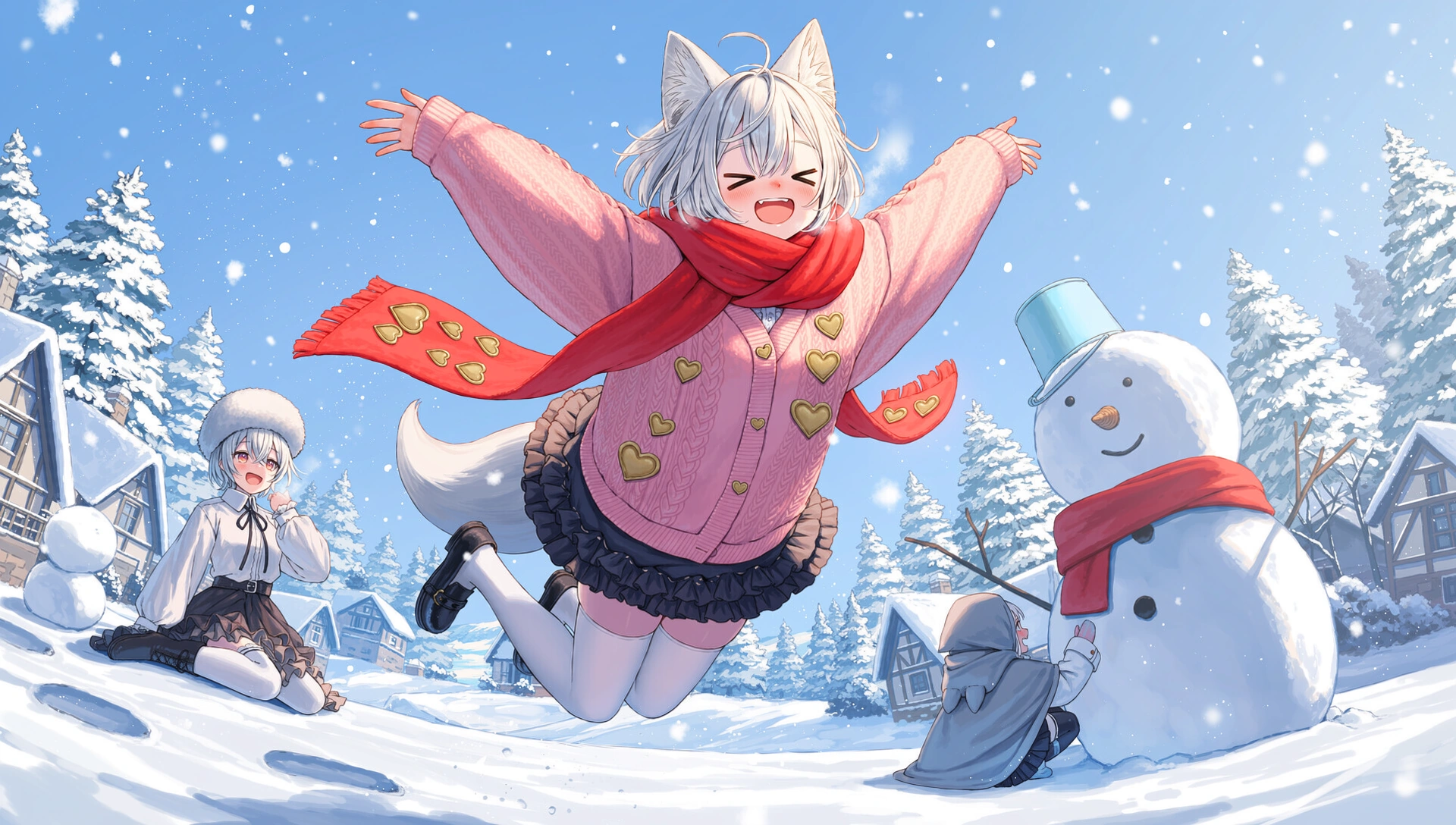
Compare the snowy reference with the accompanying animation. Follow the pink cardigan, red scarf, and winter setting across the pair. Use the still to establish the scene, then describe how the characters should interact with the snow.

Animated result
Give a character reference a new setting
Compare the squirrel-girl portrait with the autumn animation. Look for the curled hair, blue bow, and cream cardigan as the character moves into a park scene. A character reference supplies the visual starting point, while the action brief defines the new situation.
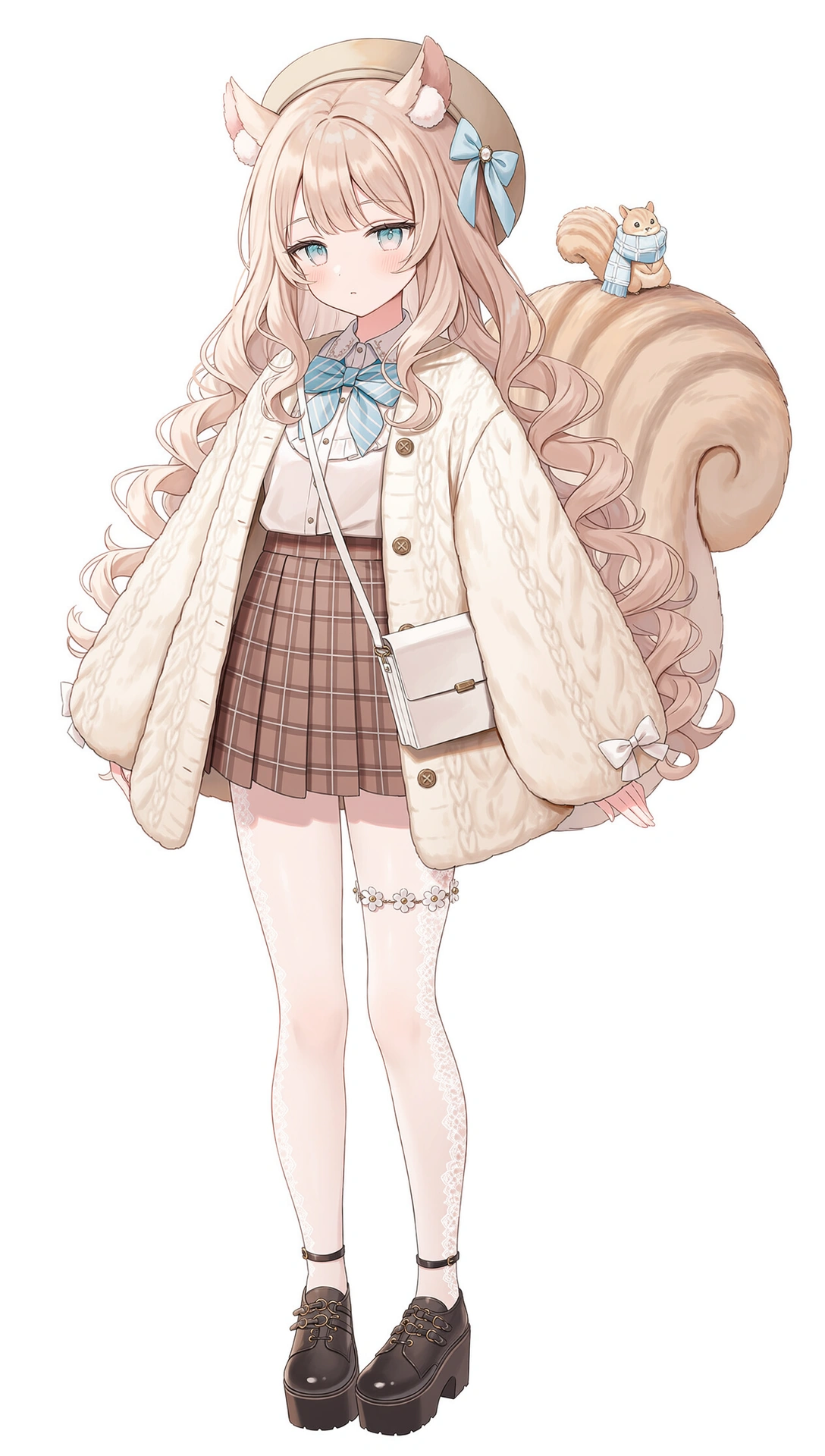
Original image
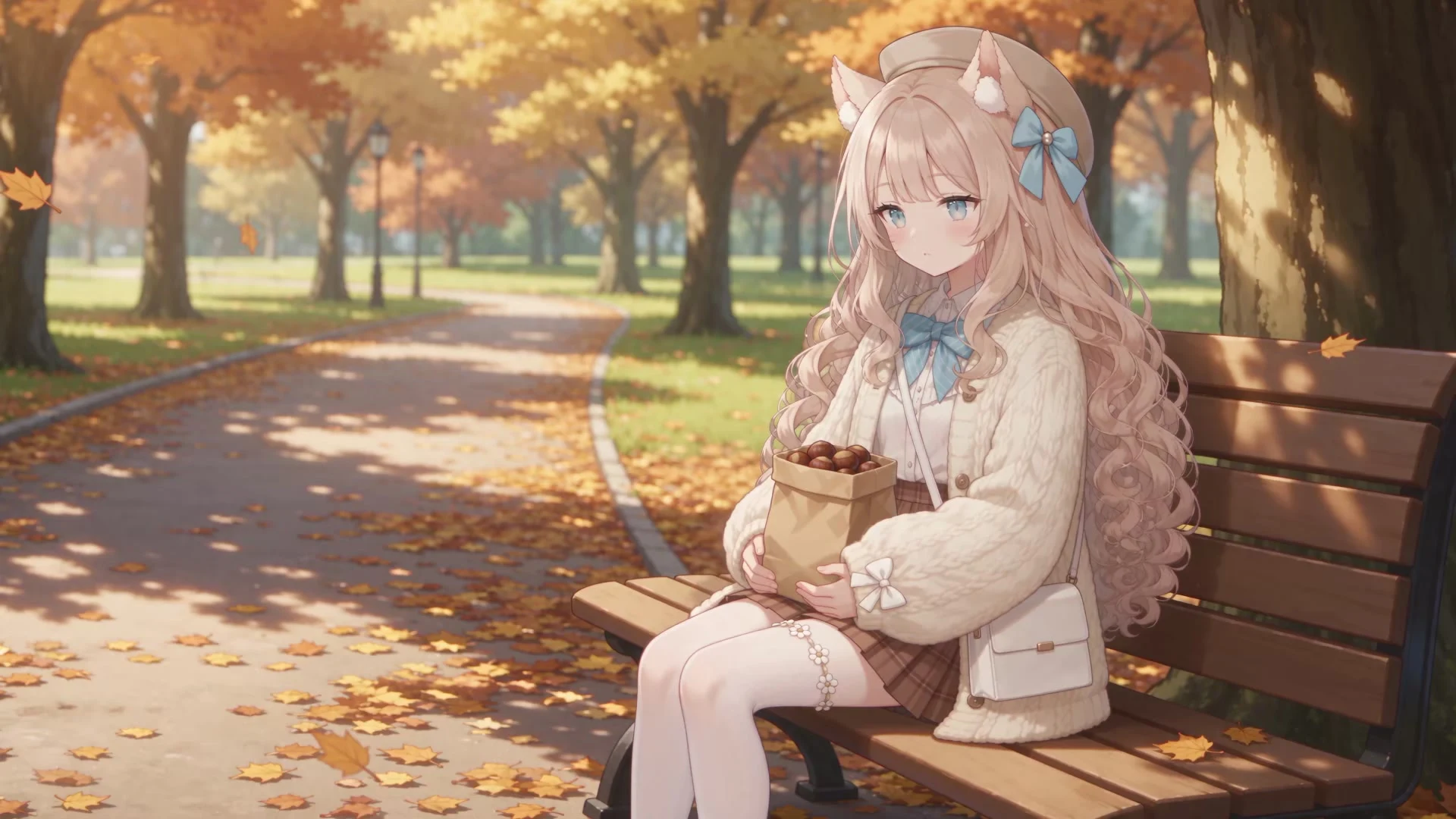
Animated result
Choose references that answer a specific visual question
Character appearance
Choose a reference that clearly shows the face, hairstyle, clothing, and silhouette. State which features should guide the new shot, then describe expression and movement separately.
Setting and lighting
Show the location, light direction, and space available for action. Explain whether the new video should retain that setting or place the character somewhere else.
Props and contact
Use a clear view of important objects and explain who holds or touches them. Avoid references that hide the contact point needed for the action.
Motion and framing
A still image establishes visible details; the action brief describes what should happen next. A video reference may guide motion where the selected model supports it. The snowy scene and autumn character pair above illustrate two different visual starting points, not a guarantee of exact reproduction.
How to create a reference-led video in OiiOii
1. Prepare clear reference materials
Upload or drag your reference materials into the canvas. Name each source by its role, such as character, setting, or prop. Choose images that clearly show the details you want to retain and keep the source set focused on the planned shot.
2. Assign roles and describe the action
Attach each source through the canvas reference controls. State which image guides appearance and which guides the setting, then describe the intended action, starting position, and ending pose. For a snowy scene, separate the character's clothing details from the new movement you want.
3. Choose a compatible generation route
Choose a video model and mode that accepts your reference types. Available inputs and controls vary by model and entry. Set the framing using the supported controls and leave enough space for the intended movement before generating the shot.
4. Compare the result and refine the shot
Compare the result with the original references. In the examples above, inspect clothing, hair, and setting separately from motion. If a detail drifts, clarify its source or choose a clearer reference, then revise the affected shot. Compare versions in generation history before continuing the sequence.
Check what carried from the reference into the shot
Compare a generated clip with its references before continuing the sequence. Review appearance, setting, and action as separate questions.
Character details
Check the face, hairstyle, clothing, and distinctive accessories as the angle changes. In the examples above, the red scarf or blue bow provides a concrete detail to compare.
Scene and viewpoint
Decide which background details should remain and which belong to a new setting. Check lighting, scale, and space as the camera or subject moves.
Action and contact
Check hand positions, contact with objects, and how the body is supported. Distinguish the subject's movement from camera movement. Using references helps guide the result but does not guarantee identical details in every frame.
Choose still images or a video reference for the job
Still references are useful when appearance, setting, or a product is the main starting point. Use the character card to guide appearance and the written brief to direct gesture, pacing, and camera movement. This works for a character scene, a product demonstration, or a vertical social clip.
When timing and shot structure matter, a video reference can provide a different starting point. Depending on the selected route, use the video as a generation reference or use OiiOii's shot-analysis workflow to examine scenes, characters, props, and composition. You can edit that analysis before creating new storyboards and video. Use the edited analysis to develop a new interpretation of the shot.
Reference to video questions
How should I prepare reference images for a video?
Choose a source with a clear subject, visible key details, and an angle that suits the shot. Keep the face, hands, or product features you care about unobstructed. Separate references by role and attach the actual source cards in the canvas.
How do I tell OiiOii which details to use from each reference?
State which source guides the character, which supplies the setting, and which supplies any important prop. Describe the action separately. If sources conflict, specify which one takes priority for the relevant feature.
What can I change if the video does not match my references?
First identify whether the mismatch concerns appearance, setting, prop position, or movement. Clarify the relevant reference or use a clearer source, then revise that shot and compare versions in history. For a complex action, narrow the request to one readable movement before adding the next.
Can I start with a reference video instead of images?
Yes, through a video-reference-capable model or a shot-analysis workflow. Choose direct reference input when the available route fits your task. Choose analysis when you want to inspect and edit the shot structure first. Supported inputs and controls vary by entry and model.
Give your next video a clear visual starting point
Prepare the references that matter, assign their roles, and direct one readable action. Explore Image to Video for a closely related way to begin with a still image and develop a moving shot.