A Pollo AI Alternative for Stories You Can Keep Editing
OiiOii is a Pollo AI alternative for creators who want to turn text, images, or a script into video while keeping the creative process editable. Start with a single still image or build a story around reusable character and scene references. Work with the Agent and Canvas to develop shots, revise the parts that need attention, and assemble your chosen clips.
Prefer the full creator?
Pollo AI vs OiiOii at a Glance
| Pollo AI | OiiOii |
|---|---|
| Starting inputs: Text and image inputs in its video tools; ideas, scripts and references in Pollo Agent. | Starting inputs: Text, still images or an uploaded script; choose image-to-video or the Agent-led story workflow. |
| Story creation: Pollo Agent includes a dedicated Story Video workflow for multi-scene stories. | Story creation: Agent and a dedicated Story Video entry develop the script, characters, scenes, storyboards and video clips; after your confirmation, the clips are automatically edited into a complete story short. |
| Making changes: Its AI Video Editor accepts an uploaded video and text instructions for changes such as backgrounds, appearance and effects. | Making changes: Select the relevant shot or reference in Canvas, describe the change and regenerate the shot; compare versions and check continuity with neighboring shots. |
Compare the Workflow You Actually Need
When comparing AI powered video generation platforms, begin with the work you need to finish. A striking standalone clip and a connected story ask different things of your workflow. Use these questions to decide whether OiiOii fits your next project, then test one representative scene with your own material.
Choose the Workflow for Your Next Task
Animate an existing image
Upload a still image, select it as the reference for the generation task, and describe the action or story you want to happen. Specify who moves, what they do and how the scene ends; add camera movement if needed. Review the clip against the original image for appearance, props and motion.
Make a short story
Enter a brief idea or upload a script in the Story Video workflow. The Agent develops the script, characters, scenes, storyboards and video clips. Review the proposed story and generated materials, and request changes where needed. After your confirmation, the clips are automatically edited into a complete story short.
Revise part of a connected sequence
In Canvas, locate the shot you want to change and check its starting state, ending state and neighboring clips. Select the relevant shot or reference and describe the specific change, including what should stay the same. Regenerate that shot, compare the available versions, and check character appearance, prop positions, action direction and timing at both joins before assembling the updated sequence.
One Reference, One Clear Story Beat
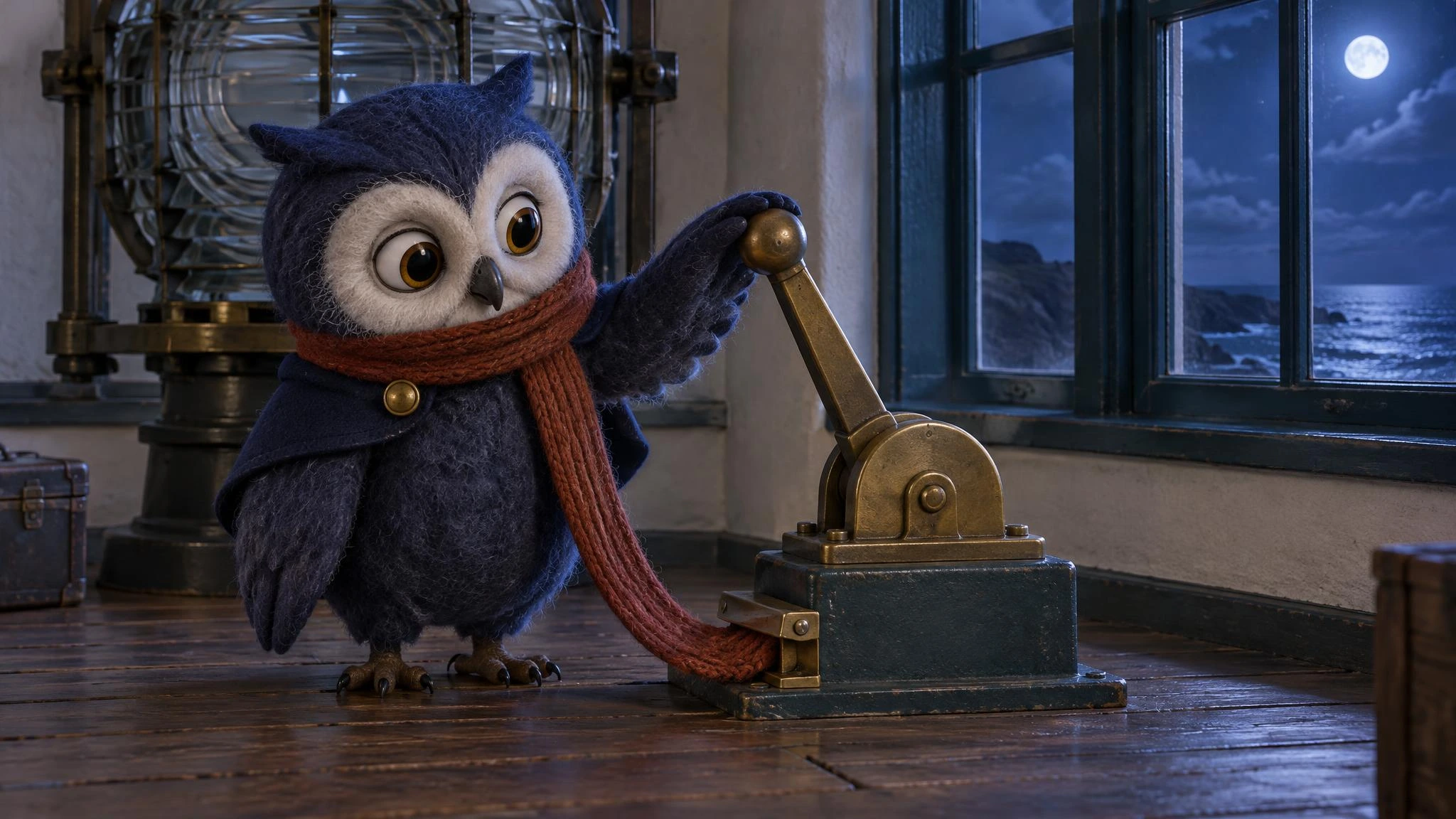
This lighthouse example follows an owl keeper whose scarf is caught beneath the lever mechanism. The keeper frees the scarf, lowers the brass lever, and watches the beacon return. The reference image establishes the owl, scarf, lever, and room. Compare that input with the moving scene: recognizable appearance, readable contact with the mechanism, and a clear visual payoff give you concrete details to evaluate.
Animated result
To extend the idea, plan an establishing view and a closing reaction around that action. Reuse the same references across the shots and inspect the joins. The example is useful because you can judge both an individual image-to-video result and the work involved in turning it into a sequence. Reference reuse helps guide continuity; checking the actual output is still part of the process.
How to Test OiiOii as Your Pollo AI Alternative
1. Bring a scene you already understand
Open a project and give the Agent a short script or scene brief. For the lighthouse test, specify the trapped scarf, the lever action, and the moment the light returns. Include the intended framing and which details must stay recognizable. The output of this step is an editable story direction, so resolve the sequence before requesting its images and video.
2. Attach the references that define the scene
Upload your keeper and room images to Canvas, or create the required assets in the story workflow. Use the platform's reference controls to attach them to the relevant task. Merely typing a character name does not establish an image reference. Check the selected owl, scarf, lever position, and room lighting before generating the scene.
3. Edit the shot list around the action
In the story workflow, organize the scene into a shot list and adjust the descriptions or order. Give the lever action its own shot so it can be revised separately from the opening and reaction. Generate the storyboard images, inspect the wing and lever placement, then generate the selected video shots from the prepared references.
4. Revise the weak shot and assemble the sequence
Select a shot that misses the intended action and give the Agent a specific change, such as slowing the lever movement while preserving the keeper and room. Regenerate that shot and compare the available history. Check its start and end against adjacent clips, then use the editing workflow to combine your selected shots and adjust sound before downloading the result.
Make Your First Test Answer a Real Decision
Use the same brief and reference image when assessing a new platform. Decide beforehand what would make the scene usable: a recognizable keeper, a stable room, and a lever action that clearly precedes the light. Watch the complete clip, not just its strongest frame. If a correction is needed, note how clearly you can target it and whether the revised clip still fits the story.
Choose around your recurring work. If you mostly animate one image, focus your test on that route. If you regularly build connected scenes, include reference reuse, shot revision, and assembly in the evaluation. A polished sample alone cannot tell you how comfortable the whole production process will feel.
Pollo AI Alternative FAQ
What should I compare when choosing a Pollo AI alternative?
Compare the tasks you repeat: preparing inputs, directing motion, revising a shot, and putting clips together. Test with your own scene and inspect the full result. OiiOii combines generation with Agent-guided work and an editable Canvas, so include those editing steps when deciding whether it suits you.
Can I start with my own images in OiiOii?
Yes. Upload your images and reference the relevant material when requesting video. Describe what should move and what should stay recognizable. Start with a clear view of the subject and enough surrounding space for the intended action, then inspect the generated clip for changes to important details.
How can I revise one shot without starting the whole story again?
Select the relevant shot or material in Canvas and describe the change you want. Regenerate the selected shot and compare its history before choosing a version. Recheck neighboring shots afterward: a successful local change can still require a small adjustment to the sequence or transition.
Can I try free image-to-video AI in OiiOii?
Yes, when your free Credit balance covers the cost of a generation available to your account. Credits claimed through the daily free reward can generate videos just like purchased Credits. Different models consume different amounts, and model access can depend on membership. Free Credits do not mean unlimited generation or access to every model.
Start with the Video Workflow
Explore the AI Video Generator to see how text and image inputs fit your first scene. Bring a brief you can evaluate, then expand into a story when you need connected shots.
Try Your Next Scene in OiiOii
Bring one image or a short script and give your first scene a clear goal. Build from the result, keeping the references and shots you want to develop further.