YouTube episode · 16:9 landscape
Establish the lighthouse, then cut closer to the repair.
Turn a channel idea, script, or reference image into a YouTube video with OiiOii. Develop the story with the Agent, build visual assets, generate shots, and combine them with voice and music. Keep control of individual scenes as you shape the finished video.
A YouTube video needs a reason to keep watching. Start with a question, show what changes, and end with a clear payoff. OiiOii lets you work through those beats as editable scenes, so the opening, middle, and ending serve the same idea.
For an animated channel, imagine a tiny owl lighthouse keeper trying to restore a dark beacon. A stuck lever creates the problem; a loose scarf caught in the mechanism reveals the cause; freeing it brings the light back. That simple sequence gives each shot a job and makes the ending understandable without an on-camera presenter.
Bring your character or scene image onto the canvas and reference it in the shot request. Describe what should move, where the camera should look, and what must remain recognizable. A lighthouse illustration can become the starting point for the keeper noticing the jammed mechanism, rather than an unrelated moving background.
Reuse the chosen character and setting references across the episode. Compare the face, costume, props, and lighting between shots before combining them. References help guide continuity; checking the resulting footage is still part of building a coherent channel identity.
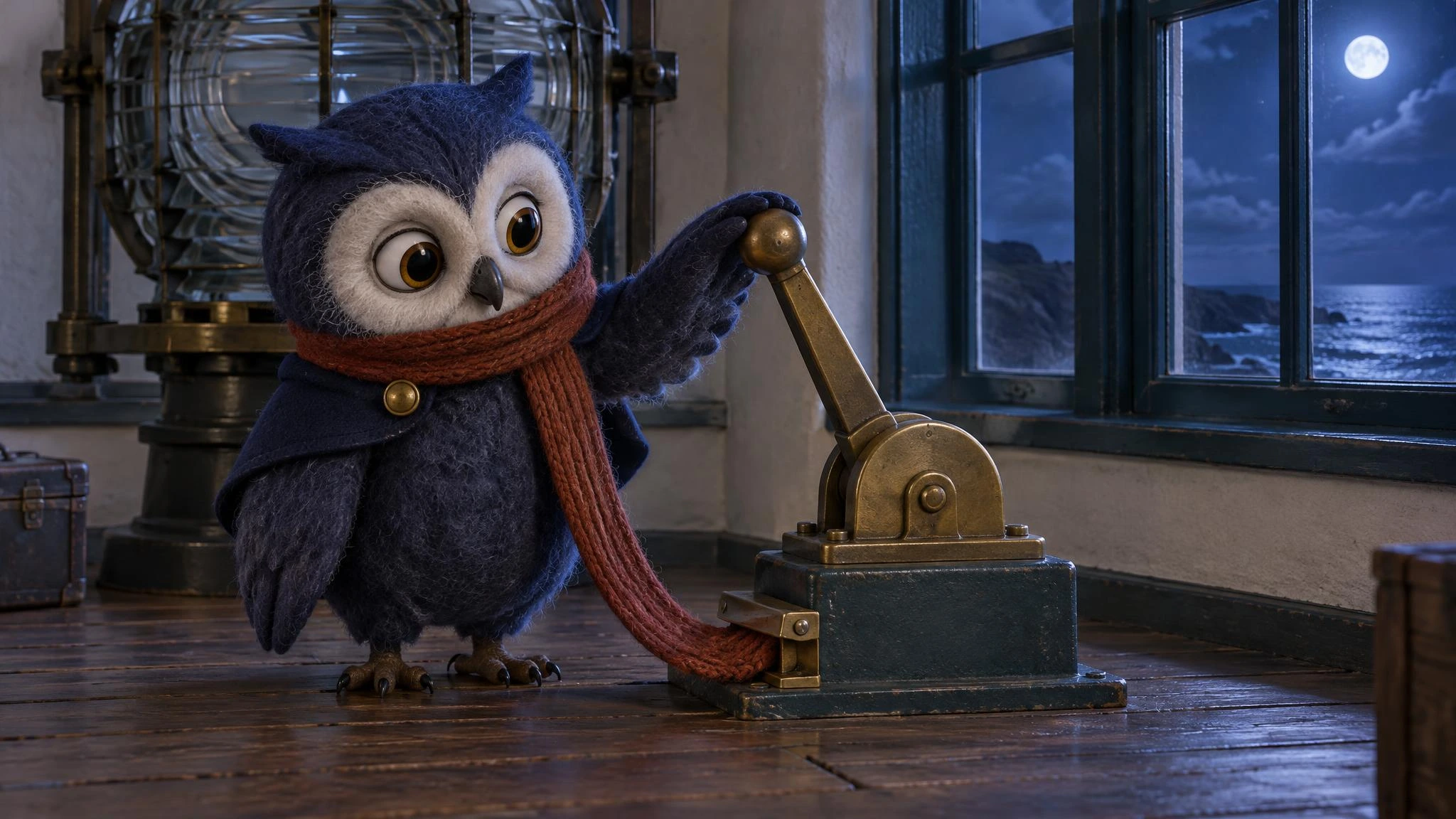
Choose the framing while planning the story. A wide scene can establish a location; a vertical scene needs its main action to stay readable in a narrower space. Recompose important details for each format instead of assuming a crop will preserve the story.
Plan separate compositions when the same story needs both formats.
Establish the lighthouse, then cut closer to the repair.
Keep the keeper, lever, and reveal within the vertical composition.
Keep the keeper, lever, and reveal within the vertical composition.
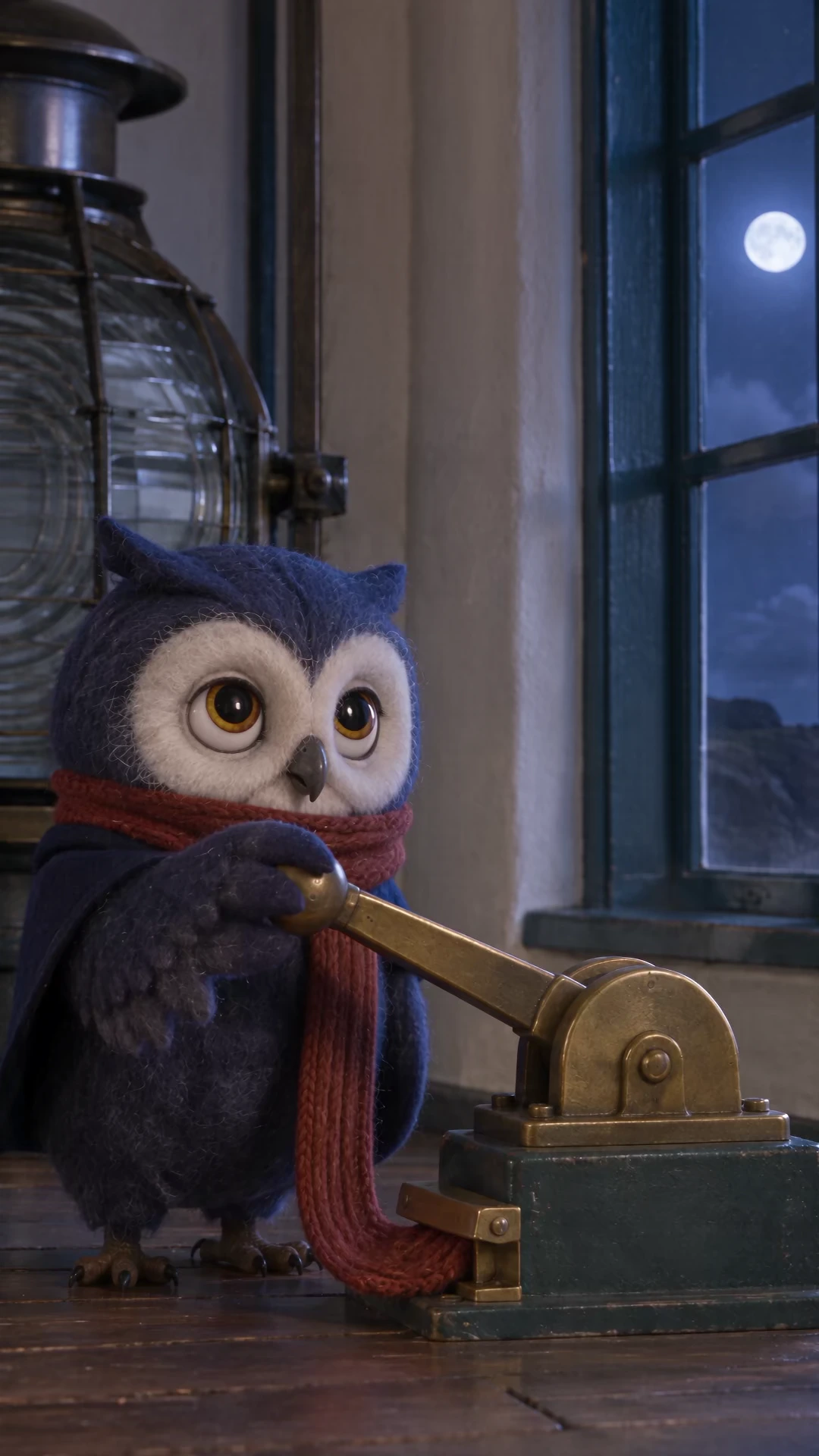
A vertical close view of the owl keeper discovering a scarf caught beneath the lever.
Start from the home creation entry and tell the Agent your channel topic, intended viewer, and the question the episode will answer. Paste your script or describe the story. Specify landscape or portrait framing and whether the episode needs narration or character dialogue. Review the proposed story before moving into visual production.
Upload your keeper and lighthouse references, or ask the Agent to create those assets from your descriptions. Name them clearly and reference the chosen assets in the project. For a recurring series, settle the costume and key props before generating episode shots so later changes have a clear visual target.
Ask for a shot list that separates the dark beacon, the stuck lever, the trapped scarf, and the restored light. Edit descriptions and reorder or remove shots until the cause and result are clear. Generate the storyboard images and selected video shots from that plan, using the relevant references for each scene.
If the repair is hard to understand, select that shot, clarify the action, and regenerate it. Compare versions in the generation history before choosing the replacement. Combine the selected clips, add narration or music through the available audio workflow, and review the sequence. Download the finished video, then prepare its title and upload in YouTube.
Watch the opening without relying on your script: can you see what is wrong with the lighthouse? At the reveal, check that the scarf is visibly caught before it is freed. At the ending, the light should respond to the completed repair. These checks turn separate attractive clips into a story with a readable cause and effect.
Bring the episode idea, the audience it is for, and the main takeaway. A draft script and character or location references make the brief more specific. Decide whether the story will use narration, dialogue, or visual action so the shot plan supports the way you want to tell it.
Yes. OiiOii supports individual shot regeneration and generation history. Select the scene that needs work, describe the change, and compare the new result with the earlier version. Check the neighboring shots before using the replacement, especially when the change affects a prop or character position.
Yes. Upload your images to the canvas and reference them when requesting the relevant shot. Explain which image defines the character and which defines the setting. Give the action its own description; a reference image alone does not explain what should happen next.
Yes, when your free Credit balance covers the generation cost. Daily free reward Credits and purchased Credits can both be used to generate videos. Different models consume different amounts, so a free AI video generator workflow depends on your available balance and chosen tasks, rather than a fixed number of free videos.
Already have your channel artwork? Explore Image to Video for a focused starting point, then bring the resulting clip into your episode workflow.
Bring a channel idea, script, or character reference to OiiOii and develop it into scenes you can shape into a finished YouTube video.