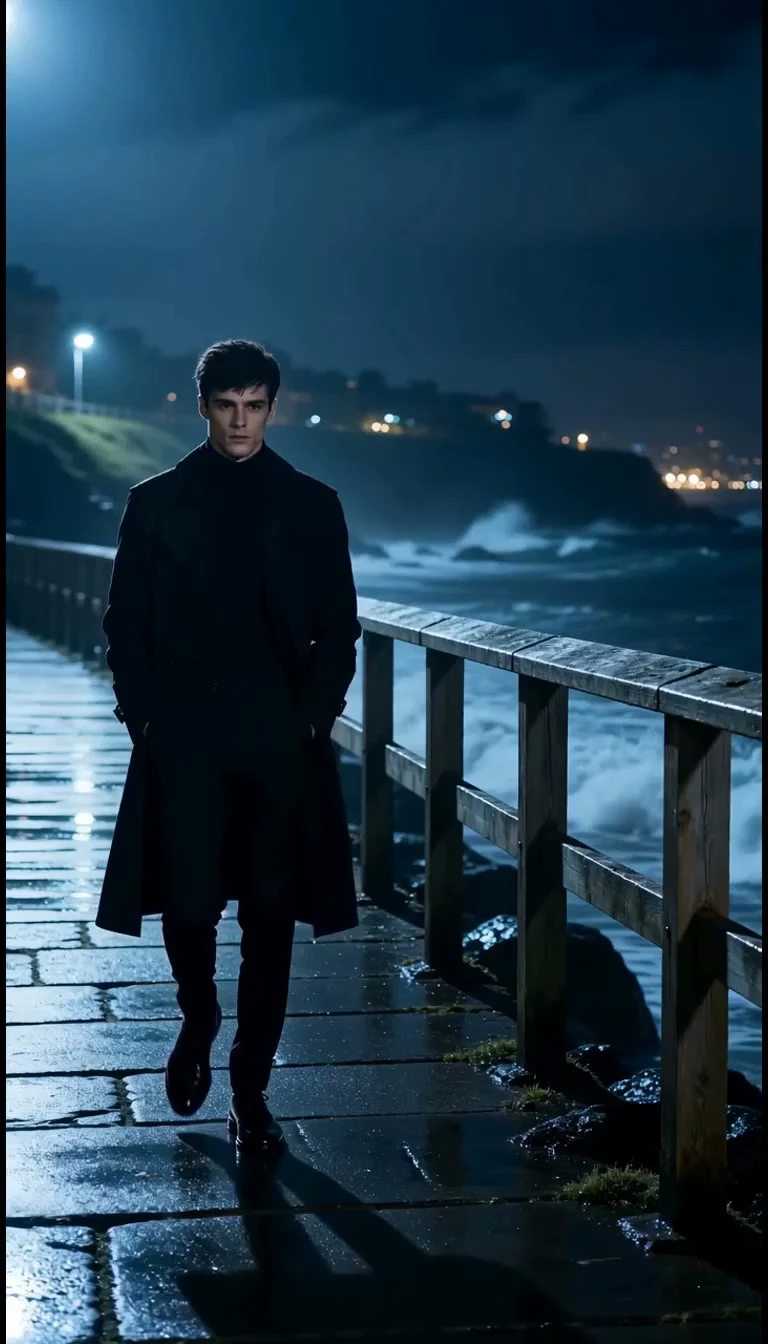
A short-drama episode
Explore a standalone episode in a live-action style. For an episodic project, give each scene a clear role in the story while leaving space for the next development.
Create a long, multi-scene video with OiiOii from either a finished script or a single sentence. Upload your script to OiiOii Short Drama Agent, or start with an idea in OiiOii Story Anime Skill. Develop the characters and shots, then shape the changing locations, emotions, and sound into a complete story.
Explore a live-action-style short drama, a robot encounter built around a record, and a family story in 3D animation.
Explore a standalone episode in a live-action style. For an episodic project, give each scene a clear role in the story while leaving space for the next development.
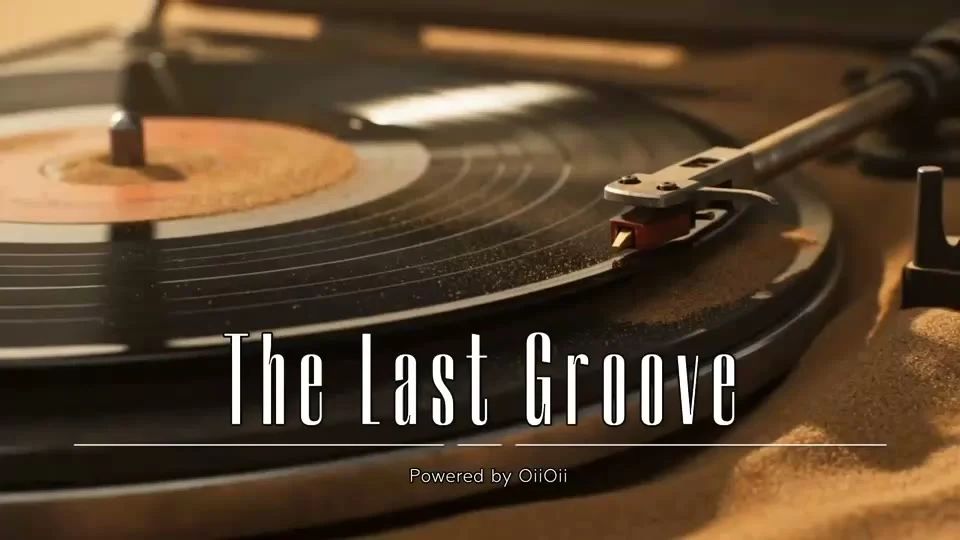
In a post-apocalyptic world, two robots from opposing factions find an unexpected connection through a record. A shared object becomes the center of a story about recognition across a divide.
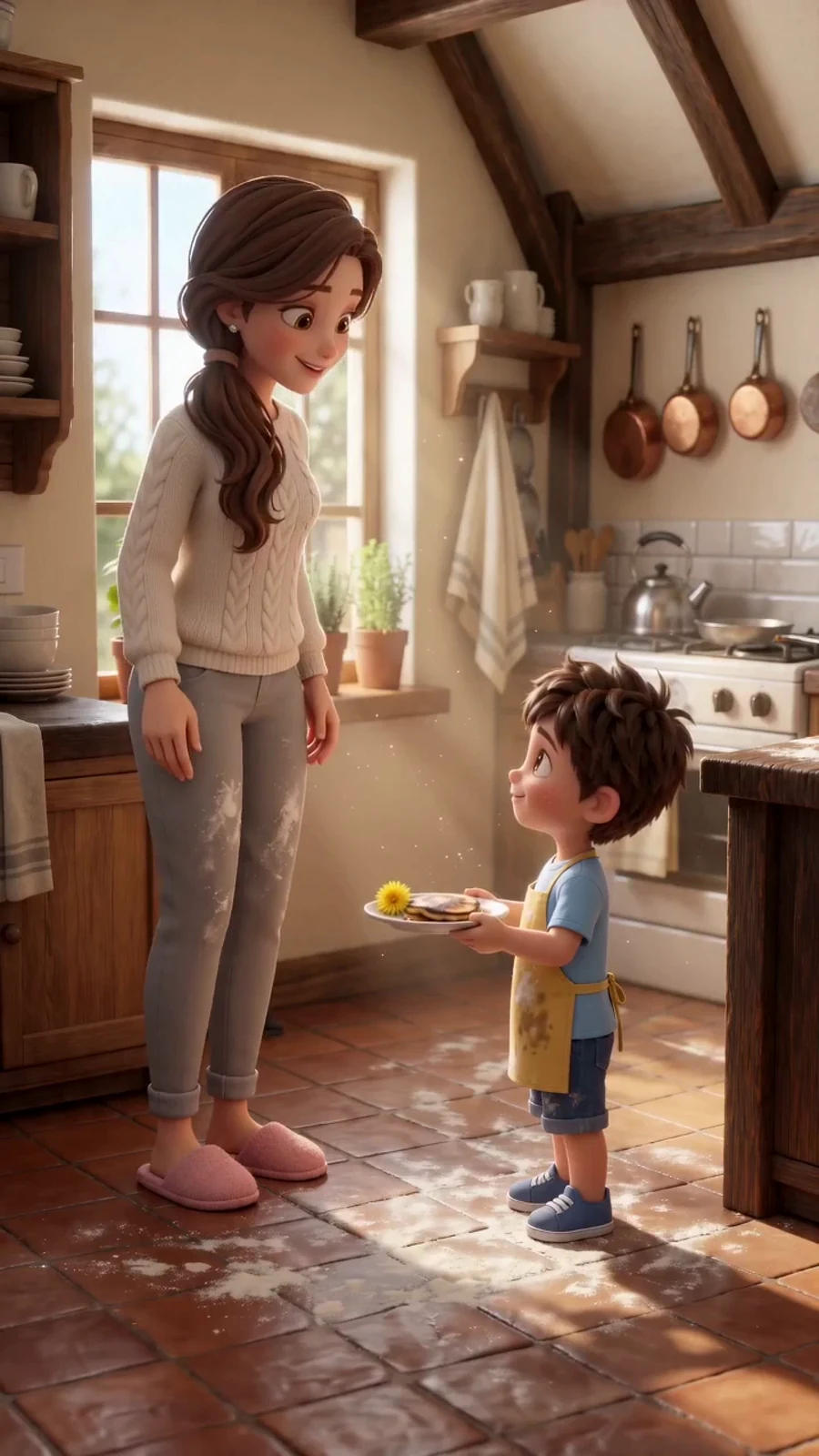
A child prepares a heartfelt breakfast for their mother in this 3D animated story. An everyday gesture gives the narrative a clear purpose: making something for someone you love.
Use narrative groups and an editable shot list to separate the setup, turning point, and payoff. Add, remove, or reorder shots when the story feels rushed or repetitive. A clear sequence helps you decide which moments need a close-up and which need room to unfold.
Create or upload the character, setting, and prop references you want to reuse. Reference those assets in the relevant shots, rather than relying on a character name alone. Compare the face, wardrobe, and important objects across scenes, especially when a change of angle or lighting makes differences easier to miss.
Select an individual shot to change its description or regenerate it, then compare the available history. Keep the surrounding story in view: a stronger reaction shot may also need a different cut or audio cue. Local revision gives you a way to improve a sequence without starting the entire project again.
| Stage | Prepare | Carry forward |
|---|---|---|
| Story planning | Script or one-sentence premise | Scene order and character, setting, and prop choices |
| Shot generation | Shot description, storyboard image, and linked references | Selected clips with clear beginning and ending states |
| Final assembly | Selected clips, dialogue, and music choices | A complete sequence to preview and download |
Before generating a scene, identify its story beat, reference assets, and ending state. For a breakfast story, decide what has already been prepared, who carries the plate, and where the mother will receive it. Carry these decisions into the shot description so the next scene has a clear starting point.
Have a script ready? Open OiiOii Short Drama Agent and upload it to begin your long-video project. Use the long-script episode workflow to organize longer material, then review episode breaks and extracted characters, scenes, and props. Starting with one sentence instead? Choose OiiOii Story Anime Skill and describe the premise, such as a child preparing a surprise breakfast for their mother. Ask the Agent to develop that idea into a story, then refine the ending and scene progression. Choose the route that matches your input; you do not need to complete both before planning shots.
Work through the narrative groups and shot list. Edit the order and descriptions so each shot has a visible action and a clear destination. For a breakfast story, establish the preparation before the child presents the finished plate. Generate storyboard images to check composition and reference choices before making moving footage.
Generate the selected video shots from the storyboard and linked references. Watch adjacent shots together, checking the direction of travel, prop ownership, and where an action ends. If the plate changes hands between shots without a visible reason, revise that shot or its transition. Use generation history to choose the version that fits the sequence.
Configure dialogue, voice, and music for the selected clips, then use the editing workflow to combine them. For a breakfast story, coordinate the preparation sounds with the visible actions, then leave room for the mother's reaction when the meal arrives. Preview the assembled video from beginning to end: listen for abrupt sound changes and check whether the reveal arrives at the right moment. Adjust the edit before downloading the finished video or individual clips.
| Connection | What to check | What to adjust |
|---|---|---|
| Action | The next shot begins where the previous action leaves off. | Revise the handoff, entrance, or movement description. |
| Character | Face, wardrobe, and key props remain recognizable. | Check asset references and regenerate the mismatched shot. |
| Sound | Dialogue is clear and scene changes sound intentional. | Adjust the audio and edit around the transition. |
Review the joins as carefully as the individual clips. These checks help a collection of attractive shots feel like one continuous story.
Upload the script to OiiOii Short Drama Agent. Organize longer material into episodes, then develop the assets, shot list, storyboards, and video shots. Review episode breaks for story logic: a scene ending should give the next scene something to continue, rather than splitting the text only by length. If you have no script yet, start with a one-sentence idea in OiiOii Story Anime Skill.
Reuse a defined character asset and reference it in the relevant shots. Include important wardrobe or prop details in the setup, then compare the generated results. References help maintain continuity; they do not remove the need to check identity when framing, lighting, or location changes.
Yes. You can edit descriptions and regenerate individual shots, compare their history, and bring the chosen result into the assembled sequence. Recheck the neighboring shots and sound afterward so the replacement still connects naturally.
Finished-video length is different from the duration of one generated clip. Build a longer piece by combining shots and organizing longer scripts into episodes. Available clip durations depend on the selected model and workflow; check those controls when planning. Choose a length that lets the story develop without repeating scenes.
Yes, when your free Credit balance covers the generation tasks you choose. Daily free Credits and purchased Credits can both generate videos. Different models use different amounts, and a multi-scene project may involve several generations or revisions, so a free balance does not imply an unlimited finished-video length.
Explore Story Films for a related route into character-led scenes and narrative video creation.
Upload your script to Short Drama Agent, or bring one sentence to Story Anime Skill. Give the story a clear beginning, meaningful changes, and an ending worth reaching.