Seedream 5.5 Is Here | Limited Time: Subscribe & Create Credit-Free for Up to 30 Days Subscribe Now

AI Cartoon Generator

OiiOii is an AI cartoon generator that turns a written description or reference photo into a cartoon image. Describe the character, visual style, and scene, then refine the result in Canvas. Save a character in Assets for reuse, or use the finished image as a reference for a separate animation task.

Describe a cartoon character or add a reference image.
Prefer the full creator?

Create a cartoon from text or a photo

Start with a written character description or upload a clear reference photo. OiiOii uses that input and your style instructions to generate a cartoon image. Specify the features to retain, the framing, and the background; review the result before editing or reusing it.

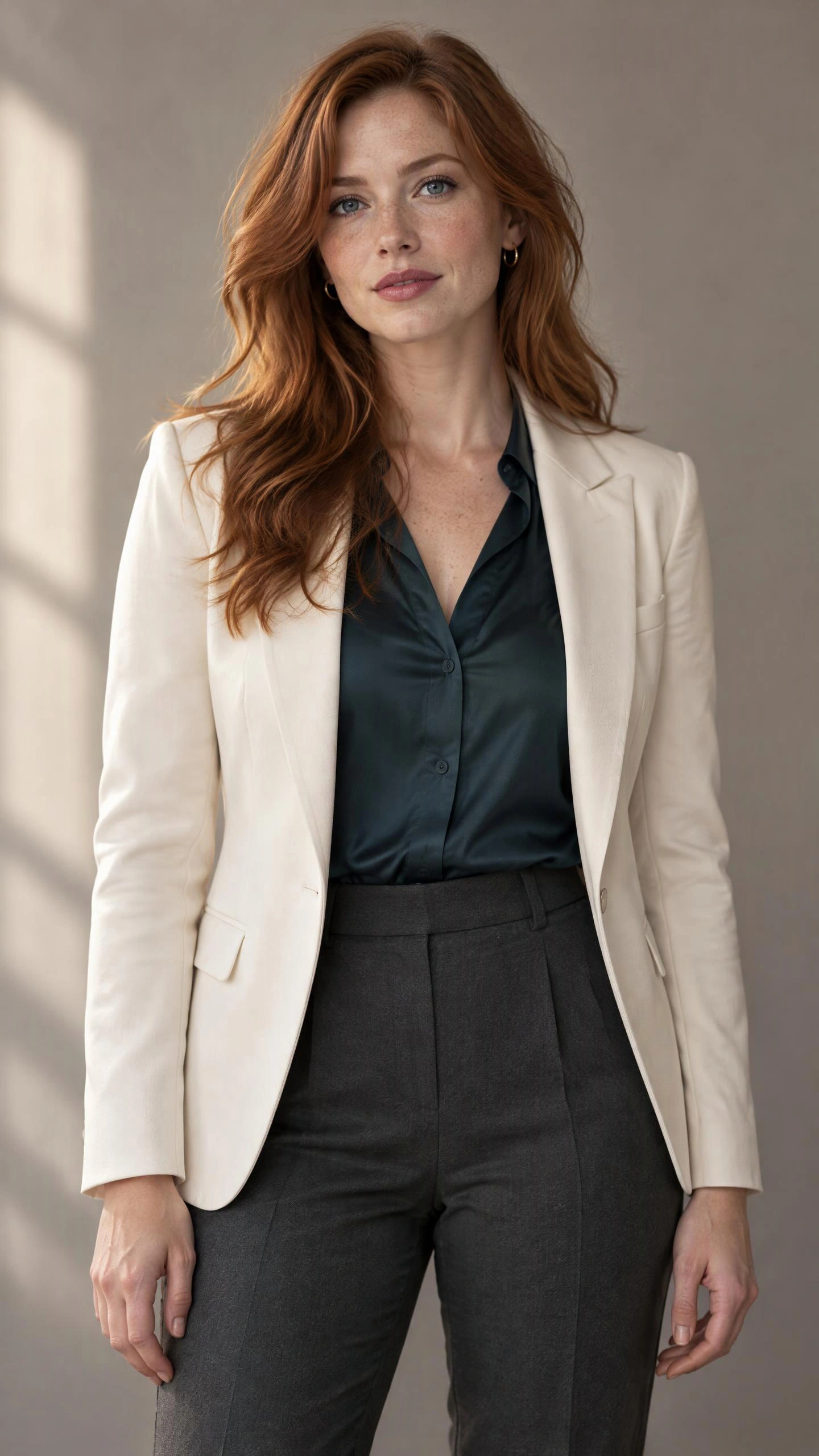
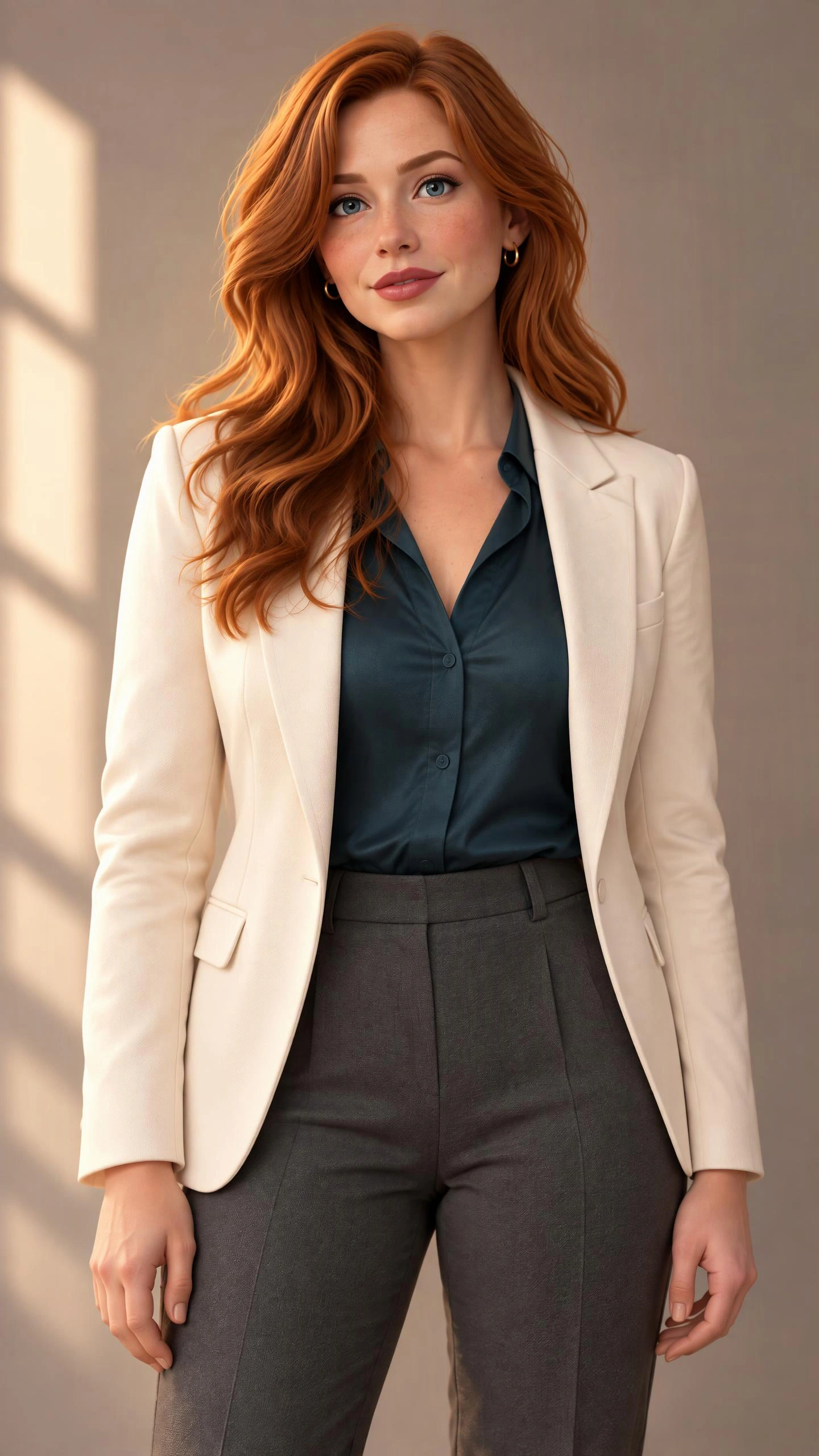
Copper-haired woman in an ivory blazer and dark teal shirt, used as the portrait reference.

Start with a clear subject

Choose a photo where the face or main subject is easy to see. For a portrait, keep important features away from the edge and describe the expression you want. For an original character, write the appearance, clothing, pose, and setting directly into your request.
Give your cartoon a distinct visual style

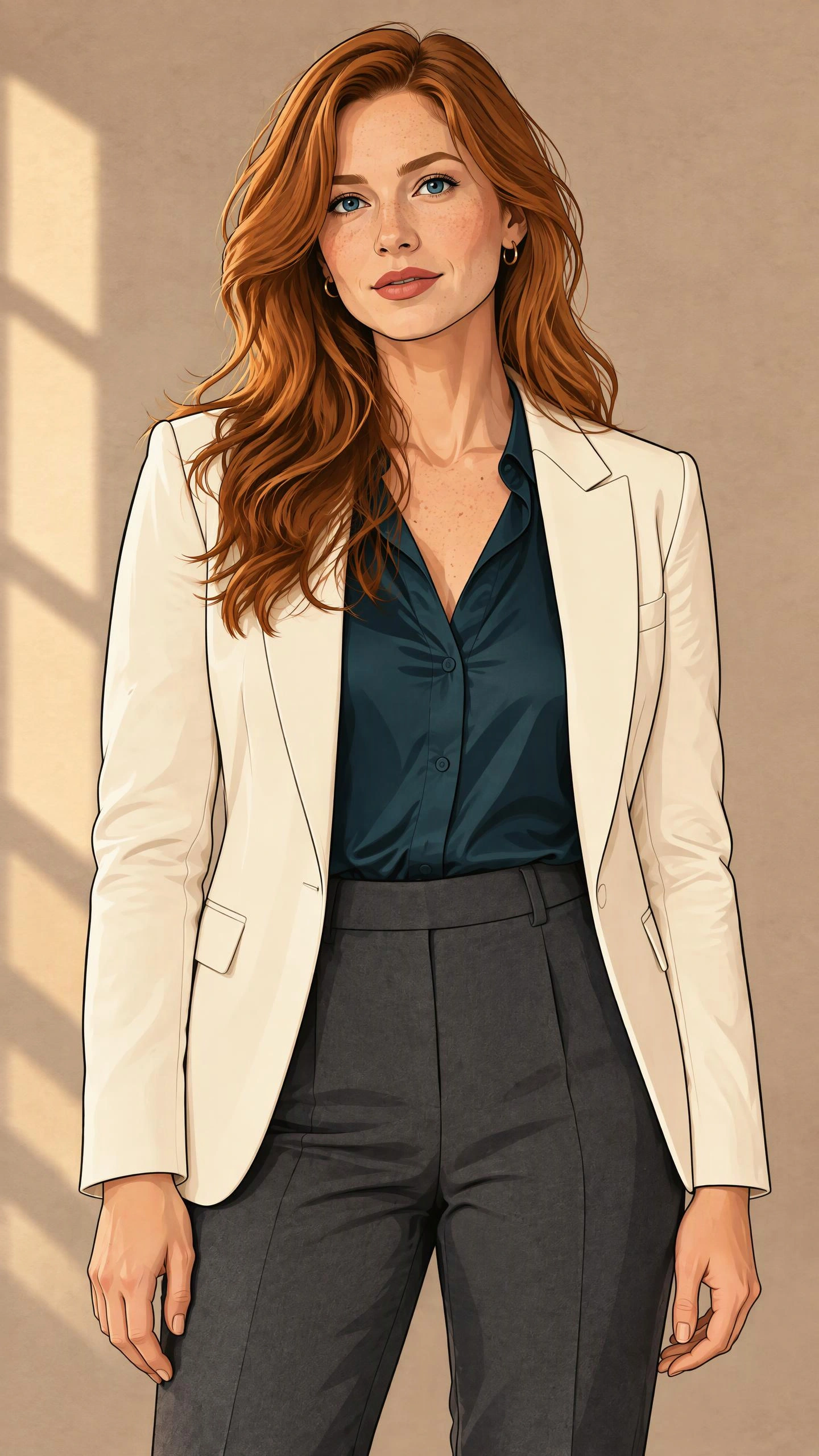
Choose a 2D illustration or a softly shaded, dimensional cartoon look by describing the line work, colors, lighting, and materials. These examples are cartoon images with different visual treatments. Compare each result with the same reference to check the face, hair, clothing, and silhouette.

Copper-haired woman in an ivory blazer and dark teal shirt, rendered with ink outlines and flat colors.

Expressive 2D illustration

Bold outlines, flat colors, and simplified shadows can make a portrait feel lively and graphic. Describe the shape of the eyes, the curve of the hair, and the expression. A restrained background keeps attention on the character when the image appears at a small size.

Copper-haired woman in an ivory blazer and dark teal shirt, rendered with rounded forms and soft dimensional shading.

Soft, dimensional cartoon styling

Rounded forms, gentle shading, and a tactile fabric finish create a dimensional cartoon look. Describe the lighting and materials as well as the character. Compare the silhouette and clothing colors with your reference, especially when changing several visual details at once.

Choose the input and result you need

Cartoon portrait from a photo

  • Input: A clear reference photo of a person or pet.
  • Describe: Features to retain, expression, framing, background, and visual style.
  • Result to review: A cartoon image. Check whether the subject remains recognizable, including at thumbnail size.

Original character from text

  • Input: A written description; a photo is not required.
  • Describe: Appearance, outfit, pose, setting, and a consistent color palette.
  • Result to review: A character image. Save the chosen design in Assets before requesting another scene; check identity details again in each result.

Moving scene from a cartoon image

  • Input: A finished cartoon image referenced in a separate video-generation request.
  • Describe: One clear action, camera framing, and how the scene ends.
  • Result to review: A video clip. Review the whole clip for character changes, motion continuity, and sound when present. Generating a cartoon image does not automatically animate it.

How to create a cartoon in OiiOii

1. Bring the subject into Canvas

Upload or drag your reference image into OiiOii Canvas and reference that image in the conversation. Ask for a cartoon portrait or scene, specifying which visible details to retain. If you are starting from text, describe an original character with a clear silhouette, outfit, and setting.

2. Generate the cartoon treatment

Use image generation with your reference or description. Choose an available style or describe the treatment in words, such as clean ink outlines and warm flat colors. Include the framing you need. The resulting cartoon image becomes the reference for your next edit.

3. Refine a specific visual detail

Select and reference the generated cartoon, then ask for a focused change such as a softer expression, a different jacket color, or a simpler background. Use the available image-editing controls when working on a particular area. Compare the revised image with the previous version before continuing.

4. Save the character for another scene

Save a character you want to reuse in Assets. Reference that saved asset when requesting another cartoon image, and specify the new pose or setting. Check the hair, face, outfit, and proportions together so you can address any visible changes before developing the next scene.

Continue with a cartoon video generator

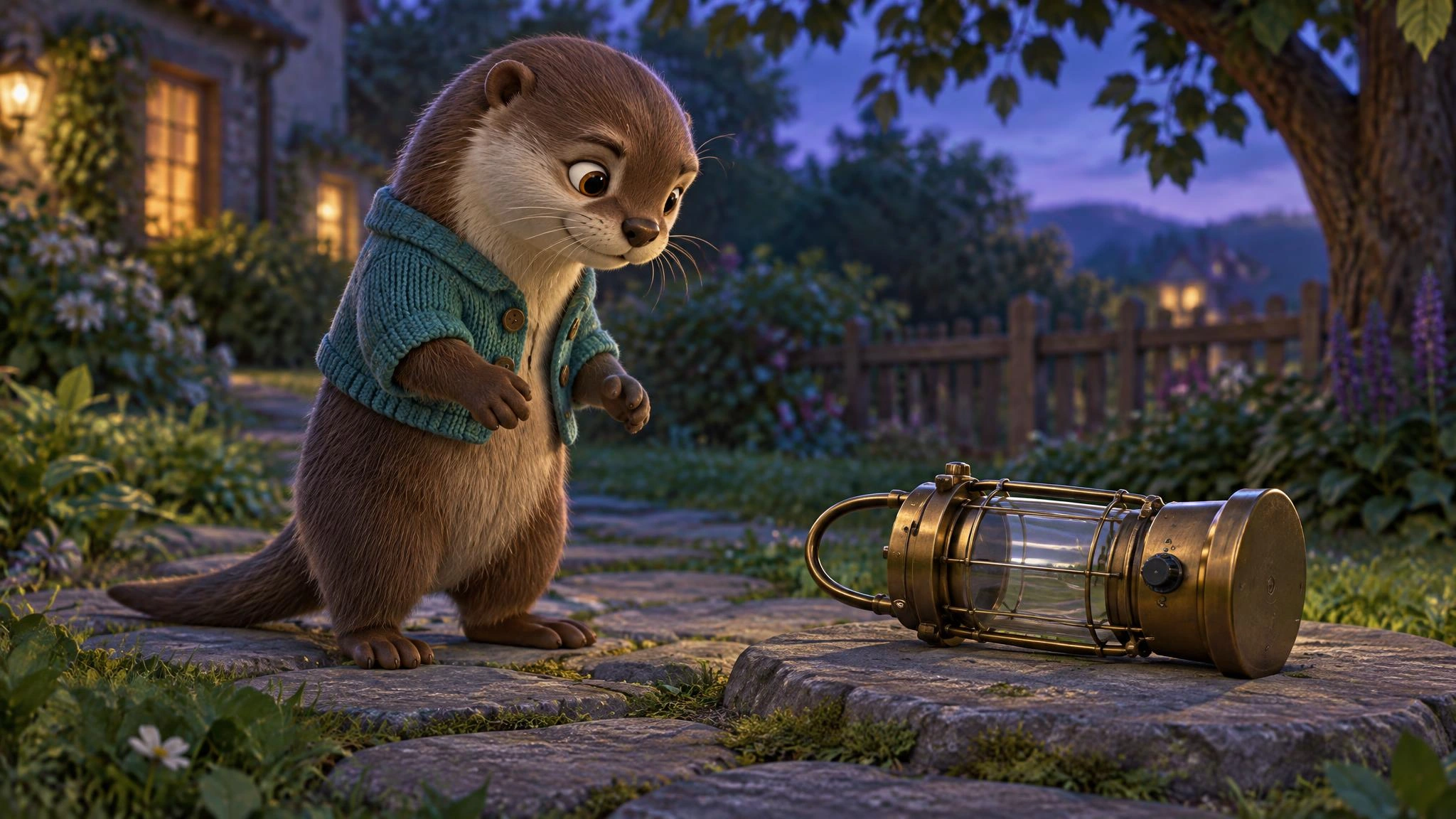
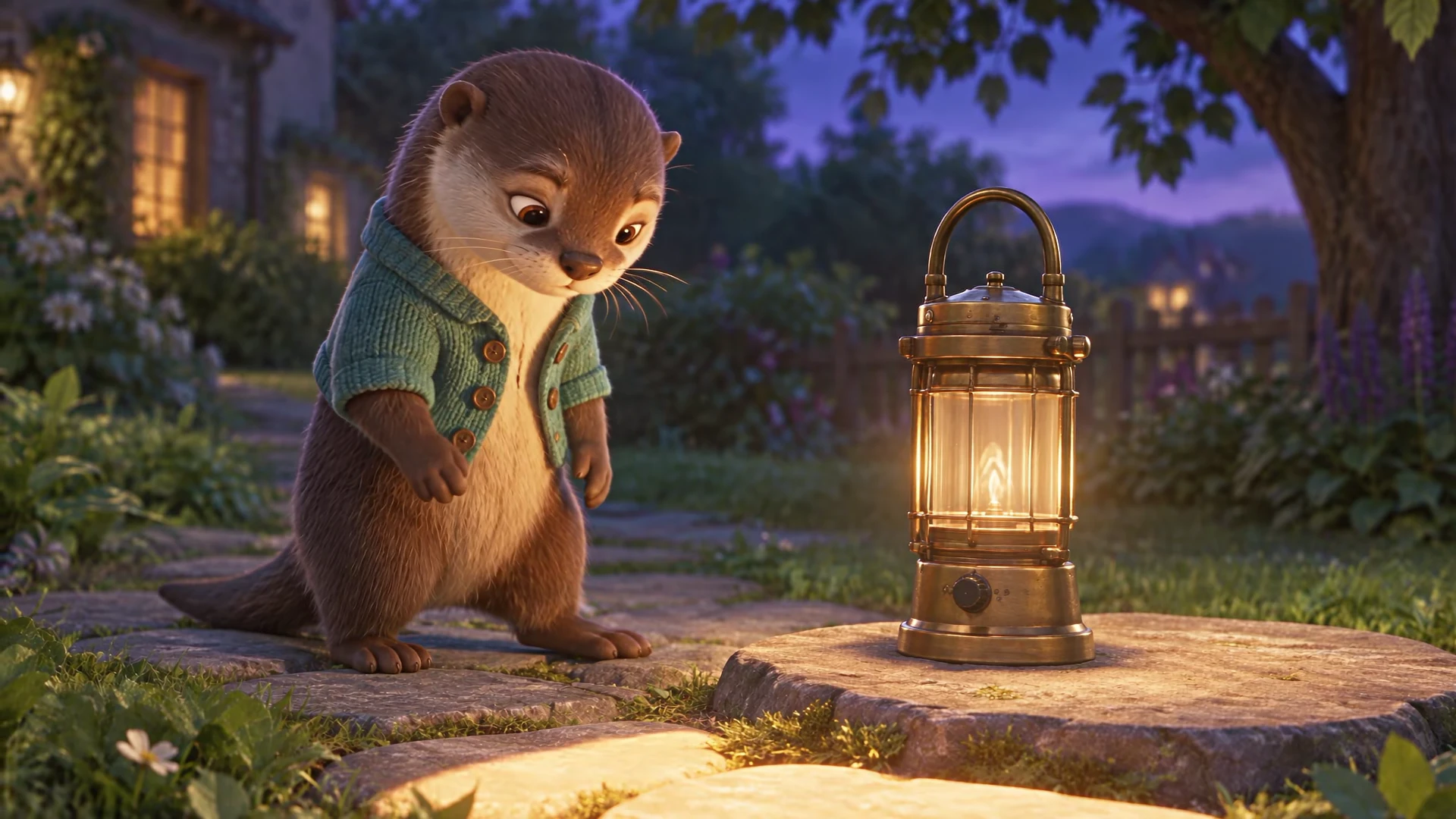
To animate a cartoon, reference the finished image in a separate OiiOii video-generation request. Describe the character's action, camera framing, and ending. The example below starts with an otter beside a fallen lantern. Begin with one clear action, then review the entire generated clip for movement and character continuity.

An otter beside a fallen brass lantern on a twilight garden path.

Starting image

Animated otter and brass lantern in a twilight garden.

Animated scene

Questions about creating cartoons

Can I create a cartoon from text or a photo?

Yes. For text to cartoon, describe an original character, outfit, pose, setting, and visual style. For photo to cartoon, upload a clear photo to Canvas, reference it in the conversation, and specify the features to retain. Both paths produce an image to review and refine; animation is a separate step.

How can I reuse a cartoon character in another scene?

Save the chosen cartoon character in Assets, then reference that asset when requesting another scene. Specify the new pose or setting and the defining features to retain. A reference helps guide the design, but results can vary: compare the face, silhouette, outfit, and colors, then request focused corrections where needed.

Can I change the background without starting the character design again?

You can reference an existing cartoon and ask OiiOii to change its setting. Specify the new background and the character details you want to retain. Inspect the whole result after editing, including edges around the hair, hands, and clothing, before choosing the version to use.

What is the difference between a cartoon image and a cartoon video?

A cartoon image establishes a single composition, character design, and visual style. A cartoon video adds movement over time. To animate an image, reference it and describe what the character does, how the camera observes the action, and where the scene ends. Review the full clip for continuity.

What should I include in a cartoon prompt?

Include the subject, defining appearance, pose or action, visual style, framing, and background. For example: “A copper-haired character in an ivory jacket, waist-up, smiling, clean ink outlines and warm flat colors, on a simple teal background.” When using a photo, also identify which visible details should remain recognizable.

Can I generate a cartoon video for free?

Yes, when your free Credit balance covers the video-generation cost. Credits claimed through the daily free reward work the same way as purchased Credits and can be used to generate videos. Different models use different amounts of Credits, so the number of videos you can make depends on your balance and chosen model. This does not mean unlimited free generation.

Build a longer cartoon story

For a sequence with several scenes, explore AI Animation Generator. Develop the story through characters, shot planning, video, and sound, using your cartoon design as a reference for the project.

Create your first cartoon character

Bring a photo or describe a character. Give the image a clear style, refine the details, and save a design you want to keep creating with.