One character
Define the viewpoint, silhouette, outfit and palette. Generate a readable starting design before requesting an entire animation set.
Create character, creature and item artwork from a description or reference image. Refine a consistent visual style, then prepare your sprites for animation and game import.
Define the viewpoint, silhouette, outfit and palette. Generate a readable starting design before requesting an entire animation set.
Upload a character image to guide a revision. Change one thing at a time so you can compare the face, proportions and equipment.
Plan the frame size, directions and action first. Use generated artwork as source material, then align and test frames in your sprite editor.
Build a cohesive game world with a shared viewpoint, clear silhouettes and a consistent palette across characters, companions and inventory items.
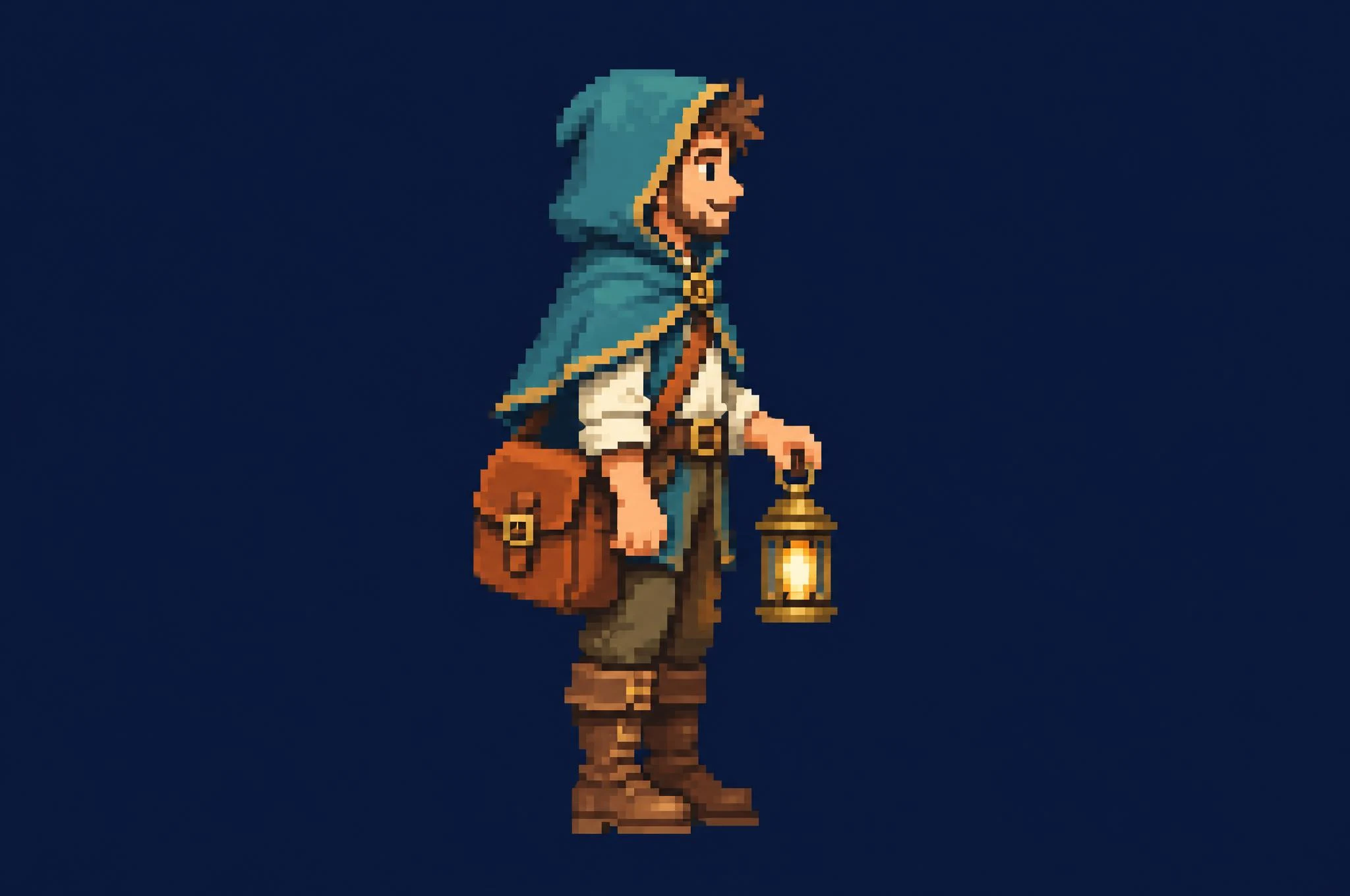
The teal cape, orange satchel and brass lantern give this character three clear landmarks. Start with one right-facing stance. For later frames, compare the hood height, lantern hand and boot baseline against this reference.
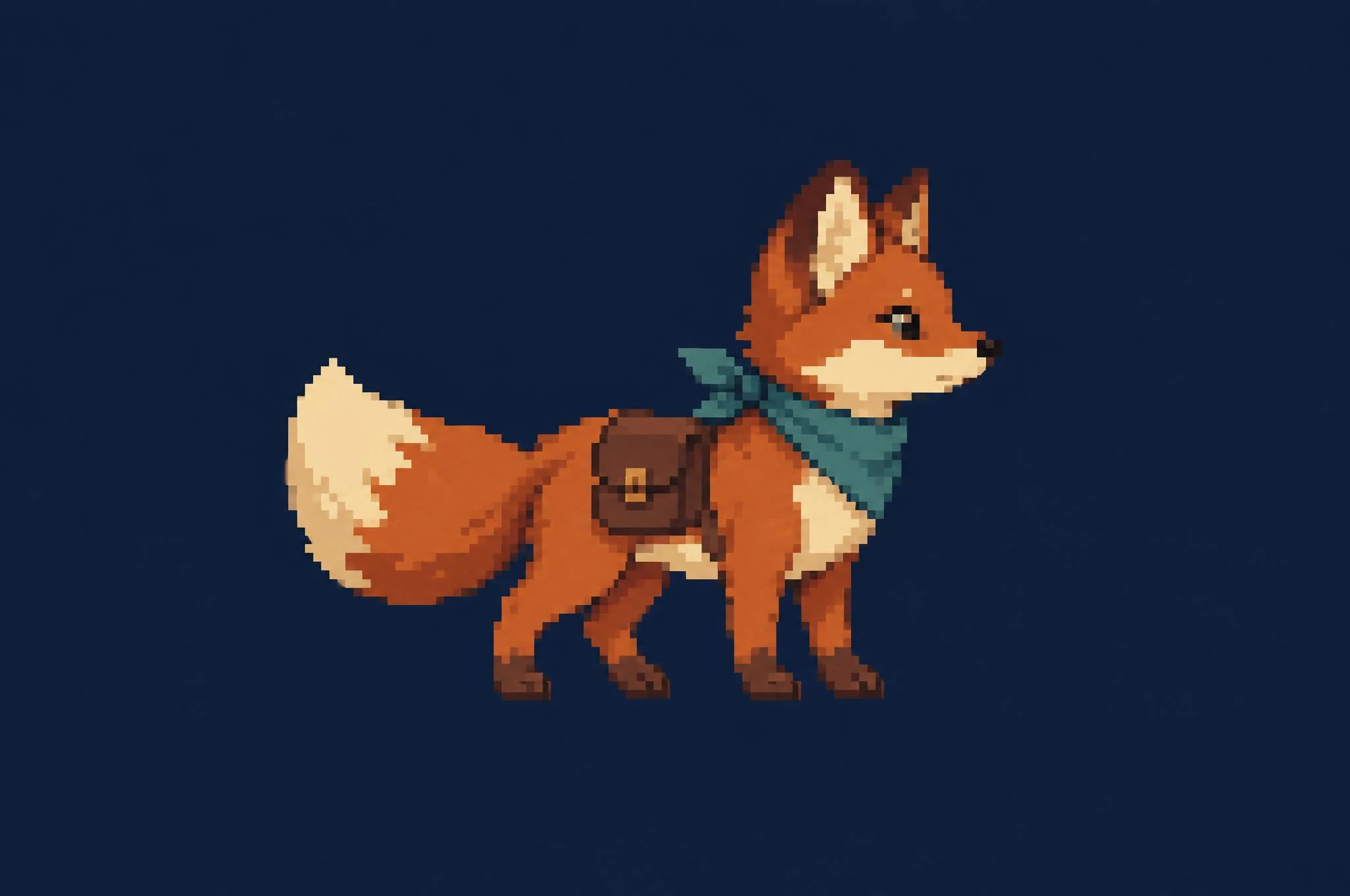
The cream tail tip and teal scarf connect the fox to the courier without copying the human shape. Check all four paws, ear placement and tail length before asking for walking or running poses.
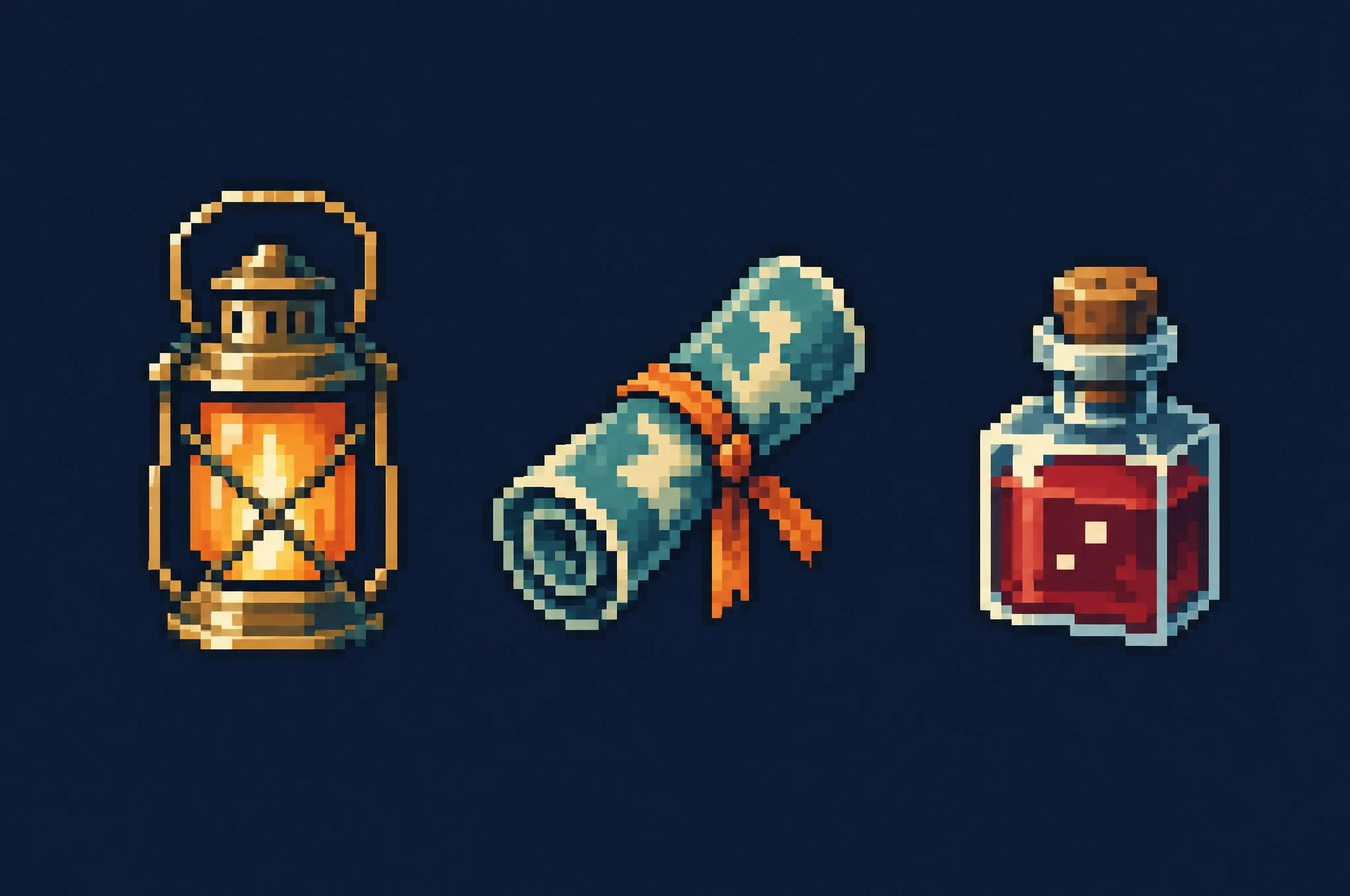
The lantern, rolled map and potion share a restrained palette and stepped outlines. Give each item a distinct silhouette, then size it for your inventory grid so players can recognize it at a glance.
Create outfit variations around a recognizable character. Use the original image to guide the colors, equipment and overall silhouette while changing one design detail at a time.
The starting courier establishes a right-facing view, teal outerwear, orange satchel and brass lantern. Keep this image available as you compare each revision.
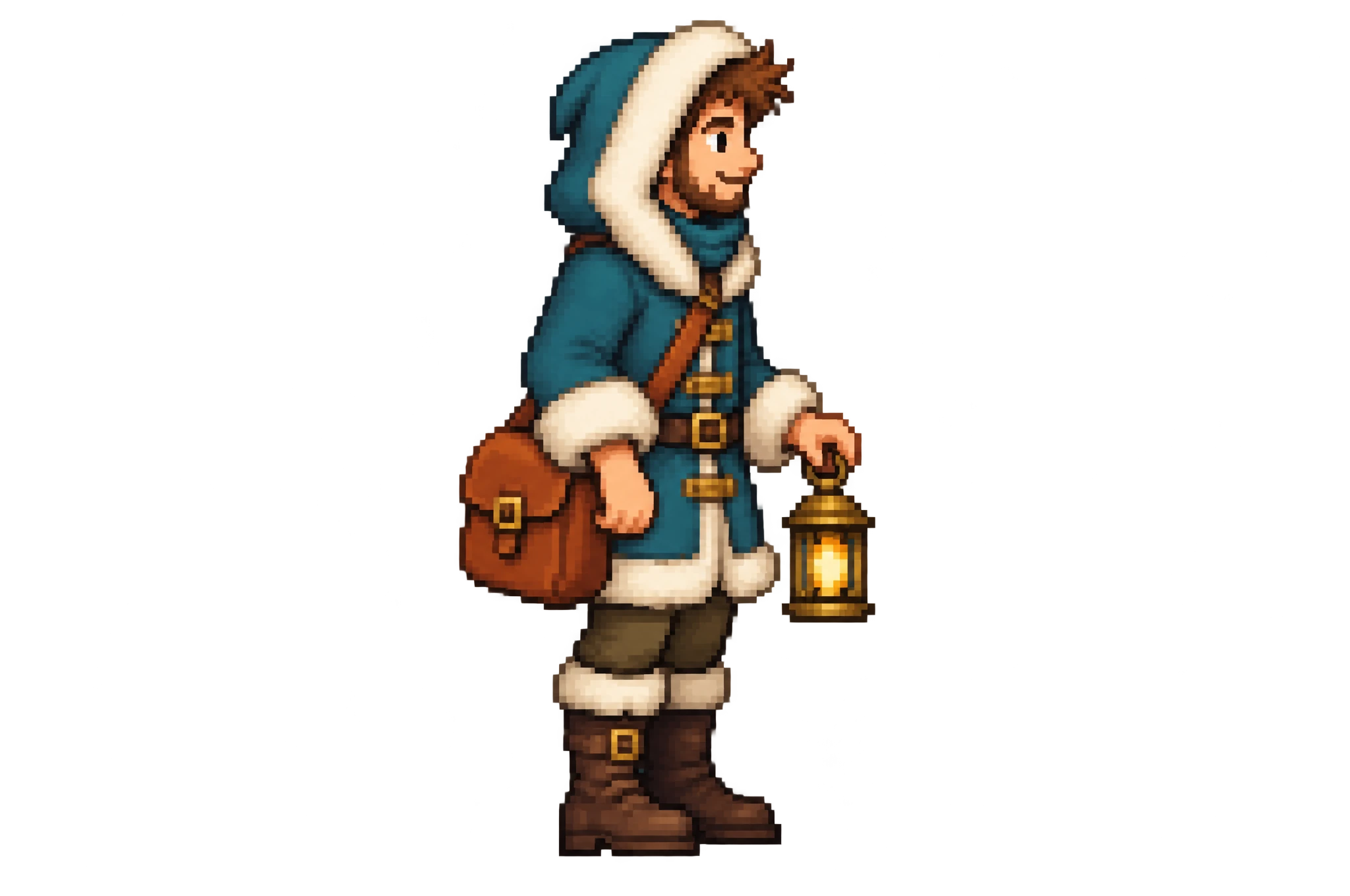
A fur-trimmed coat gives the courier a winter look, while the orange satchel and brass lantern carry the character's identity into the new outfit. Reuse these signature details when designing seasonal costumes or alternate equipment.
Explore a walking sequence using one character reference. Keep the viewpoint, outfit and equipment consistent as you plan the movement from pose to pose.
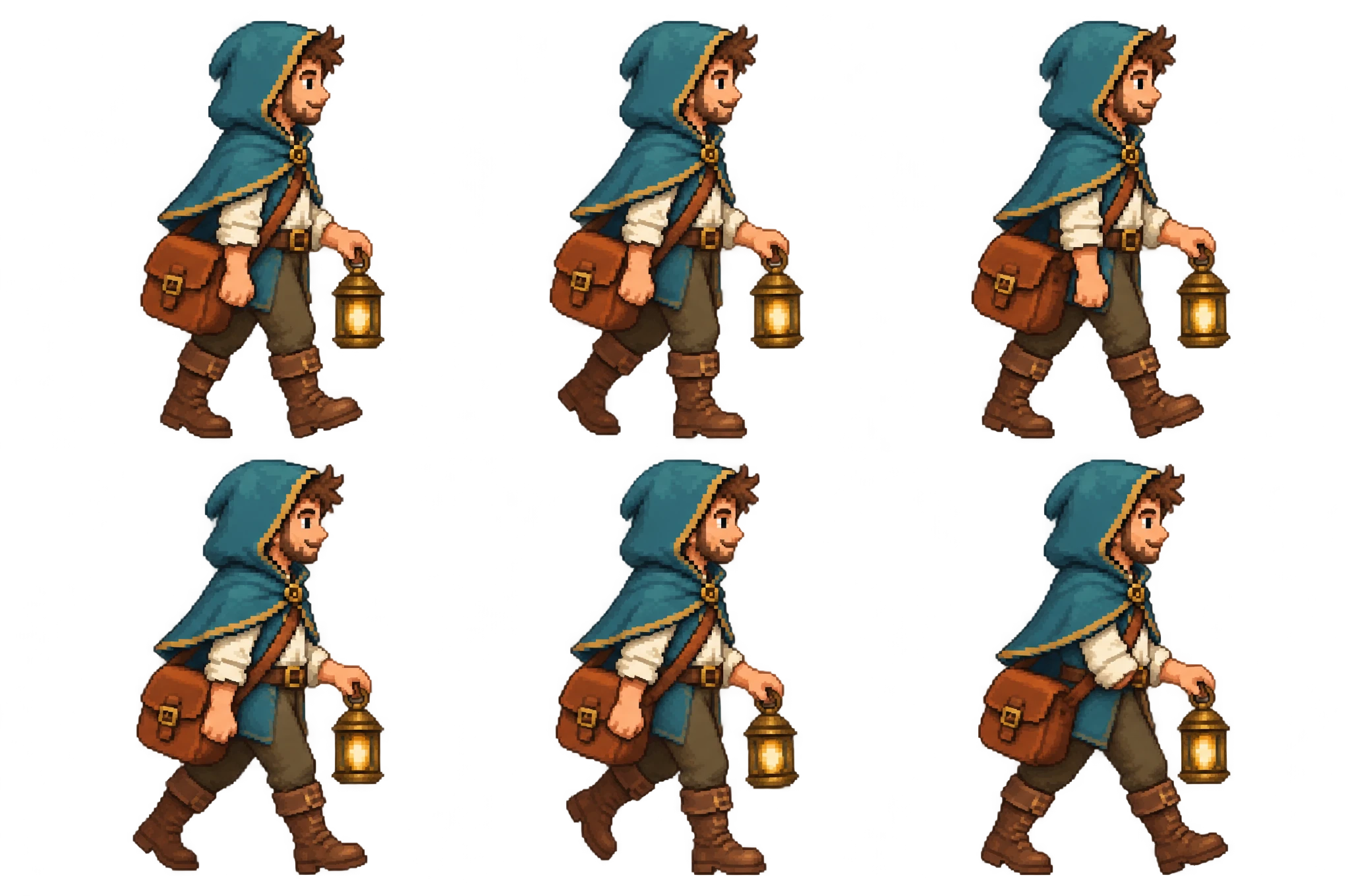
The teal hood, orange satchel and lantern tie the six poses together. Use the sequence to plan leg movement and arm position, then arrange your selected frames on a consistent grid and set the playback timing in your sprite editor.
Choose side view, top-down or isometric and keep it fixed. Name one action, the outfit and the colors. Describe the desired pixel scale, then check the result at actual game size.
Use Free Creation with the Pixel style as a starting point. Save a strong reference and revise a specific detail. An AI 2D sprite generator is most useful when each revision has one clear goal.
Remove or verify the background, clean edges and set a consistent frame canvas. Assemble frames in an editor, define the pivot and timing, and test the loop against your game background.
Every frame needs the same canvas size. For example, eight 64 × 64 frames in one row make a 512 × 64 sheet before padding. Match the engine’s slicing settings to the actual file.
Keep feet on the same baseline and use a stable pivot. A character that shifts inside its cells can appear to slide or bounce even if each pose looks good.
Use a transparent background for sprites that need to sit over your game scene. Inspect the edges on both light and dark backgrounds, and clean stray pixels before export.
Set the order and duration of your frames, then play the full loop, including the last-to-first transition. Adjust foot contact and equipment movement for a smooth cycle.
Use OiiOii to explore a new character, creature or item and refine it from a reference. Plan a separate cleanup and animation step when your game needs exact pixel control.
The Universal LPC Spritesheet Generator and Memao Sprite Sheet Creator assemble existing character parts. They serve a different job from generating a new design. Check each asset set’s license and attribution requirements.
Bring your artwork into a sprite editor to set consistent cells, frame order and timing. Preview the animation, then match the export settings to your game's import requirements.
Yes. Start with a character concept, the game's viewpoint and a target scale. Refine the outfit and palette, then develop the directions and actions your character needs. Align the frames and test their motion against your game background.
Upload your PNG as an image reference, then describe the pose, outfit or style you want to change. Keep the original available to compare key details. Before game import, check the output dimensions and transparency and save each frame at a consistent size.
Start with a clear view of one character or object. Ask for a specific view, palette and simpler shapes while keeping key features recognizable. Compare the output with the reference before changing the pose. Resize and clean the final artwork in a pixel editor when exact grid dimensions matter.
Place the PNG on the timeline, add a position keyframe, move forward in time and set another position. Scale or rotation keyframes can add motion too. This moves the whole image; a walking character needs different animation frames or a separate animation workflow.
Gemini image models can help you explore sprite designs and edit character artwork. Define your target viewpoint, palette and game size, then prepare the selected images in a sprite editor for slicing and animation. Review the usage terms for the service and any reference assets.
Yes. Give animals their own anatomy and movement while reusing your game's viewpoint, palette and shading style. Compare their scale beside human characters, then plan poses around the animal's gait, paw placement and tail movement.
Choose the view, define the silhouette and create a reference worth refining.