The final song
Use the exact recording you plan to release. A different intro, tempo or edit will change every lyric cue.
Turn your song into a lyric video with OiiOii's MV creation workflow. Bring your music, shape the visual story, and review the lyrics and timing before your final export.
Use the exact recording you plan to release. A different intro, tempo or edit will change every lyric cue.
Break lyrics into short phrases. Keep type large enough for a phone, with strong contrast and room around the edges.
Choose a story, visual-effects or performance direction in OiiOii's MV workflow. Keep the background calm enough for viewers to follow the words and reuse a palette across the song.
Follow a rainy night journey through warm bus interiors and city lights, with lyrics that carry the chorus across each scene. Keep your words editable on the MV timeline so you can fine-tune a line or its timing while keeping the visual story intact.
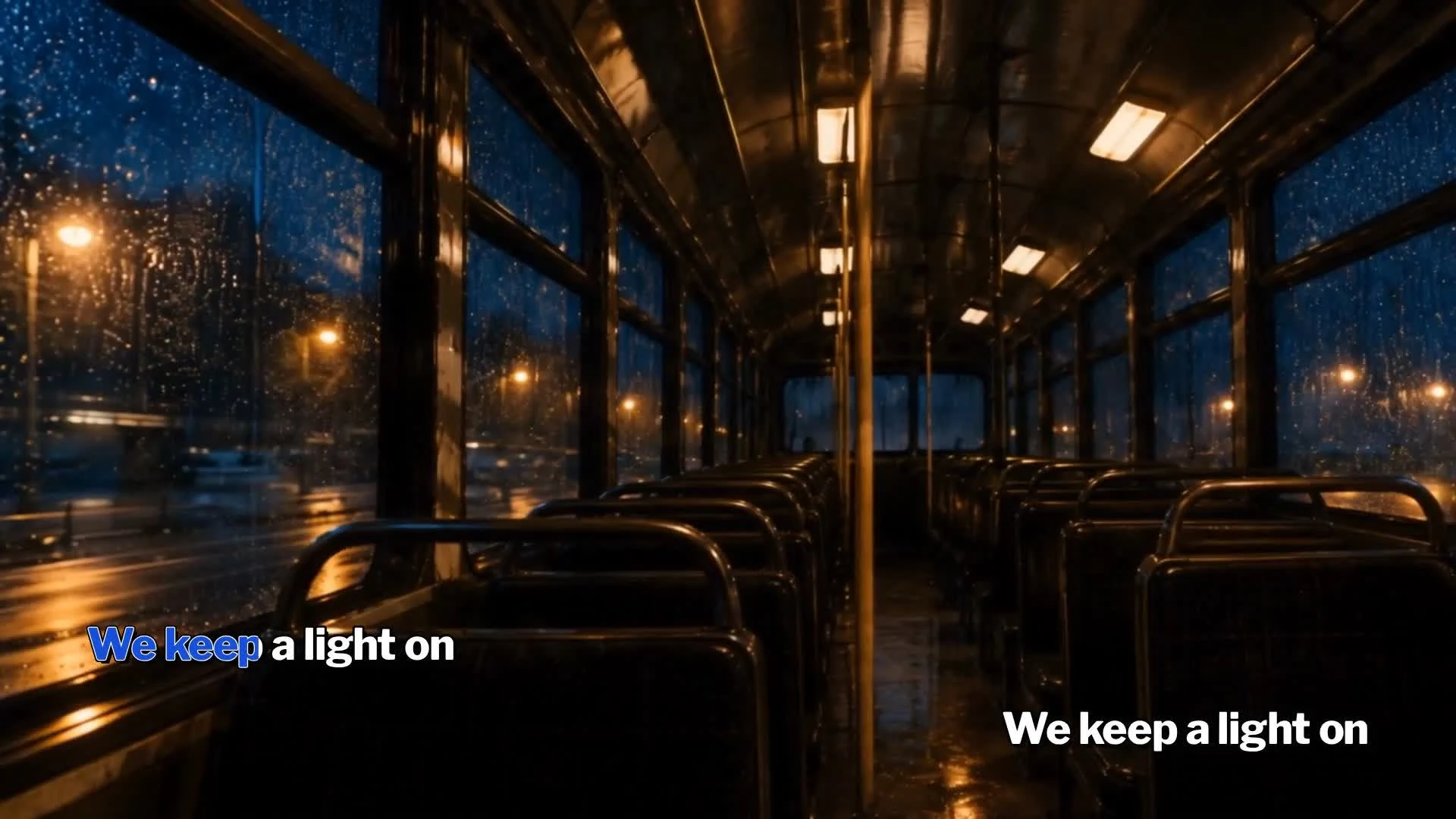
We Keep a Light On
Set the mood with a cinematic scene or give your chorus a distinctive graphic style. Use color, composition and readable text to connect the visuals to your song.
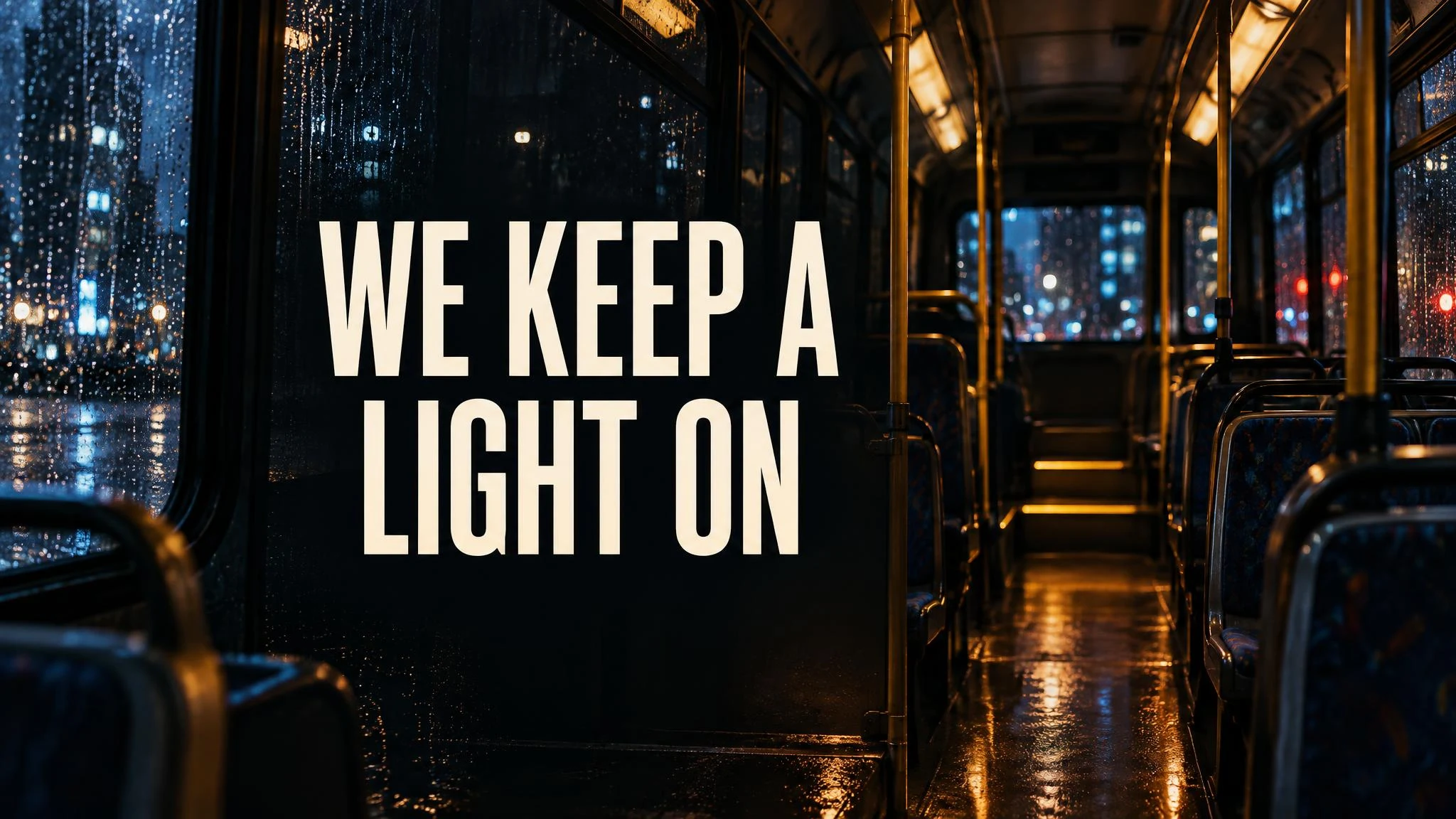
"We keep a light on" uses a quiet bus interior, warm lamps and cool rain. The short line leaves space for the image to breathe. Keep background movement restrained so the viewer can finish reading before the next phrase.

"Take the long way home" pairs a paper moon with layered hills and a small warm house. Reuse the palette and type treatment across the chorus. Change the scene at a musical transition rather than introducing a new effect on every word.
Open MV creation and upload your recording, use a music link or generate an original song. Choose the visual direction, style and aspect ratio before starting the workflow.
After music analysis, review the recognized phrases on the timeline. Open a lyric to edit its text and adjust its time range against the vocal. Check repeated lines and instrumental gaps before confirming the analysis.
Confirm the scene images and storyboard, then generate the video shots. Keep backgrounds free of text so lyric corrections stay in the caption layer. Watch the full sequence with sound and check every phrase before exporting.
Compare the recognized phrases with your lyric sheet. In the MV timeline, open a phrase and use Edit lyric to correct the words. Check names, repeated choruses and backing vocals before judging the timing.
Use each phrase’s time range to align its entrance and exit with the vocal. Replay the surrounding section with sound; a held note or instrumental break may need different timing from the neighboring line.
Use short phrases, strong contrast and consistent placement. Avoid covering faces or important action. Check the smallest screen you expect viewers to use before exporting.
Build a landscape composition, commonly 16:9, and check the lyric size on a phone as well as a monitor. Use consistent typography and restrained transitions so a full song remains comfortable to watch.
Create a separate vertical layout for a chorus excerpt. Keep the words and main subject away from interface overlays. Cropping a landscape image can cut off both a lyric and the visual focus.
An AI music video generator from lyrics can turn the meaning and mood of a song into a visual story. In OiiOii, start with MV creation and choose the treatment. For a lyric-led release, also review the displayed words against the vocals.
When the words carry the story, simplify the background. Keep one or two short lines visible at a time, use consistent placement and reserve major visual changes for section transitions.
Replay the vocal phrase with the lyric visible. Check the first sung word and the end of the phrase, including held notes. Correct individual cues rather than shifting the entire song when only one line is late.
Shorten the visible phrase, enlarge the type or quiet the background. Check the smallest screen you expect viewers to use before making more effects.
Choose a recurring object, color or setting from the song's emotional idea. Build a coherent sequence instead of illustrating every lyric literally.
Start in OiiOii's MV creation workflow with your song or a new music idea. Choose a visual direction, style and aspect ratio. Prepare the correct lyrics, then review the generated video for wording, timing and readability. Watch the entire final export with sound before posting.
Start with your song in OiiOii's MV workflow and use its lyric recognition and synchronization features. Treat the automatic result as a first pass: compare every line with the recording, especially repeated choruses, backing vocals and held notes. Review phrase timing and text readability before exporting.
Choose a landscape aspect ratio such as 16:9 in MV creation and use your final song recording. Keep lyrics large and high-contrast, with a consistent position across scenes. Watch the exported video on a phone and a monitor, check the opening and ending, and confirm you have permission to use the music and other material.
Choose a lyric-video template or a blank video design in Canva. Add your audio and artwork, replace the sample text with your own lyrics and adjust the duration of each text section to match the song. Preview the complete sequence before exporting. Keep timing corrections in the editor rather than baking every line into a generated background.
An AI lyric video generator makes the displayed words and their timing central to the video. A music video may focus on story, performance or atmosphere without showing lyrics. Use OiiOii's MV creation workflow for the visual direction, and review the words and synchronization for a lyric-led result.
Keep full-song lyrics in the editable caption layer. OiiOii’s MV workflow places recognized phrases on a timeline, where you can correct the text and timing. Generate text-free backgrounds so a spelling or timing change does not require regenerating the scene. Short title-card artwork can still be useful for a cover or intro.
Bring your music, choose its visual direction and make the words easy to follow.