1. Select or upload your video
Select the video you want to upscale in Canvas, or upload a video from your device.
Give your existing clips a clearer finish with OiiOii's AI video upscaler. Select a video in Canvas, choose a model and set your output resolution.
Open Canvas, then select or upload your video and choose Video Upscaler.
Look closely at hair, fabric, fine lines and background textures. Compare the same moment at the same display size, then play both versions to check moving details. A larger frame is only part of the result; the footage should also look right in motion.
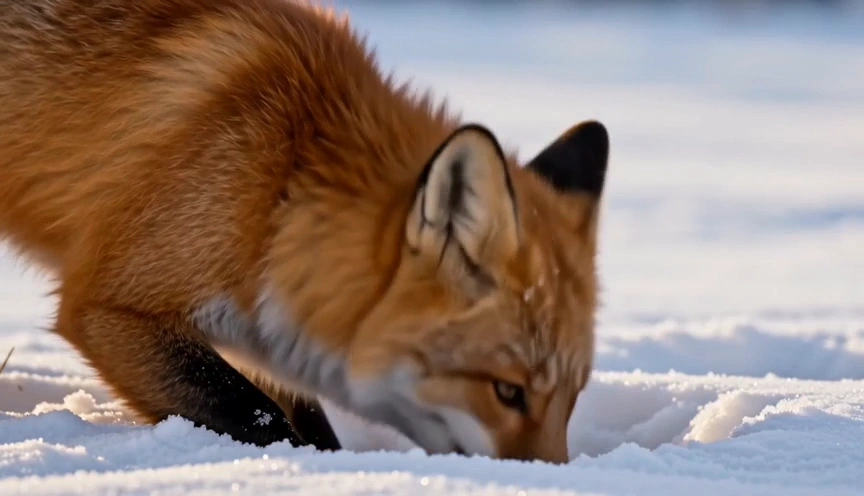
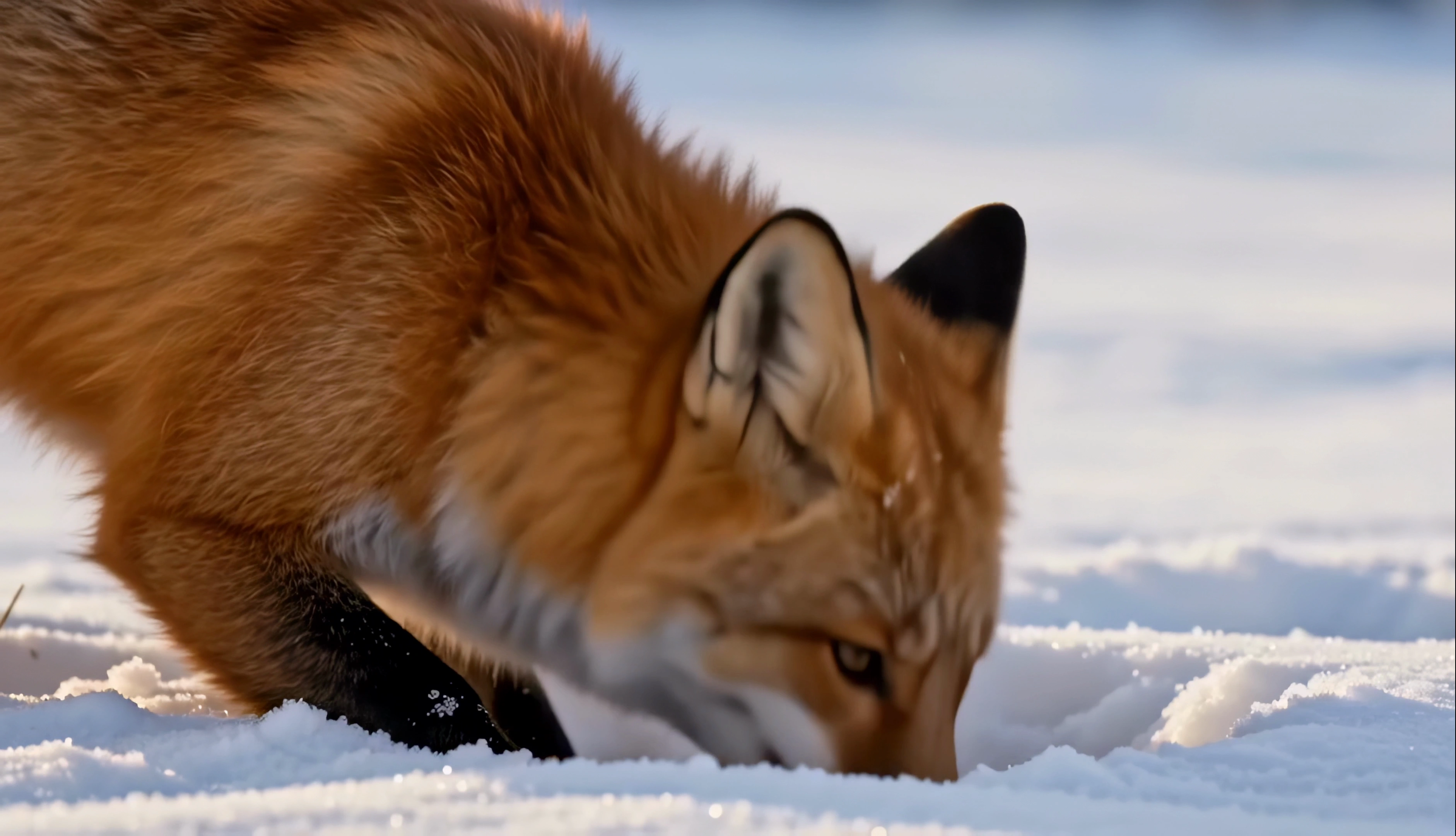
Compare the fox’s fur, whiskers and snow as it listens, leaps and searches beneath the surface.


Compare hair, apron fabric and fine sugar as the baker dusts the tart and presents the finished dessert.
| Model | Output resolution | Frame rate |
|---|---|---|
| Topazlabs | 720p, 1080p, 2K, 4K | Default, 30fps, 60fps, 90fps, 120fps |
| Ahatime Super Resolution Pro | 720p, 1080p, 2K, 4K | Default frame rate |
| Rapid HD | 1080p | Default frame rate |
Choose a model, then select from its available output options.
Select the video you want to upscale in Canvas, or upload a video from your device.
Choose Video Upscaler from the video toolbar. Select Topazlabs, Ahatime Super Resolution Pro or Rapid HD.
Choose a resolution from the options available for your model. With Topazlabs, select a target frame rate or use Default frame rate, then start processing.
Compare the processed clip with your original. Check close-up detail and moving scenes before choosing the version to use in your project.
Work on the clip you already have. Open Video Upscaler from the selected video, choose your settings and review the result as part of the same project. For an animation sequence, pay attention to outlines and facial features; for live-action footage, inspect hair, skin texture and objects moving through the frame.
An AI video upscaler processes an existing video to produce a higher-resolution version. In OiiOii, Video Upscaler is available from the video toolbar in Canvas, with model-specific resolution and frame-rate options.
Select a video in Canvas or upload one from your device, then open Video Upscaler and choose a model. Set the available resolution and frame-rate options, start processing, then compare the output with the original clip.
Topazlabs and Ahatime Super Resolution Pro offer 720p, 1080p, 2K and 4K. Rapid HD offers 1080p. Choose a resolution that suits your source video and intended use.
Topazlabs offers Default frame rate, 30fps, 60fps, 90fps and 120fps. Ahatime Super Resolution Pro and Rapid HD use the default frame-rate setting. Resolution and frame rate are separate controls: one sets the frame size, while the other sets the number of frames per second.
Compare outlines, eyes and small details across several frames. Watch the clip at normal speed as well as pausing on individual frames. Assess the actual result rather than assuming a higher resolution will correct every issue in the original generation.
Match the same moment and display size in both versions. Inspect a few areas with fine detail, then compare movement across the full frame. Keep the original available so you can judge whether the processed version is better for your project.
Choose your video, open Video Upscaler and set your output in Canvas.