AI Face Swap Video: A New Face, the Same Scene
Create an AI face swap video with Asset Swap in OiiOii. Replace the face you choose while keeping every element you leave untouched exactly as it was.
Describe what you want to create or change...
To swap a face in your video, open Free Creation, right-click to open the tools menu, and select Asset Swap.
Prefer the full creator?
Change the Face. Keep the Details.
Explore AI video face swap ideas for cinematic drama and red-carpet moments. Choose a new face while keeping the original setting, outfits, and props unchanged.
A New Lead in the Same Scene
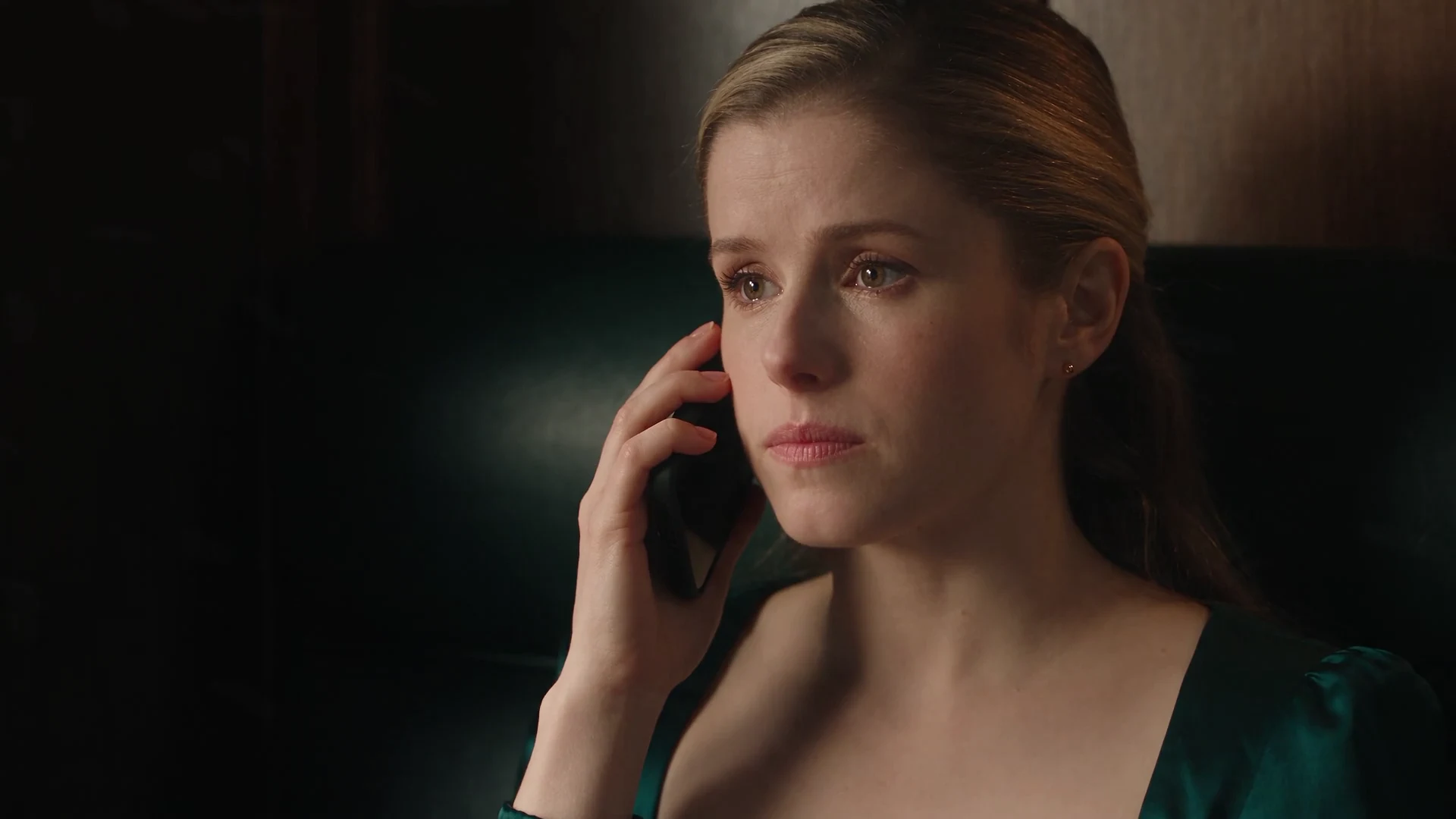
Play the lead in a runaway-bride scene. Change the face while keeping the tense phone call, green dress, moving train, and final moment of resolve.
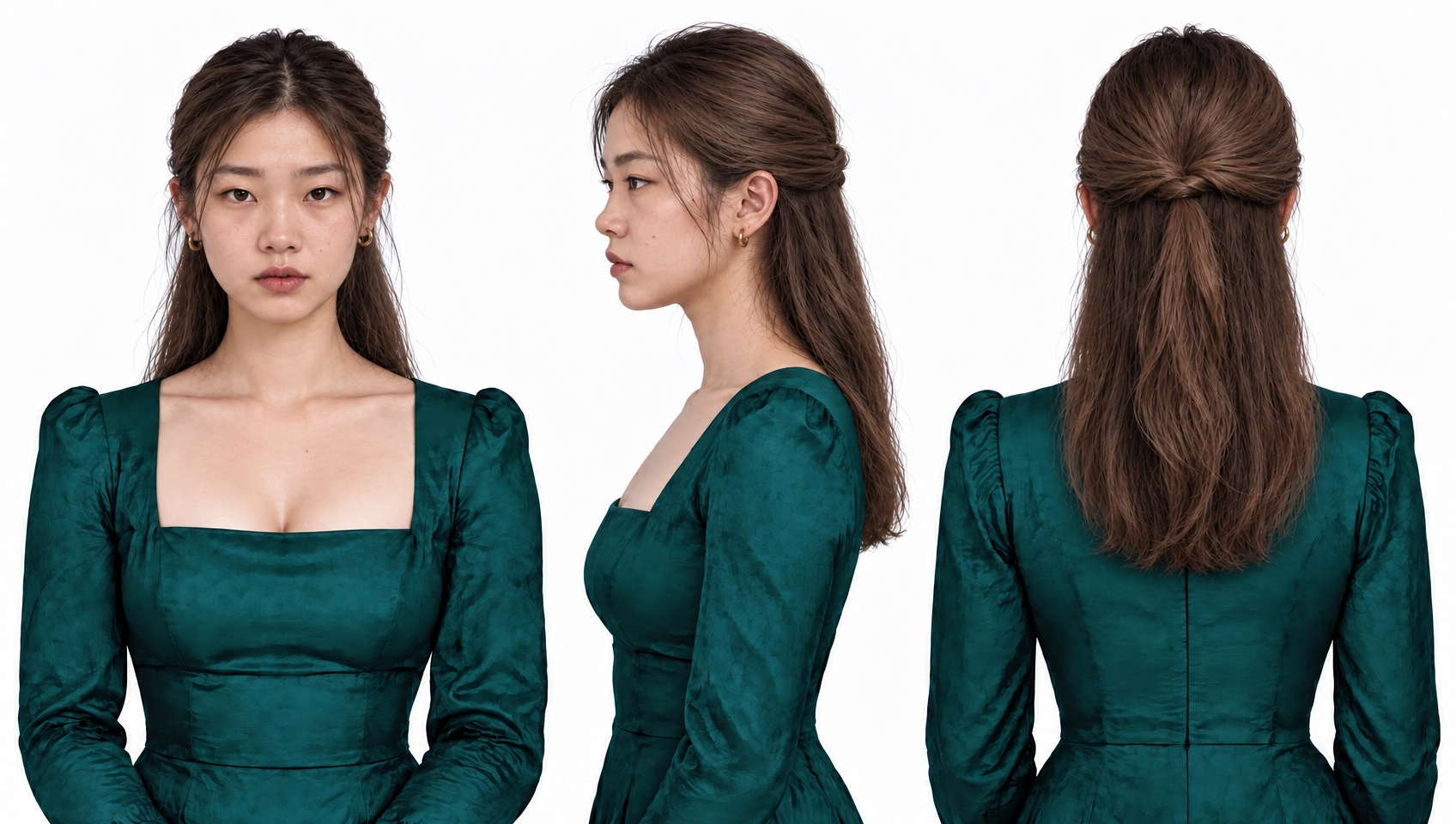
Replacement character
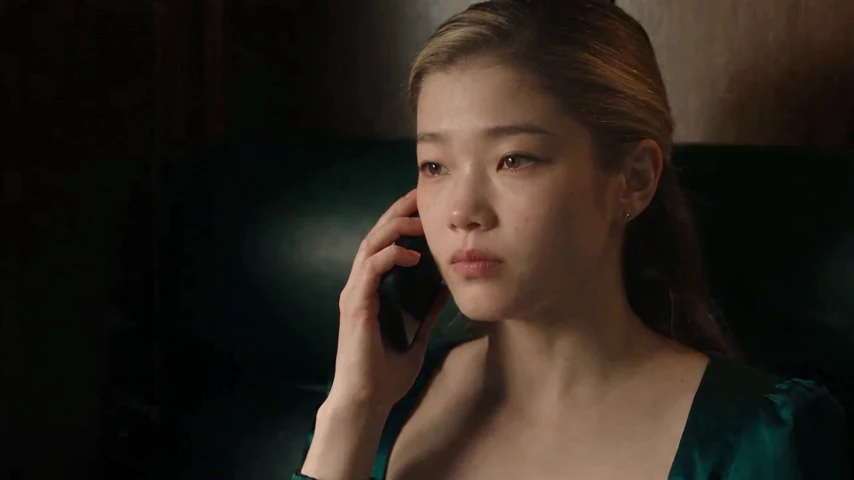
Swapped video
Your Face in the Spotlight
Arrive at a film premiere as the leading actor. Replace the face while keeping the red-carpet entrance, photographers, formal outfit, and original dialogue.
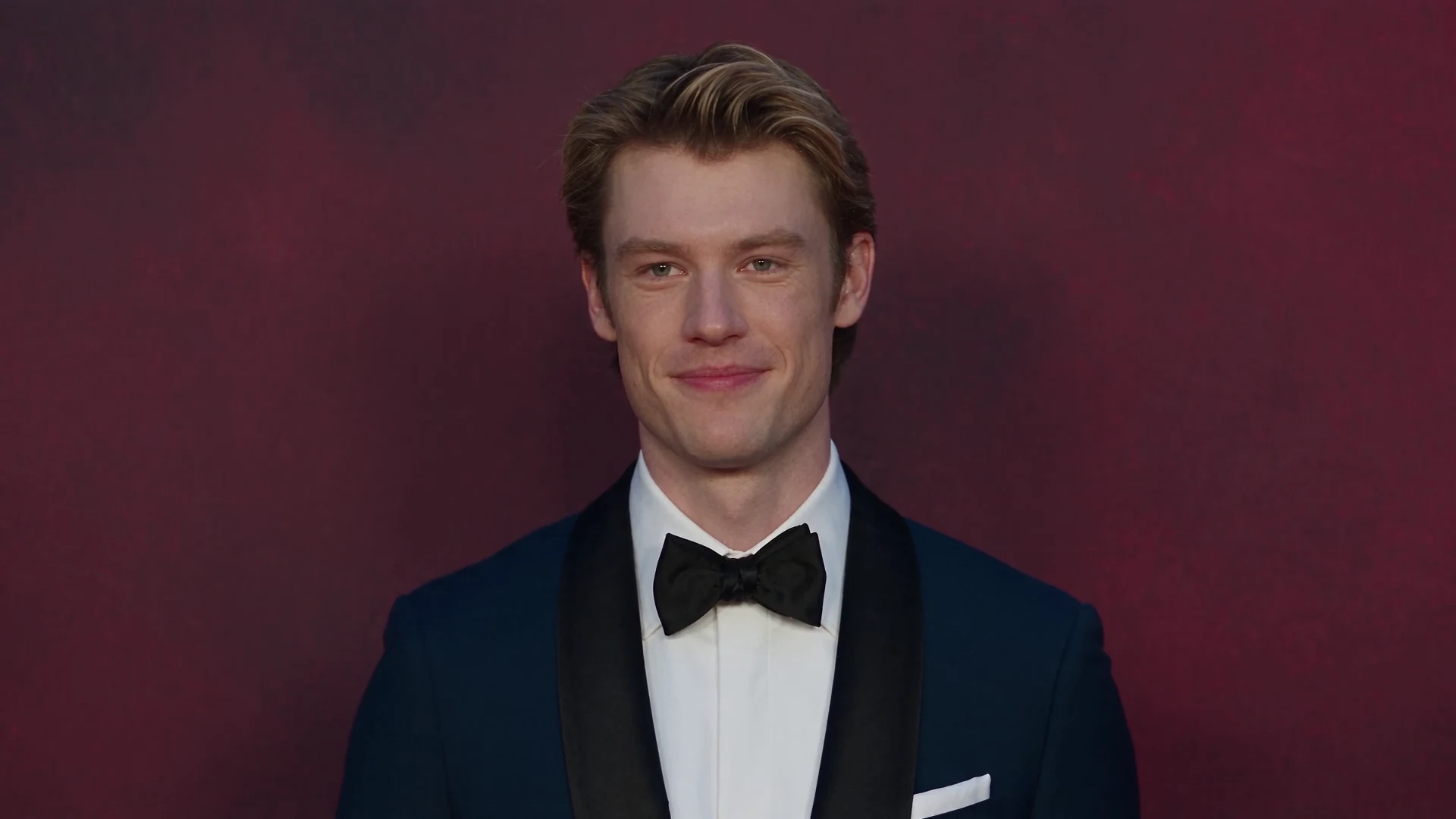
Original video
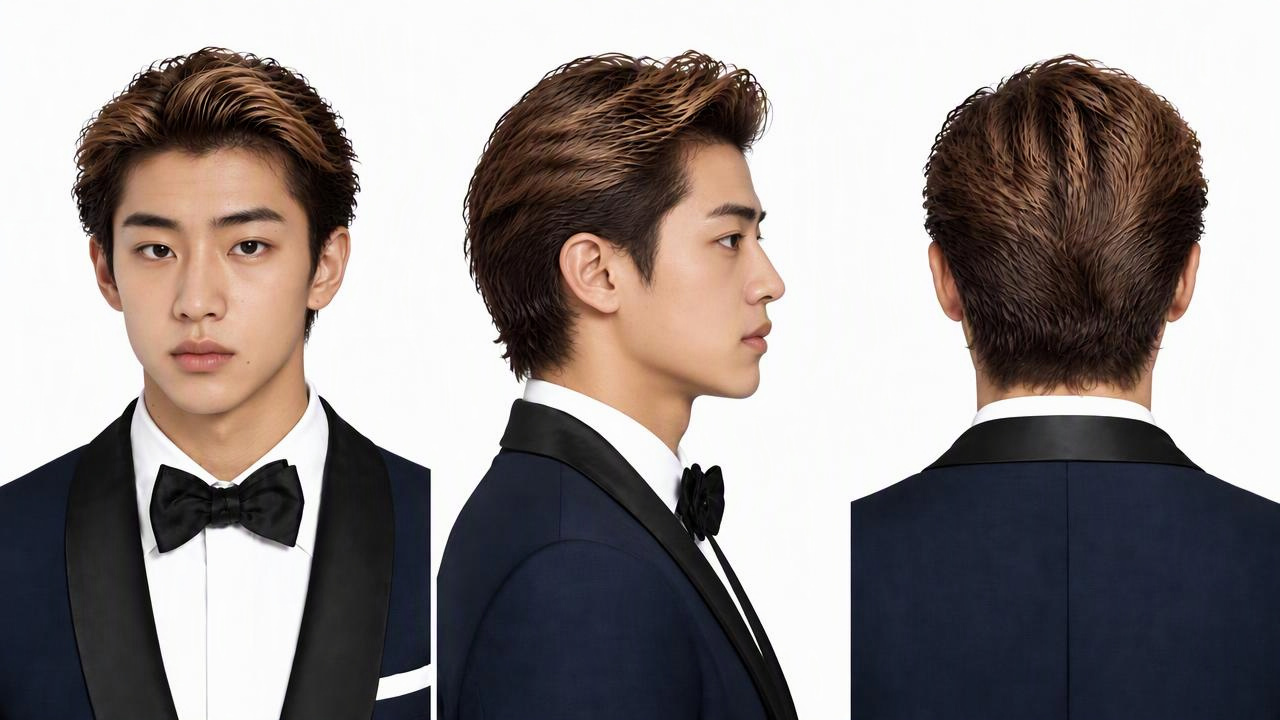
Replacement character
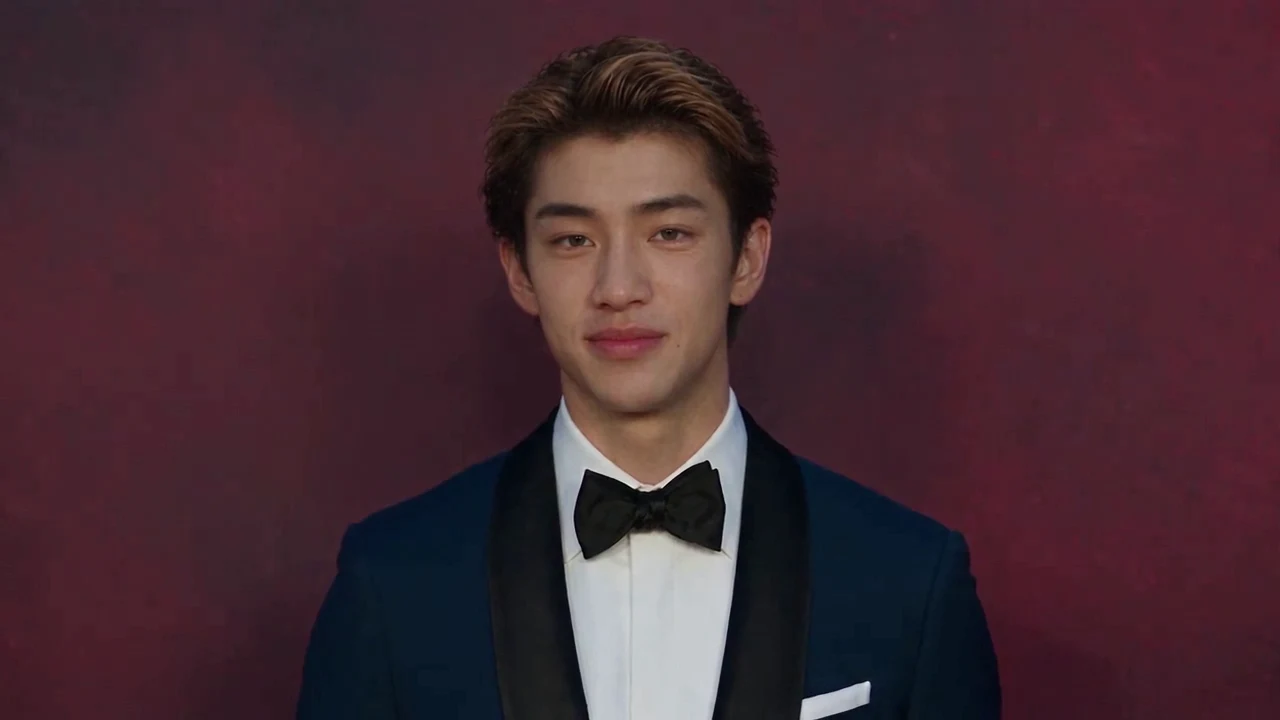
Swapped video
How to Make an AI Face Swap Video in OiiOii
1. Start in Free Creation
Open Free Creation to get started with your video.
2. Open Asset Swap
Right-click in Free Creation to bring up the tools menu, then choose Asset Swap.
3. Set the Face to Replace
Provide the reference face and specify which face you want to replace. Keep the other elements outside your replacement request.
4. Generate and Review
Run the swap, then review the new face throughout the video. Check it against your reference image as the subject turns and changes expression.
Give the New Face a Clear Reference
Make the Face Easy to See
Choose a sharp reference image with the face fully visible. Avoid heavy blur, deep shadows, or objects covering the eyes and mouth.
Be Specific About the Change
Identify the face you want to replace. Asset Swap preserves the elements you do not replace, so keep your request focused on the change you want.
Review More Than One Frame
Check the new face during head turns and changes in expression. Compare the result with your reference, paying attention to the eyes, mouth, and facial outline.
AI Face Swap Video FAQ
How do I make an AI face swap video in OiiOii?
Open Free Creation, right-click to open the tools menu, and select Asset Swap. Provide the face reference, specify the face to replace, and generate your result.
What video and reference image should I use?
Start with a video in which the face is easy to see and a clear reference image of the face you want to use. Well-lit, unobstructed faces make the replacement easier to assess. Use your own media or material you have permission to edit.
Is Asset Swap the same as replacing only the face?
Face swapping is one use of Asset Swap. For this workflow, specify the face as the element to replace. Elements outside your replacement request remain unchanged.
Will the original movement, background, and audio stay the same?
Yes. Asset Swap keeps elements you do not replace completely unchanged. When your replacement request is limited to the face, the original movement, background, and audio stay as they are.
How can I improve a face swap result?
Use a clearer reference image, avoid an obstructed face, and make your replacement request specific. Review the new face across the clip, especially during head turns and changes in expression, before deciding whether to adjust the input.
Your Next Scene, with a New Face
Start in OiiOii, then open Asset Swap from the Free Creation right-click menu to change a face and keep everything else.